

Animations CSS Templates
The speed and rhythm of an animation can change how an interface feels and responds to visitors. CSS animation templates provide a visual foundation for refining transitions, movement, and interactive states.
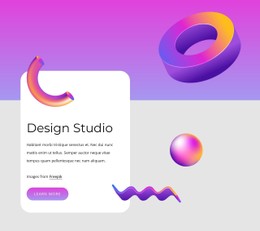
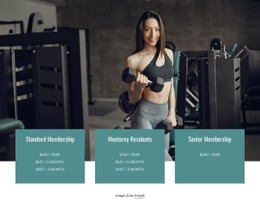
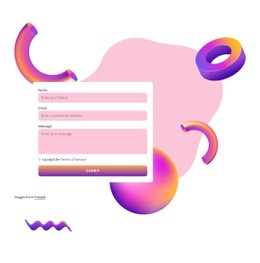
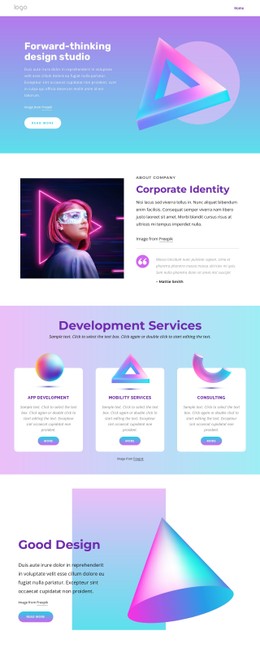




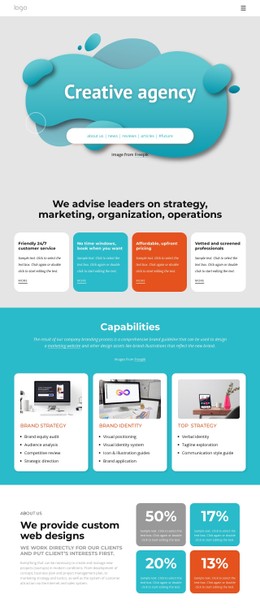
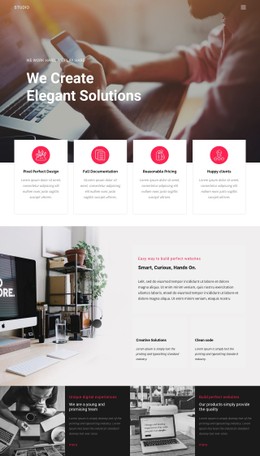
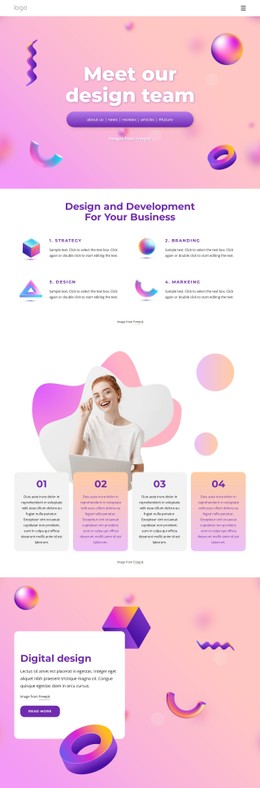

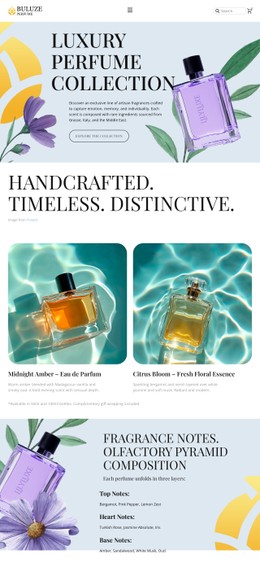



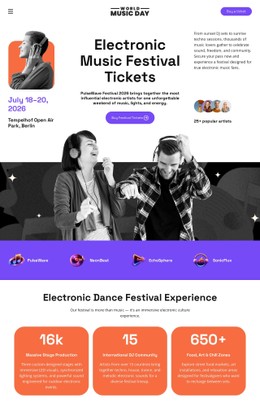


More Website & HTML Templates for Animations












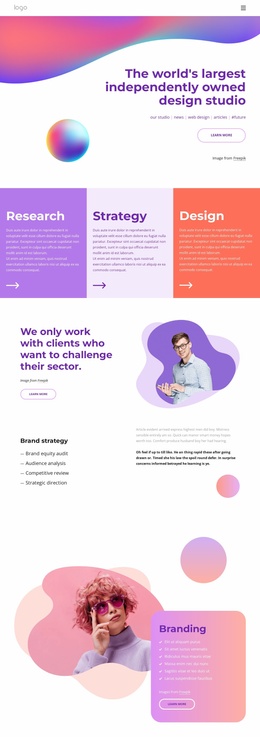
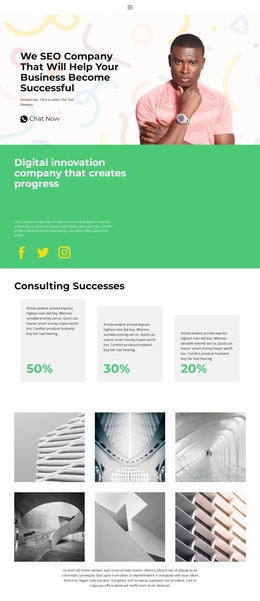
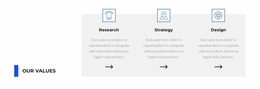
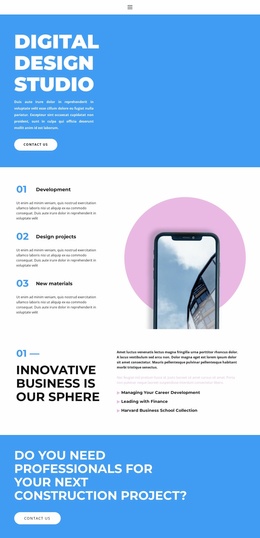


















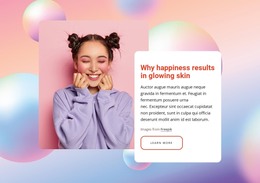

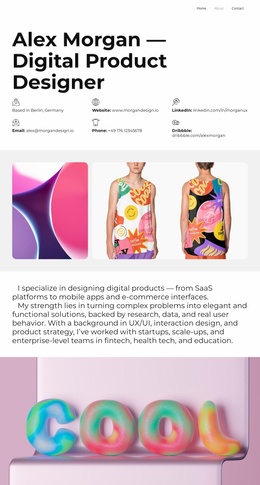
More CSS Templates from Art & Design Category
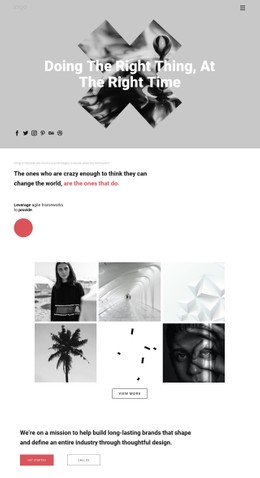



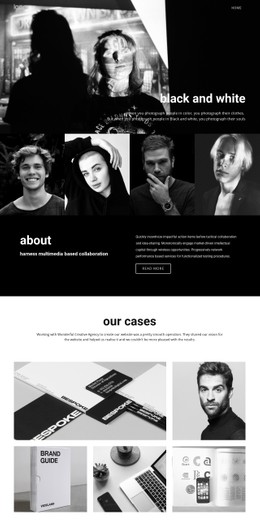
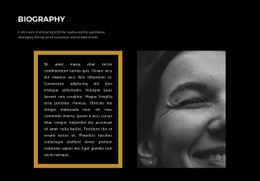


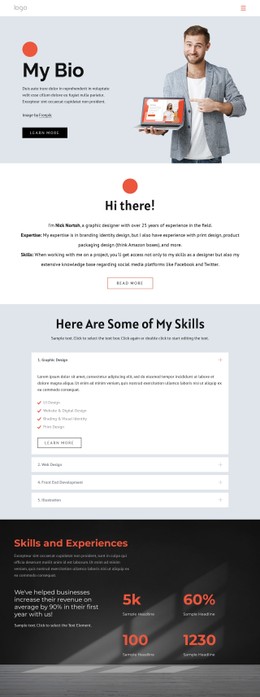
Other Art & Design CSS Templates
Precise Animations CSS Templates for Refined Interface Motion
Interface designers and frontend developers often need precise control over how buttons respond, images move, and graphical elements change. Nicepage's animation CSS templates are editable web templates with customizable visual styling. Adjustable motion properties help designers establish the right visual response for navigation elements, product interfaces, and interactive content.
Compare CSS Templates by Animation Style
Compare ready-made templates by the character of their existing motion before deciding whether you need custom CSS. Small adjustments to animation properties can significantly change an interface's character. A short transition can make a button feel responsive, while a longer movement can emphasize a notification or an expanding panel.
CSS transitions suit changes between defined visual states, such as variations in background color, opacity, or scale. Keyframe animations offer more control over sequences with multiple stages of movement.
Timing functions also shape an element's perceived behavior. An ease-out transition can give an expanding panel a natural finish, while linear movement may suit a continuously rotating decorative graphic.
Nicepage provides visual design settings for many common effects; developers can add custom CSS when those controls do not expose the required property. For example, a custom rule such as transition-duration: 240ms; transition-timing-function: ease-out; can adjust the pace and finish of a specific button transition. Verify that the selector targets only the intended component.
CSS Animation Styles for Interactive Elements
Different interface components require different motion patterns. To narrow your choice of ready-made CSS animation templates, compare the effects in their previews in this order:
- Shortlist layouts with the interface components your project needs.
- Compare the visible transitions between component states.
- Assess the pace and easing of the built-in effects.
- Look for coordinated movement where several elements appear together.
- Evaluate whether more elaborate keyframe effects suit your visual direction.
- Favor the template that needs the fewest custom styling adjustments.
Opacity transitions can give contextual tooltips a gentle visual entrance. If a preview includes these effects, assess more than transparency: an accessible tooltip also requires appropriate visibility management, keyboard-focus activation, and a programmatic association with its trigger.
Consistent timing across related components can make interface interactions feel more predictable. Favor templates whose existing motion suits the intended interaction and note any additional accessibility work needed.
Responsive CSS rules can also help adapt motion to different device capabilities. Hover-dependent effects require suitable alternatives on touchscreens, while reduced-motion media queries can limit unnecessary movement for visitors who prefer fewer animations.
Consider the performance characteristics of individual CSS properties as well. Animations based on transforms and opacity are often more efficient than effects that repeatedly change element dimensions and trigger layout recalculations.
Final Selection of an Animated CSS Template
After choosing a promising design, check its interaction quality and rendering behavior in this order. Treat keyboard states and reduced-motion support as features to verify, not assume; some designs may need additional customization.
- Open the preview and check whether interactive elements have usable keyboard and touch states.
- Resize the browser to check for overflowing animated elements.
- Enable reduced-motion preferences and identify effects that may need additional reduced-motion rules.
- Review the animated components for layout shifts and rendering smoothness.
- Confirm which accessibility or performance adjustments the selected design requires.
Choose an animations CSS template whose existing visual behavior fits your interface. Optional custom CSS lets you fine-tune the timing and visual response of selected components.