1380 Grid CSS Templates















































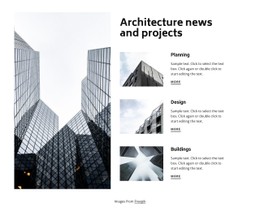



Grid CSS Templates for Flexible, Responsive Layouts
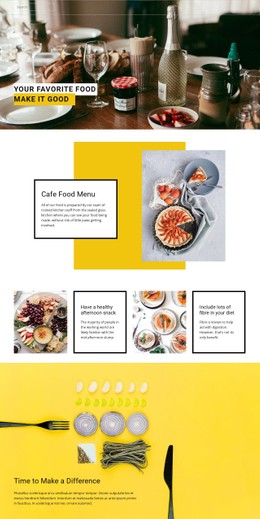
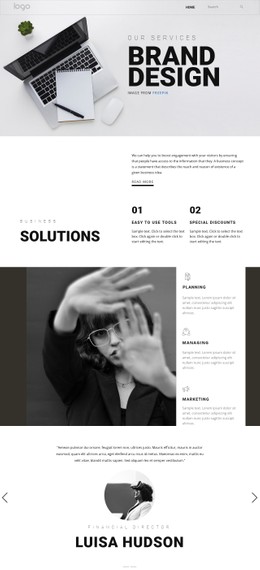
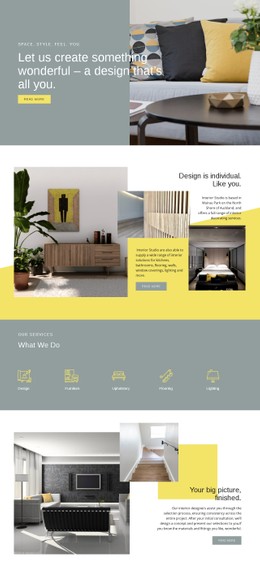
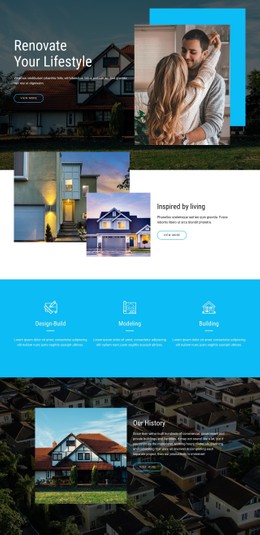
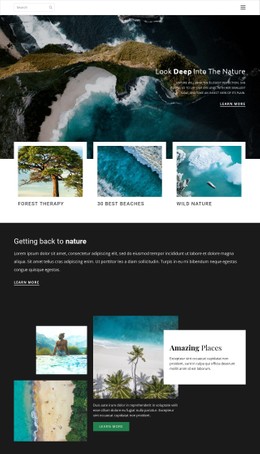
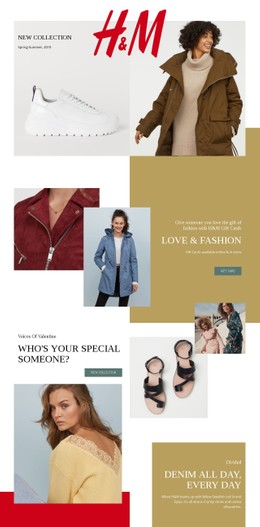
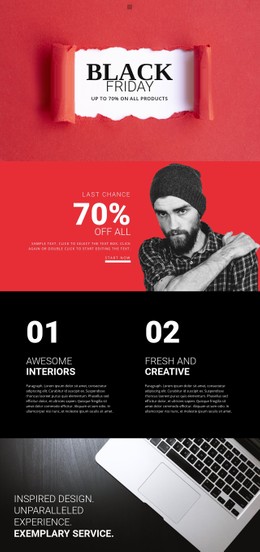
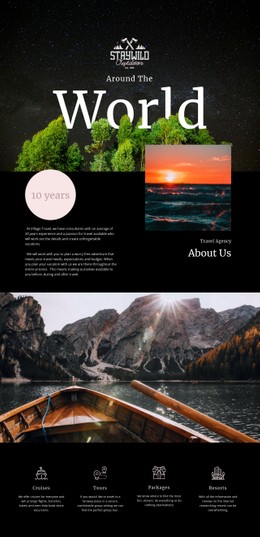
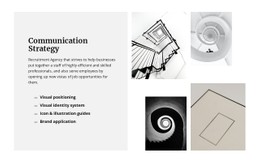
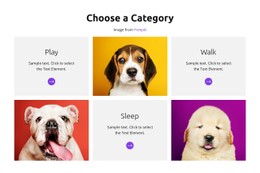
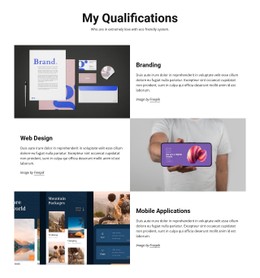
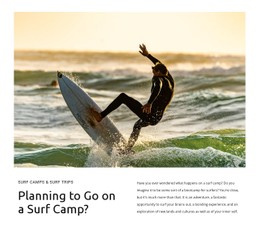
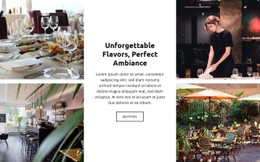
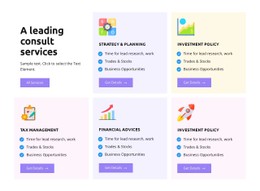
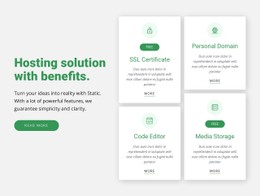
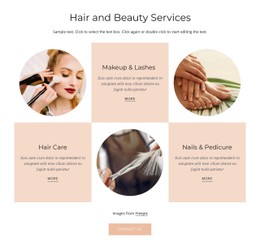
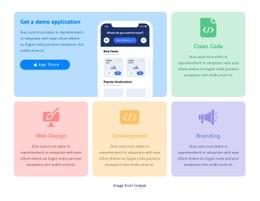
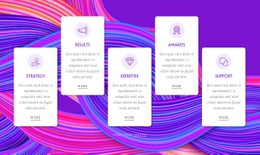
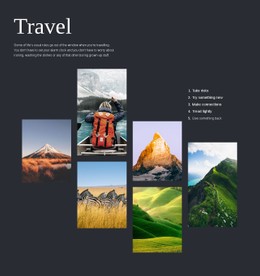
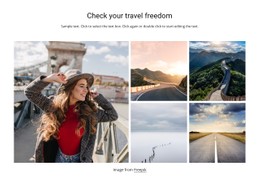
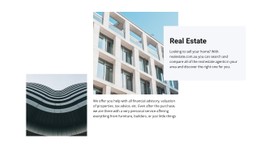
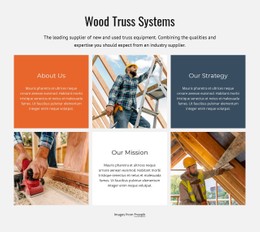
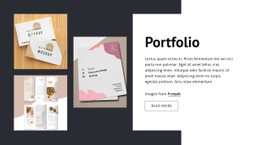
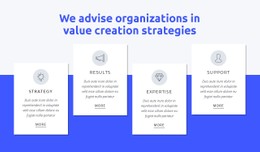
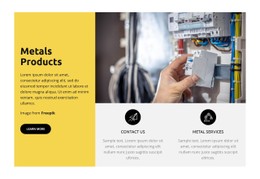
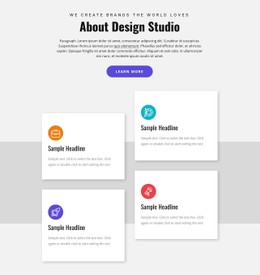
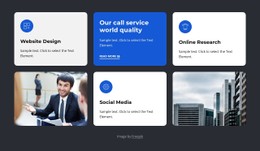
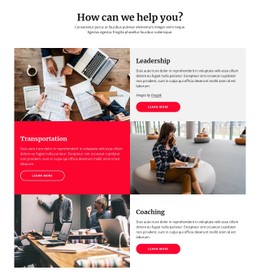
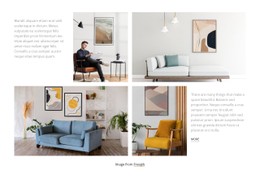
Two Grids can contain exactly the same cards and still feel completely different. One may keep three clean columns across the page, while another gives each card more room and rearranges them as the screen narrows. Grid CSS Templates help you explore those choices through ready-made layouts rather than starting with a blank page.
Compare Regular and Flexible Grid Layouts
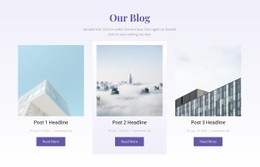
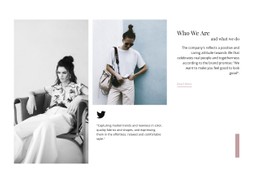
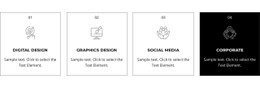
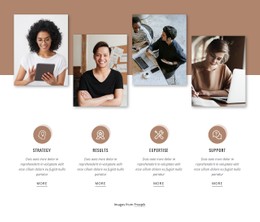
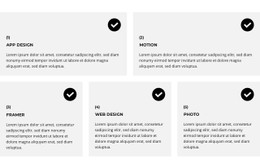
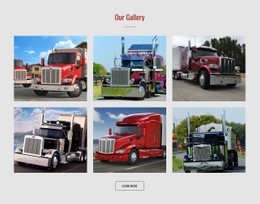
Picture a team page with six staff profiles. Each card has a portrait, a name, and a role. A regular layout with evenly spaced columns gives the section a steady rhythm. It works especially well when the images have similar proportions, and the descriptions are short.
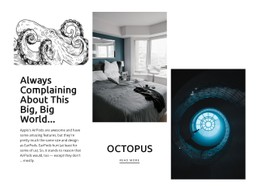
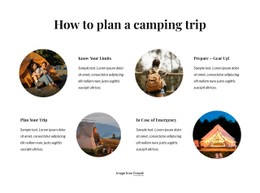
Now keep those same six staff profiles but give two people longer job titles. In a fixed three-column layout, the cards stay the same width, which can feel cramped as the screen narrows. A flexible arrangement gives each card a sensible minimum width and reduces the number of columns when needed. The content is identical; the behavior of the layout is not.
When comparing CSS Grid styles, look for three practical differences:
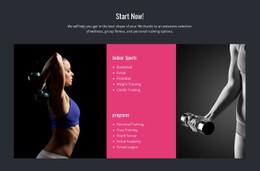
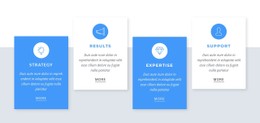
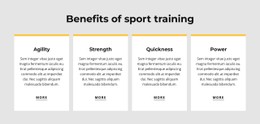
- Regular columns: A consistent pattern suits matching cards, thumbnails, or brief product summaries.
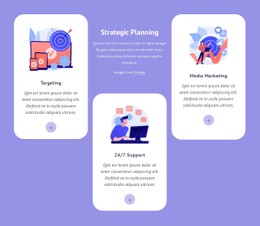
- Flexible columns: Cards can take up the available room without becoming uncomfortably narrow.
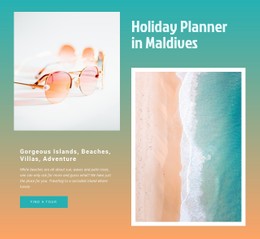
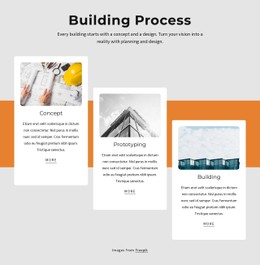
- Responsive arrangements: The section moves to fewer columns when a smaller screen no longer has space for the original layout.
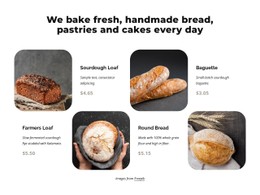
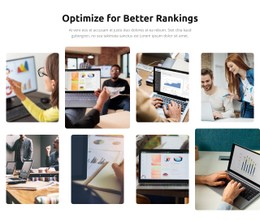
Neither approach is universally better. A photo gallery and a text-heavy card collection shouldn't have to share the same column rules.
What Makes a CSS Grid Adapt to the Screen?
The CSS behind a layout sets column widths, the spaces between cards, and the points at which the arrangement changes. In CSS Grid, grid-template-columns describes the column pattern and gap sets the spacing. Functions such as repeat() and minmax() can support flexible widths, while auto-fit helps cards use the available space. Media queries can change the arrangement at a particular screen width. These are useful ideas to recognize when assessing a template, not settings you must code by hand in Nicepage.
You are choosing a ready-made visual Grid layout, not necessarily a separate CSS code snippet. What matters during selection is how the cards behave with real content. If long job titles become cramped on a phone, a design with flexible columns is probably the better starting point.
Style the Cells Without Losing Clarity
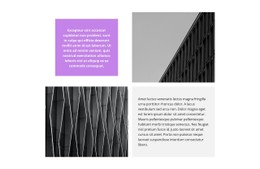
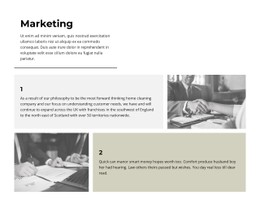
Once the columns feel right, look at the smaller details. A narrow gap can make a gallery look continuous, but the same spacing may make service cards run together. A soft background can separate a text card without requiring a heavy border. And consistent space inside each card gives headings room to breathe.
A useful test is to replace the sample text in two neighboring cells with very different lengths. If one card becomes difficult to read, revisit its width and spacing before cutting useful information.
Customize a Ready-Made Design in Nicepage
With the Nicepage Grid Element, you can adjust rows, columns, proportions, and gaps visually. This is often enough to get the result you want, particularly when you are adapting a prepared Grid section rather than building a layout from scratch.
For styling needs beyond those controls, Nicepage also supports Custom CSS. Think of it as an additional option, not a step every template requires. Custom CSS is visible in Preview or on the published page, so check its effect at several screen widths before you finish.
Grid CSS Templates FAQ
Can I customize a Grid CSS template without writing CSS?
Yes. Nicepage provides visual controls for the Grid's columns, rows, cell sizes, and spacing. Custom CSS is available when the built-in settings are not enough.
How do I keep Grid cards readable on mobile?
Choose a layout that allows cards to become wider or move into fewer columns on narrow screens. Check it using your longest headings and actual images.
Should every Grid cell have the same background?
Not necessarily. Matching backgrounds create a uniform look, while a different background can draw attention to a featured card. Use the contrast intentionally.
When would I need Custom CSS in Nicepage?
Use it when your project calls for a specific effect or layout adjustment that the regular Grid settings cannot provide.
Why can't I see my Custom CSS changes while editing?
Nicepage shows the result of Custom CSS in Preview or after publishing, rather than directly inside the editing workspace.
Choose the Layout That Fits Your Content
Browse regular and flexible Grid CSS designs, then pick the one that keeps your cards clear at different screen widths. A good starting layout should need only modest adjustments, not a complete rebuild.