300 Gallery CSS Templates


























































































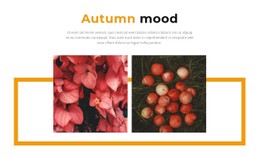







Gallery CSS Templates With Ready-Made Visual Styles
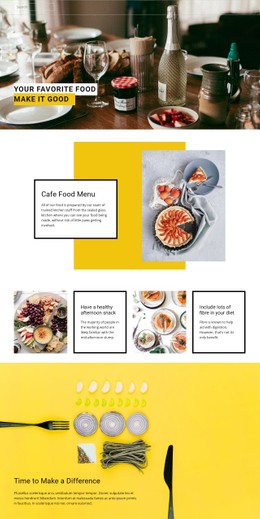
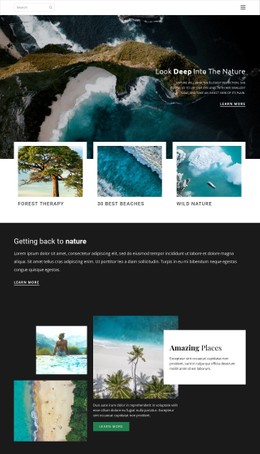
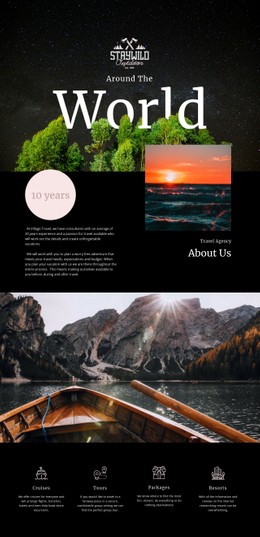
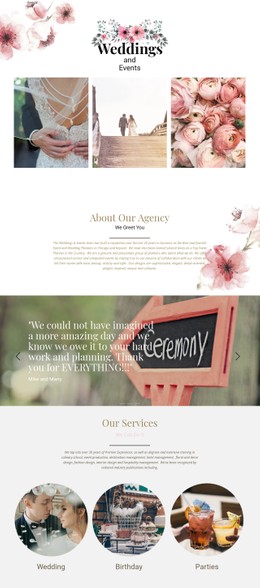
Gallery CSS Templates help you choose an already styled Gallery section, whether you prefer a restrained image grid, more expressive spacing, or a layout with visible captions. These are visual decisions about finished designs, not exercises in writing stylesheets.
A minimal portfolio may benefit from a calm, regular rhythm. A creative showcase can use varied image sizes for a more editorial feel. Browse the compositions for their overall impression before considering any optional refinements.
Compare the Finished Styles of Gallery Sections
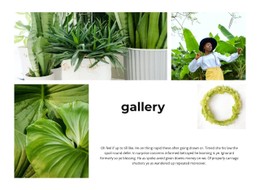
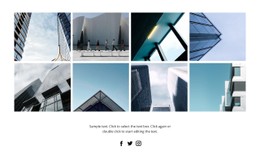
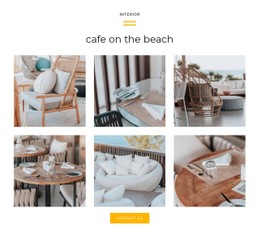
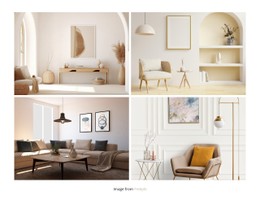
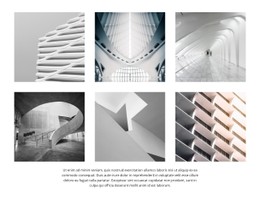
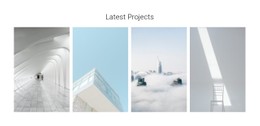
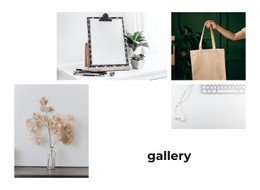
Gallery CSS Templates can look airy and minimal or compact and image-rich, depending on spacing and proportion. Some ready-made designs place photographs in an orderly rhythm; others mix sizes for a stronger editorial effect. Caption treatments also change the impression, especially when the images require names or brief descriptions.
- Generous gaps make individual photographs more distinct.
- Tighter arrangements communicate a larger collection at once.
- Subtle hover treatments can add visual response where a selected design supports them.
The Image Gallery Element provides the image-focused collection. Choose a ready-made style that suits the photographs before considering any optional styling refinements.
Keep Gallery Styling Consistent Across Screen Sizes
A spacious gallery arrangement on desktop may become too fragmented on a narrow screen. Large gaps, prominent captions, or elaborate hover treatments can change the balance between photographs when the available width decreases.
Review image spacing, caption readability, and visual hierarchy as the layout adapts. The collection should remain recognizable even when images occupy fewer columns.
Gallery differs from Layered Images because it emphasizes browsing separate media items rather than forming one overlapping composition. A Grid can align mixed content, but Gallery styling is driven by the relationship between photographs, captions, and image interactions.
Gallery CSS Templates FAQ
Can I adjust spacing between Gallery images in Nicepage?
Yes. The Nicepage Image Gallery Element includes a Gap property for controlling spacing between images. You can adjust this setting through the Gallery properties without writing custom CSS.
Can I add custom CSS to a Gallery section?
Yes. Nicepage supports custom CSS for individual elements and pages. You can assign CSS classes and add styling rules where needed. Test custom CSS in Preview because it doesn't run directly in the editor.
Can I style captions and hover effects in a Gallery?
Yes. Nicepage provides caption and hover-effect options for supported Gallery layouts. The available text styling properties include options for caption backgrounds, spacing, and visual effects.
Should a Gallery use the same spacing on desktop and mobile?
Not necessarily. Gallery spacing should suit the number of visible images and the available screen width. Nicepage supports responsive Gallery presentation, so review how image gaps, proportions, and captions appear on smaller screens before finalizing the section.
Refine Your Gallery CSS Design in Nicepage
Choose a Gallery block that matches the photographs you want to display. Replace the sample images, establish consistent gaps, refine caption styling, and review the available hover effects.
For additional styling needs, Nicepage documents Custom CSS as an optional feature. Keep the final design focused on making the image collection clear, balanced, and easy to browse rather than adding visual effects that compete with the content.