
To make your website even more unique or to expand existing Nicepage features, you can add custom CSS to individual elements, the Nicepage page, or the whole website.
Element's Custom CSS
Navigate to the element and assign an individual class to this element:
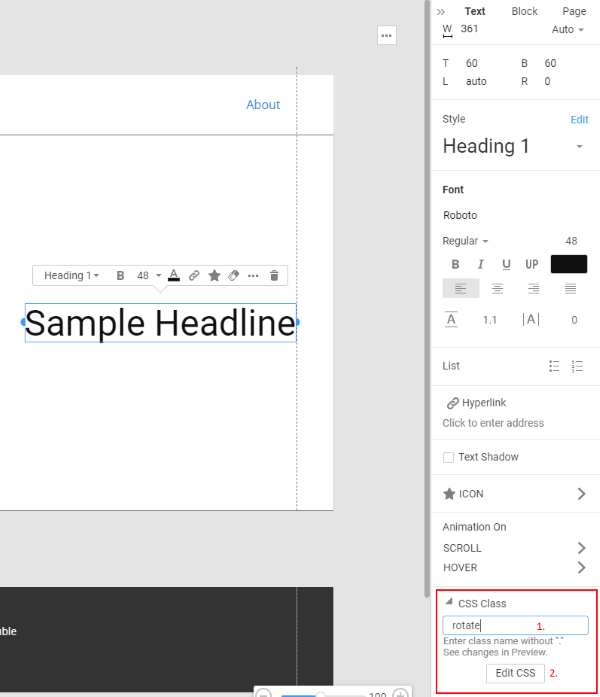
Click Edit CSS and paste custom CSS properties for this element:
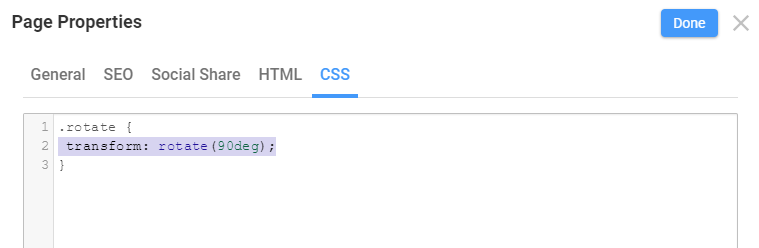
Page's Custom CSS
Add custom CSS to the individual Nicepage page to affect various elements. Open Page Settings under the right-side properties panel >> CSS tab >> and paste custom CSS.
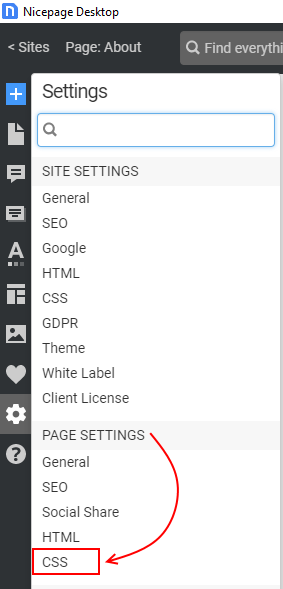
The page-specific CSS will not affect other website pages.
Site's Custom CSS
You can also add custom CSS that will be applied to all website pages, including Nicepage pages and CMS pages. Open Site Settings >> CSS tab and paste custom CSS.
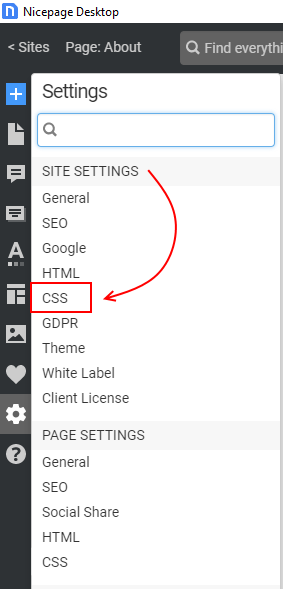
To add custom CSS to the CMS theme, add it under Site Settings, export the theme, and reinstall it on your website.
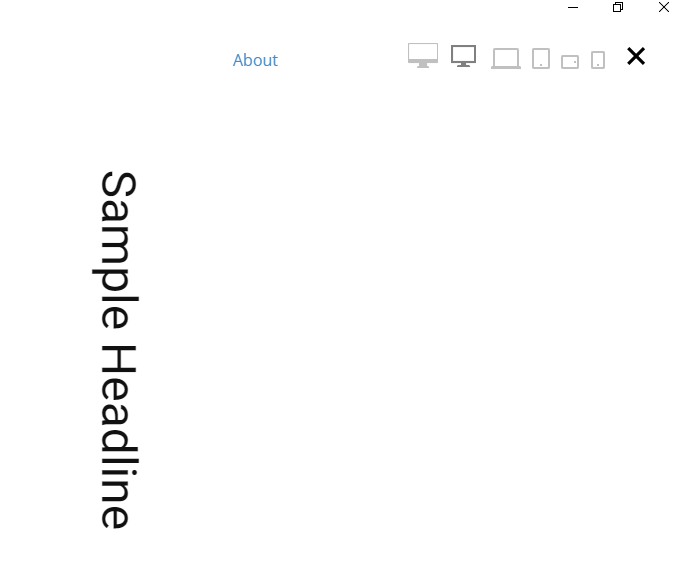
NOTE: Nicepage does not execute custom CSS inside the editor to avoid possible conflicts. But you will see the result in the page preview.
NOTE: Some user-supplied custom CSS code may interfere with or conflict with Nicepage and cause issues such as an inability to use Nicepage to edit fonts or other styling options, misaligning elements, or wrong styles applied. If you encounter any of these issues, save your custom CSS code in a safe place, temporarily remove it from Nicepage, and check whether it is causing the problem.