Table WordPress Themes
-
-

-
-
-
-
-
-
-
-
-
-
-
-
-
-
-
-
-
-
-
-
-
-
-
-
-
-
-
-
-
-
-
-
-
-
-
-
-
-
-
Free Website Builder SoftwareDownload
-
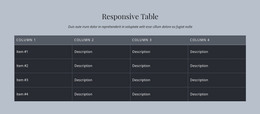
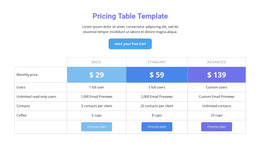
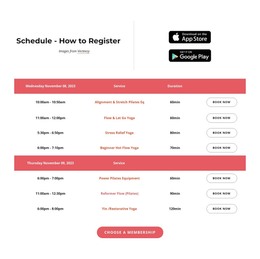
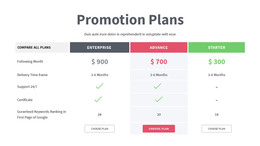
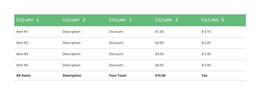
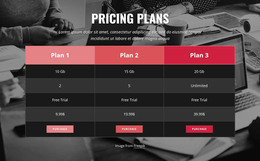
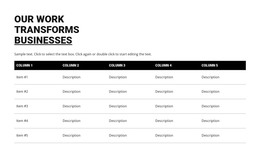

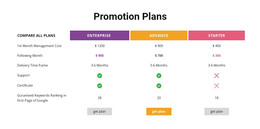

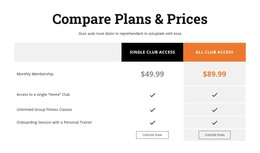
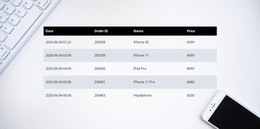
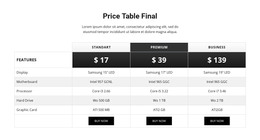
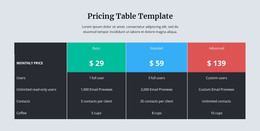
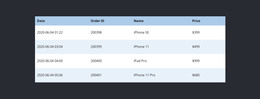
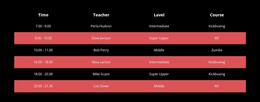
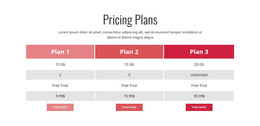
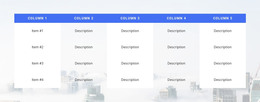
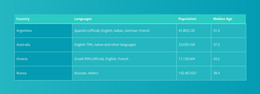

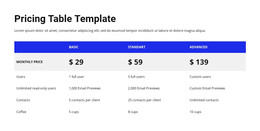
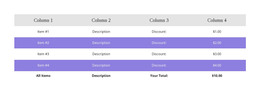
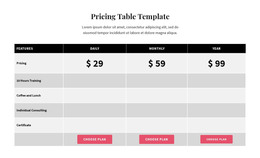
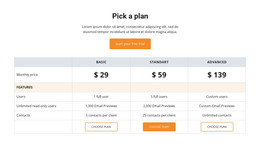


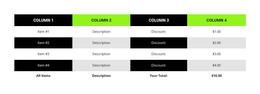


Professional Table WordPress Themes for Structured Content Editing
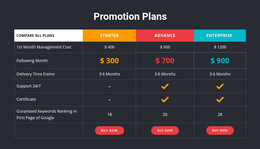
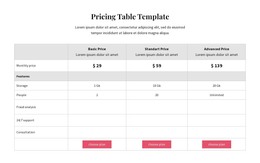
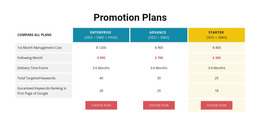
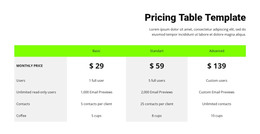
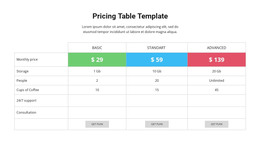
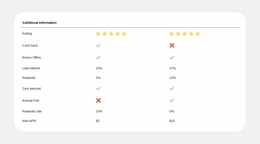
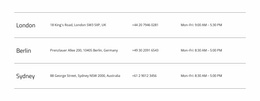
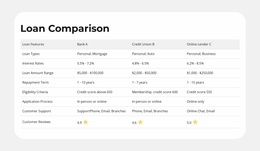
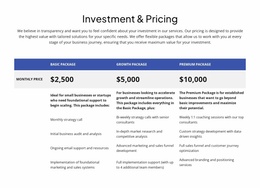
Table WordPress Themes bring ready-made table sections into Nicepage-oriented WordPress designs. A schedule, feature comparison, or specifications block can share the theme's typography and colors while adding a clear factual reference area to the page.
Choose the layout as part of a coherent WordPress page design, not as an isolated collection of cells. The number of columns, level of contrast, and section width should suit both the content and the surrounding theme.
Select a Table Design for a WordPress Theme
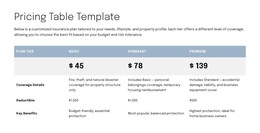
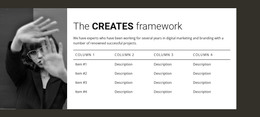
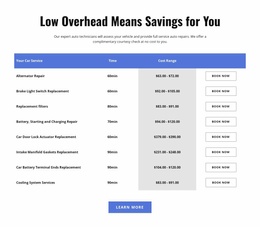
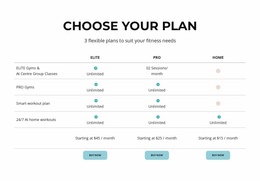
Compare ready-made tables by how they complement specific WordPress page styles. A minimalist table with fine dividers suits an editorial article or blog layout. A compact specification block may work within a service page's narrower content column. A wider feature table with clear headers is better suited to product information that needs side-by-side comparison.
When selecting a design, consider:
- Content-area width within the WordPress theme.
- Type size and row density alongside the theme's text styling.
- Divider and heading contrast relative to neighboring sections.
- The number of attributes readers need to compare.
A prepared Table section should complement the theme's character without overwhelming the information surrounding it.
Choose Styling That Complements the Theme
Look first at the ready-made table's typography, header colors, row spacing, and separation lines. Editorial themes often suit quiet borders and generous readability; denser product layouts may benefit from clearer column boundaries. A strong heading treatment can help visitors scan a long set of attributes.
The Table Element in Nicepage supports focused adjustments after the design is chosen. Horizontal scrolling is available for wide tables in responsive modes. The preferred design already feels compatible with the WordPress theme's content width and visual rhythm.
Use the Nicepage WordPress Workflow
The Nicepage WordPress Plugin supports Nicepage-created pages in compatible self-hosted WordPress installations. It does not automatically edit content from WordPress's default editor. Full project export uses the Desktop Application or Online Builder rather than the plugin.
These distinctions help determine where a chosen ready-made Table section can be used, while its layout, spacing, and suitability for the theme remain the primary selection factors.
Keep the Table Consistent With the WordPress Theme
A WordPress page may combine a Table with articles, images, or product information. Use a ready-made design where specific facts need comparison, and allow the theme's headings and spacing to frame the section.
A table is most useful as part of the page's informational content. It need not imitate a Grid of promotional cards or a Pricing selection panel.
Table WordPress Themes FAQ
Can I edit a Table section directly in WordPress?
Yes. The Nicepage WordPress Plugin allows you to edit Nicepage-created pages directly in a supported self-hosted WordPress installation. You can modify the Table section through the Nicepage editor and save the updated page content.
Can I add more rows and columns to an existing Nicepage table?
Yes. The Nicepage Table Element supports adding, removing, moving, and resizing rows and columns. You can modify the structure as your specifications, schedules, or reference information change.
Does Nicepage work with WordPress.com?
No. Nicepage supports self-hosted WordPress CMS installations rather than WordPress.com. You can use the Nicepage WordPress Plugin and supported theme or content installation workflows with a compatible self-hosted website.
Can I export a Nicepage project from the WordPress Plugin?
The Nicepage WordPress Plugin does not support full project export. Project export and import are available through the Nicepage Desktop Application and Online Builder. Individual blocks can be exported through supported Nicepage workflows.
When is a Table better than a Grid in WordPress content?
Choose a Table when readers need to compare factual values under shared row and column headings. A Grid works better for independent cards, images, or content summaries. The Table Element is designed for structured information such as schedules, specifications, and comparison records.
Add a Structured Table to Your WordPress Project
Begin with the factual information your visitors need to compare. Choose a Table block in Nicepage, replace its sample content, and refine the headings, rows, column dimensions, and cell formatting.
In a supported WordPress workflow, incorporate the section into your Nicepage-created page and review the result before publication. A clear table makes detailed information easier to maintain, locate, and compare without complicating the surrounding page layout.