Product List WordPress Themes
-
-

-
-
-
-
-
-
-
-
-
-
-
-
-
-
-
-
-
-
-
-
-
-
-
-
-
-
-
-
-
-
-
-
-
-
-
-
-
-
Free Website Builder SoftwareDownload
-
-
-
-
-
-
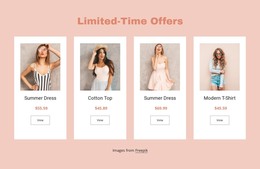
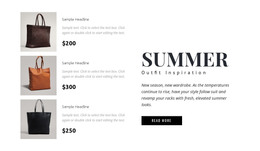
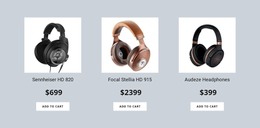
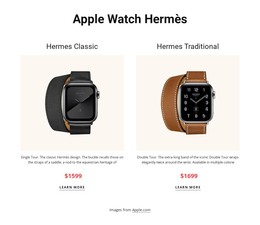
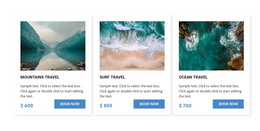
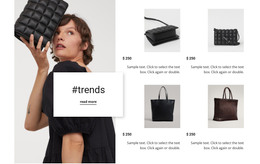
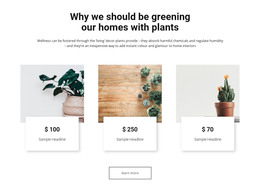


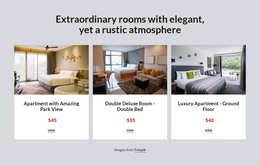
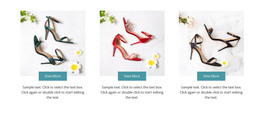
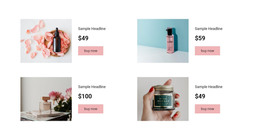
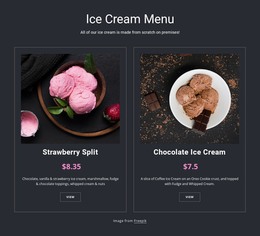
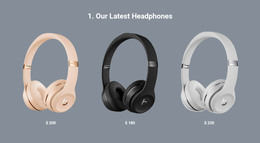
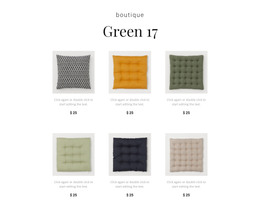


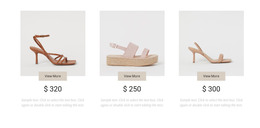
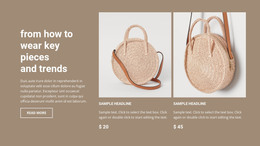
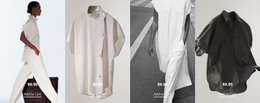
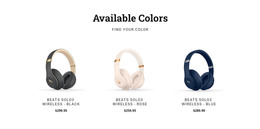
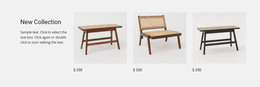
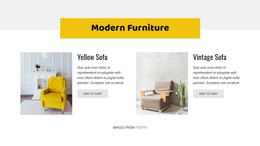
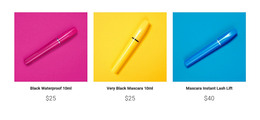

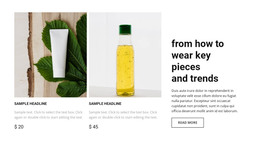
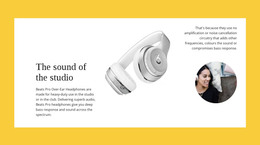

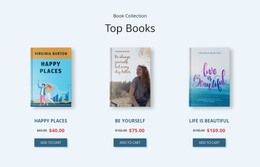
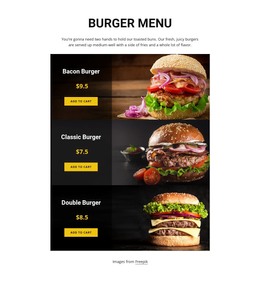
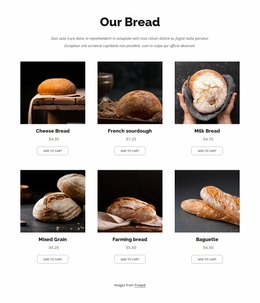
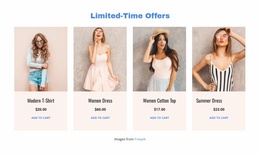
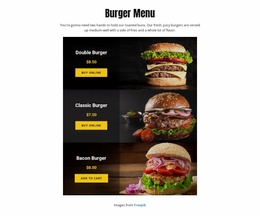
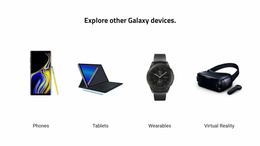
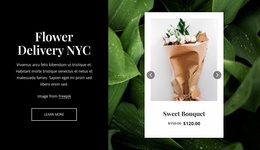
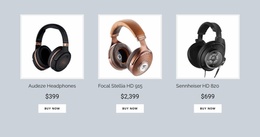
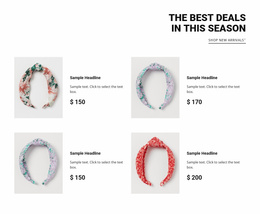
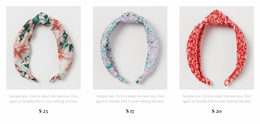
Customizable Product List WordPress Themes for WooCommerce Collection Integration
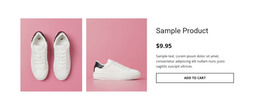
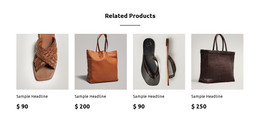
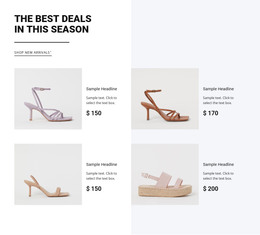
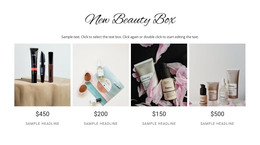
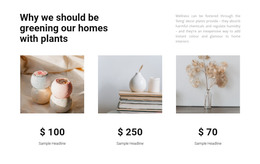
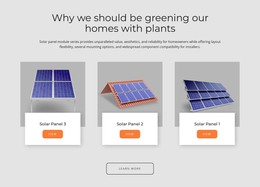
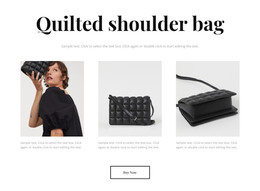
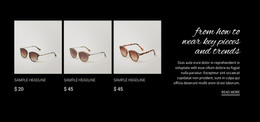
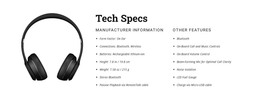
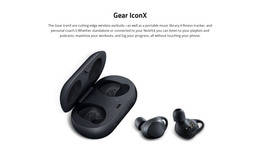
Product List WordPress Themes help organize merchandise into a browsable section where visitors can examine several products without opening each one individually. Images, names, prices, and product actions appear in repeated entries, creating a consistent browsing structure. Within a WordPress project, the section can display a selected product collection and connect to WooCommerce through supported Nicepage features.
How Does a Product List Work Within WordPress?
A Product List section displays multiple merchandise entries inside a page block. Each entry groups the information needed for basic product comparison, allowing visitors to identify relevant items and move toward individual product details.
In WordPress, this structure is useful for featured collections, category introductions, selected merchandise, and related product displays. The section gives shoppers access to product information without requiring every page to function as a complete catalog.
Nicepage provides a Product List Element that can be added to page blocks. It supports products from the Nicepage Products Panel or a CMS product source, depending on the configured workflow.
Responsive Product Cards for Consistent Merchandise Browsing
Before adjusting presentation, test the listing with genuine WooCommerce-style product data: items with longer names, sale prices, and different images. Choose a readable Grid or Slider arrangement, then review spacing at tablet and phone widths. Product cards should remain useful when catalog content changes; they should not depend on identical sample text.
Nicepage's Product List Element supports repeated product content, layout settings, and device-specific adjustments. These are presentation controls, separate from the WooCommerce catalog and its product records.
Connecting a Product Collection to WooCommerce
For a WordPress shop, the key choice is which source fills the product collection. A Nicepage Products Panel selection suits editor-managed merchandise. A CMS Product Source is the documented route for displaying products from the supported WooCommerce environment.
A practical setup can be organized in stages:
- Prepare WooCommerce: Check product names, images, prices, availability, and category assignments.
- Import the supported theme and content: Complete the applicable Nicepage WordPress integration steps.
- Configure the Product List Element: Select the CMS product source where appropriate and apply the available collection filters.
- Verify the results: Confirm that the expected items appear and that product buttons lead to the intended details or shopping action.
The Product List Element documentation describes sources and filters. The WordPress e-commerce guide covers the integration process.
Do not confuse this block with a catalog-page template. Nicepage's Product List Page Template has a separate role in theme-based product listing output. For a broader WooCommerce site, distinguish selected products on a content page from a dedicated shop listing.
Product List Sections Versus Product Details Templates
Three layers have different editing responsibilities in a WordPress project. The WordPress Theme governs shared template presentation; its Nicepage theme templates are changed in the Desktop Application and transferred by the supported workflow. The Product List Page Template handles a dedicated catalog-page view. The Product List Element is a collection placed inside an editable page block and configured in the Nicepage editor.
A product button can lead from that collection to an individual product page. Check the destination against the live WooCommerce setup rather than assuming the repeated card itself contains the complete product experience.
Frequently Asked Questions About Product List WordPress Themes
Can I display WooCommerce products in a Nicepage Product List?
Yes. Nicepage supports WooCommerce product display through the CMS Product Source. The Product List Element can be configured in the Nicepage editor to display products from the connected WordPress e-commerce environment.
Is the Product List Element available in every Nicepage plan?
No. According to Nicepage documentation, using the Product List Element with WordPress or Joomla requires a Pro or Ultimate plan. Plan availability should be checked before selecting a product collection workflow.
Can I edit a Nicepage WordPress theme directly inside WordPress?
Nicepage WordPress theme templates cannot be edited directly inside WordPress. Theme template changes are made in the Nicepage Desktop Application and applied through the supported export and import process. Page blocks using the Product List Element can be edited through the Nicepage WordPress editor.
What should I verify after connecting WooCommerce?
Check which products were selected, whether filters return the intended collection, and whether every product action leads to the correct WordPress destination.
What should I check before finalizing this product collection?
Review the section using realistic product names, prices, images, and links. Check both desktop and mobile layouts before publishing.
Add a Product Collection to Your WordPress Project
Select a Product List block with an appropriate merchandise arrangement, then open it in the Nicepage editor. Adjust the images, text hierarchy, and card layout, configure the supported product source, and integrate the section into your WordPress project. If WooCommerce products are required, follow the documented theme and content workflow so the collection displays the intended merchandise.