Blog Posts WordPress Themes




Responsive Blog Posts WordPress Themes for Editorial Listings and CMS Content
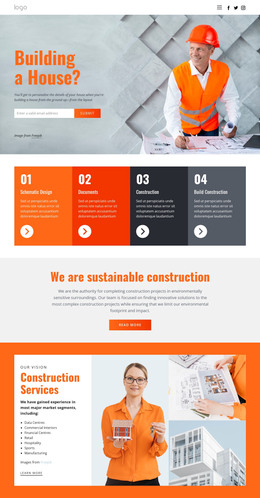
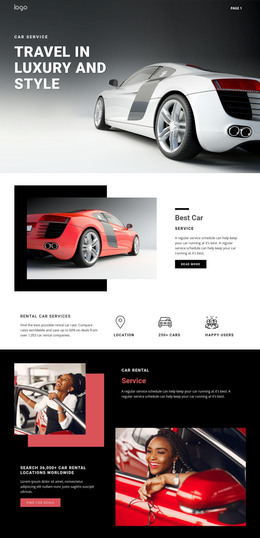
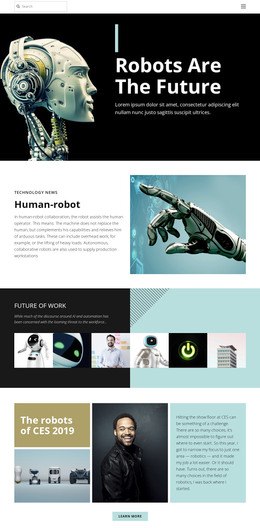
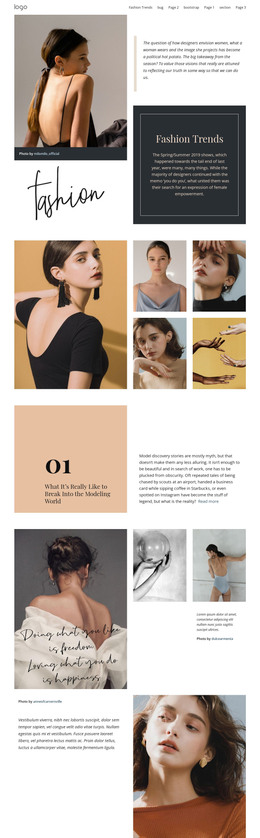
Blog Posts WordPress Themes help present published WordPress articles within a coordinated site design. A theme can bring together a homepage feed, category archives, and individual post pages; the Blog Posts section gives readers a convenient entry point through article previews and links to full stories.
How Does a Blog Posts Section Help Readers Find Articles?
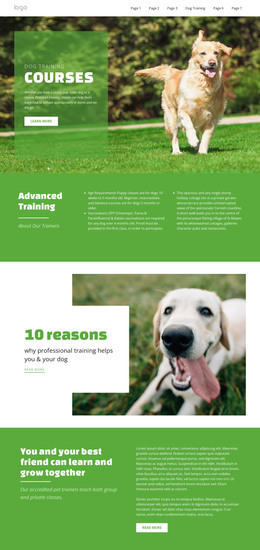
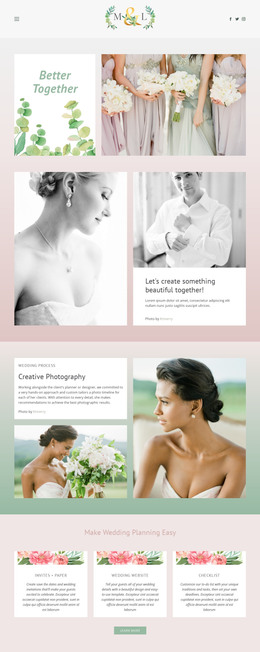
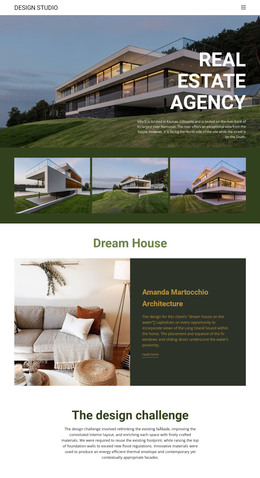
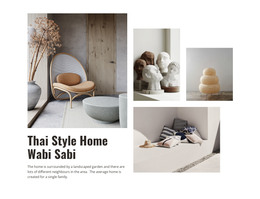
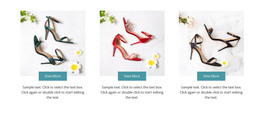
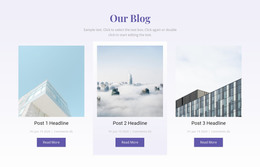
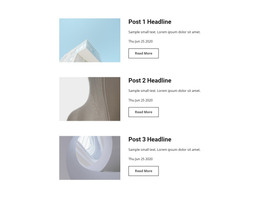
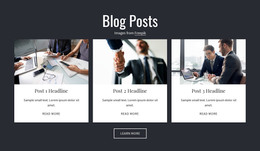
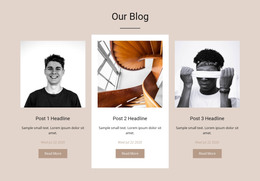
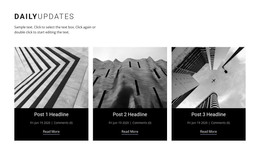
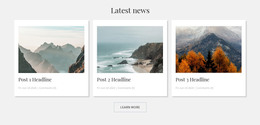
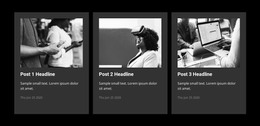
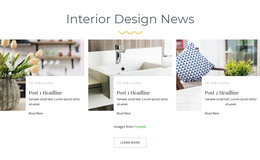
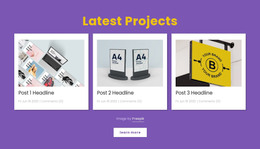
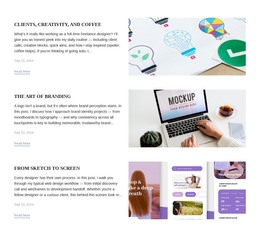
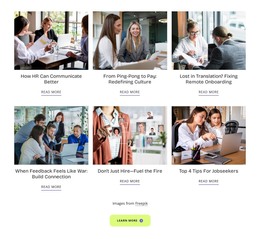
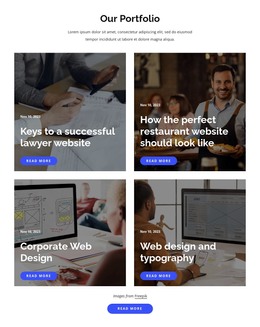
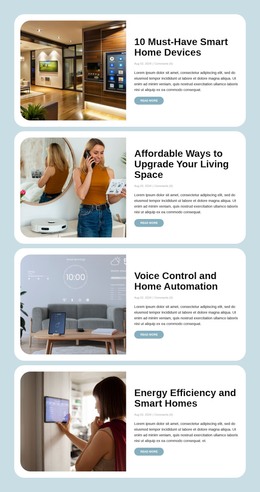
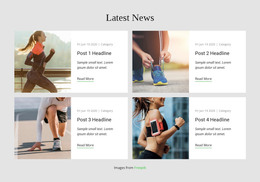
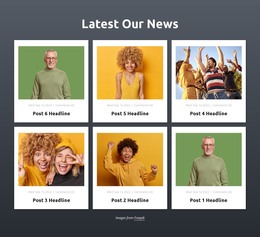
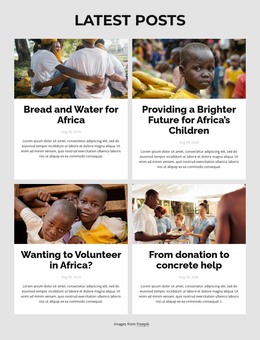
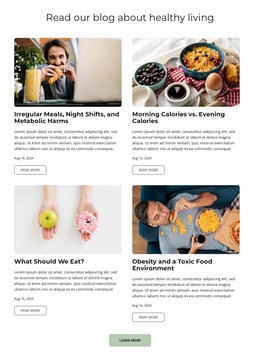
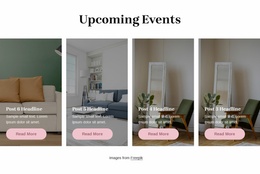
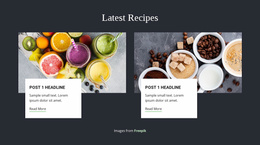
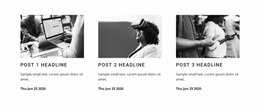
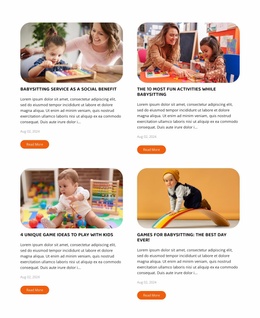
A Blog Posts section presents recurring editorial entries in a structured list or feed. Each preview gives readers enough information to decide whether to open an article. Titles identify the topic, images provide visual context, and excerpts introduce the story, while publication details help distinguish individual posts.
This format works particularly well for recent articles, featured stories, news updates, and related reading sections.
Unlike a general Grid, which can arrange almost any collection of items, a Blog Posts block follows an editorial content model. Each repeated entry represents a published article, not an interchangeable visual card.
Essential Elements of a Clean Blog Posts Layout
Inside a WordPress-oriented design, the Blog Posts preview still has a specific job: show a readable headline, a featured image where useful, and an excerpt that explains the story without reproducing it. Dates or categories give readers context; a consistent Read More link takes them to the full post. Check the feed with real article titles rather than identical sample content.
For a theme with category archives, review the preview style on both the homepage and a category listing. The cards should remain recognizable even when the archive contains more entries.
Plan the Blog Experience Within a WordPress Theme
A WordPress blog is more than a row of recent posts on a homepage. Before adapting a Blog Posts section, check how the homepage, category archives, and individual article pages work together. A homepage can introduce three current stories, an archive can help visitors browse a larger category, and the single-post view needs a comfortable reading width and useful onward links.
In Nicepage, the Blog Posts Element arranges article previews within a section; it does not, by itself, create the complete WordPress theme. The Nicepage WordPress Plugin supports editing in WordPress, while theme export is handled through the Desktop Application or Online Builder.
When evaluating a WordPress-oriented design, check:
- Theme compatibility: confirm that the intended WordPress workflow supports the content you need to show.
- Archive and category navigation: make sure a reader can move beyond the homepage preview.
- Responsive behavior: inspect headlines, images, and links on narrow screens.
- Post management: decide how newly published content will appear and whether category filtering is needed.
For a magazine site, a prominent featured story followed by category groups may fit; blog layouts offer examples of these editorial arrangements. A company blog often needs a quieter recent-articles strip plus a clear route to its full archive. Choose the structure based on the actual publishing pattern, not just an attractive screenshot.
Choosing a Blog Posts Layout for Better Editorial Navigation
Start with the blog feed and category archive you actually need. A compact listing makes frequent updates easy to scan, while a featured-story layout gives a major article more weight. Compare how the theme handles the same preview elements on the homepage and in a longer archive before choosing a ready-made design.
Frequently Asked Questions About Blog Posts WordPress Themes
Can I use Nicepage to edit blog post sections in WordPress?
Yes. Nicepage provides a WordPress Plugin for working with website content. The Blog Posts Element supports post-listing layouts, while the surrounding project workflow depends on how the Nicepage content is created and integrated.
What should a Blog Posts section display?
A typical section includes article titles, featured images, short excerpts, and links to individual posts. Publication dates, categories, or authors can provide additional editorial context.
Can I export a Nicepage WordPress project from the WordPress Plugin?
No. The Nicepage WordPress Plugin does not support project export. WordPress themes can be exported from the Nicepage Desktop Application or Online Builder, subject to the applicable plan.
Add an Editorial Post Listing to Your WordPress Project
Select a Blog Posts block that matches your editorial content, open it in the Nicepage editor, and adjust the layout around article previews and reading links. Use the WordPress-oriented workflow to integrate the section into your project, keeping post discovery and editorial hierarchy at the center of the design.