Product Features Side-By-Side Website Template


A stable provider comparison section for broader site content
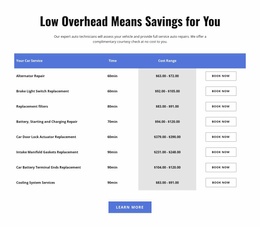
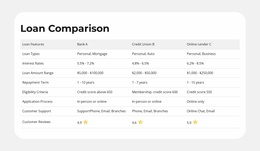
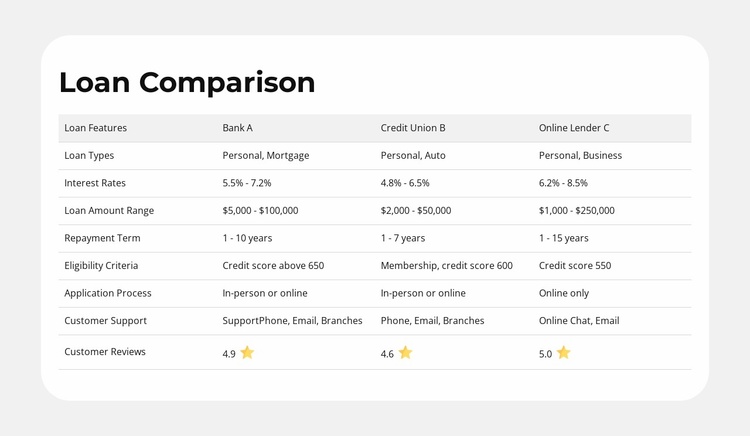
The block defines a reusable financial-information area rather than a complete site structure. Its heading, “Loan Comparison,” introduces a table in which one feature column aligns eight categories with three provider columns: Bank A, Credit Union B, and Online Lender C. The categories cover the main dimensions a visitor may inspect when comparing options, including loan types, interest rates, loan amount range, repayment term, eligibility criteria, application process, customer support, and customer reviews. The displayed provider ratings and star icons add a compact review layer within the same section.
In a broader website project, this section could sit alongside explanatory content, service descriptions, calculators, or contact information while retaining its own focused purpose. The consistent row structure makes it suitable as a recurring comparison pattern when a site needs to present several alternatives using the same criteria. It can also provide a visual reference for related sections without requiring those sections to share the exact table content.
The centered white rounded card supplies a recognizable container, while the light gray background and pale header row help distinguish the comparison from surrounding blocks. Evenly spaced columns support a consistent visual direction when the section is placed among other page components. Because the interaction is static, the block’s usefulness comes from its organized relationships: one heading introduces the subject, the feature column controls the reading order, and the provider columns make alternatives directly comparable.
Customize with Nicepage
Open this ready-made template in the Website Template Builder and customize it visually in the Nicepage editor. Replace demo content, edit page sections, and adapt the design to your project without rebuilding the template from scratch.
Edit Template Offline
2. Create a new page or select existing
3. Click Add new block, search for id 6560601 and click enter
Edit Template Online
Create Awesome Websites


Free Nicepage Builder
Keywords
Build a Complete Website From This Template
Customize the Website Visually
Use this ready-made website template as a starting point for your project and adapt its pages visually in Nicepage. Change content, images, typography, navigation, sections, and other design elements while keeping the website together as a single editable project.
Manage Website Pages in One Project
Use the Pages panel to open, add, duplicate, and manage the pages of your website. Work on individual pages while keeping navigation and the overall site structure accessible from the same project, making it easier to develop a complete website instead of managing separate page files.
Expand the Website With Matching Designs
When you need additional pages or sections, use Page Design Sets to find Page and Block Designs created in the same visual style. Design Sets group matching designs together, making it easier to expand the website with new content while maintaining a consistent look across its pages and sections.
Organize Larger Multi-Page Websites
As the website grows, use Page Folders to organize related pages and keep larger multi-page projects easier to navigate in the editor. This is especially useful for websites with separate service pages, company information, contacts, landing pages, and other content areas.
This workflow makes the template a practical foundation for building and expanding a complete website while managing its pages, content, and visual design within one Nicepage project.