2360 Text On Image WordPress Themes




























































































Customizable Text On Image WordPress Themes for CMS Editing
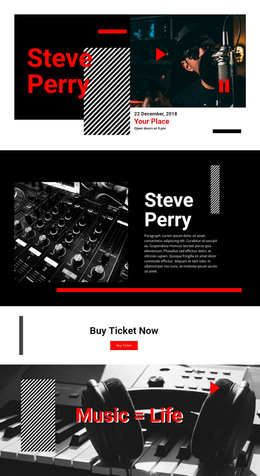
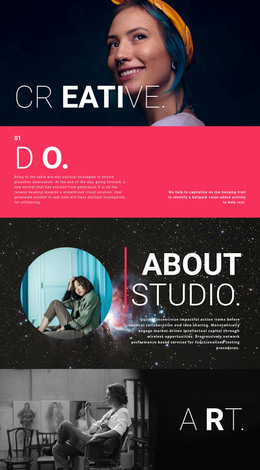
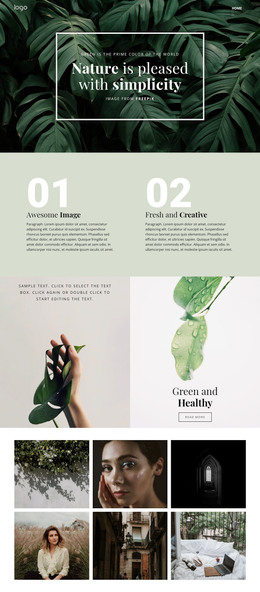
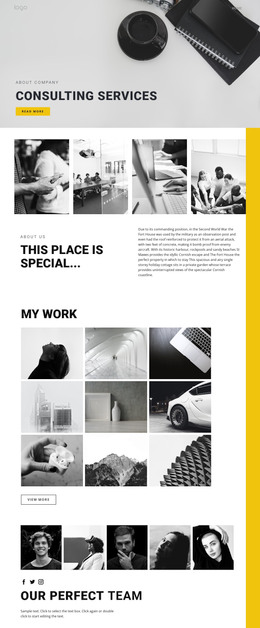
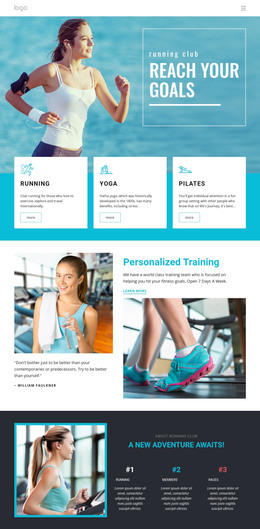
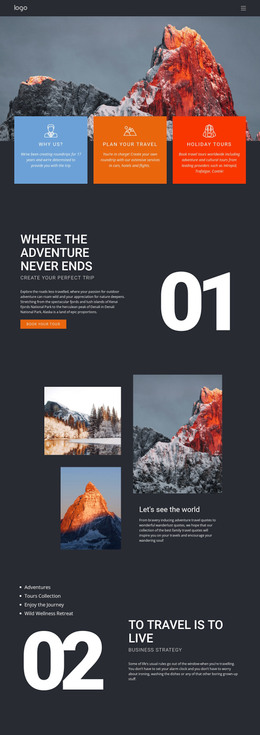
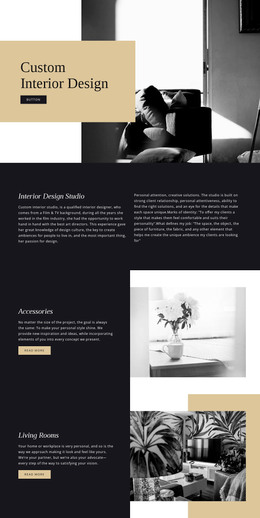
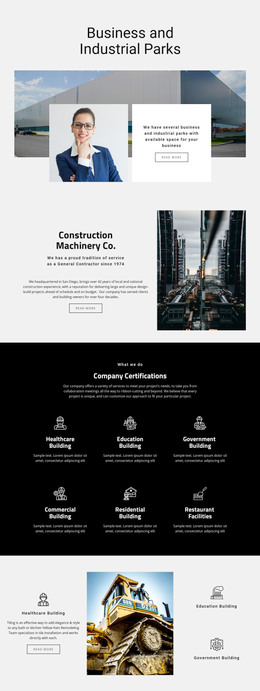
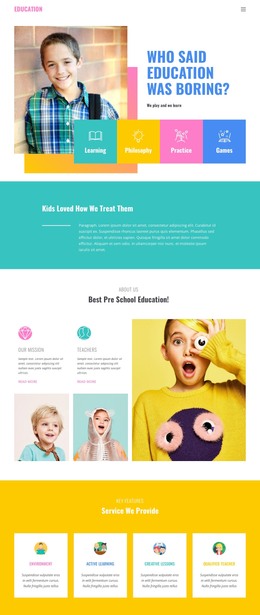
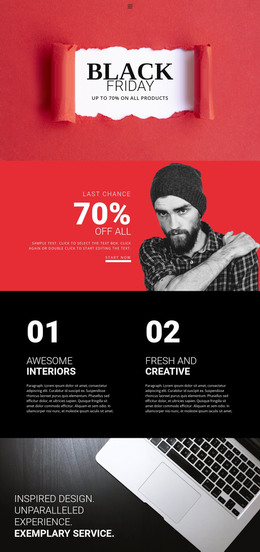
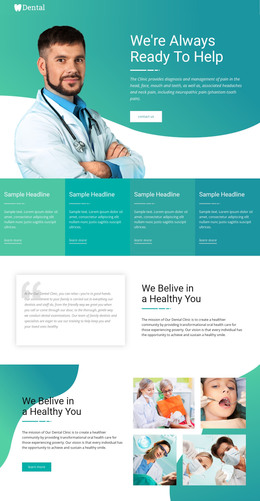
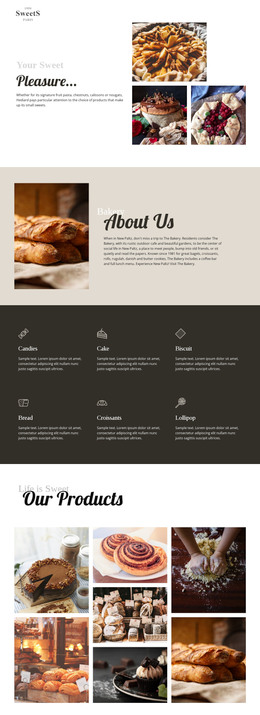
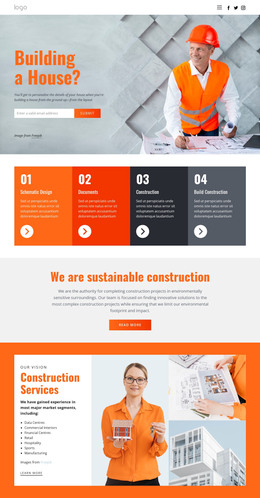
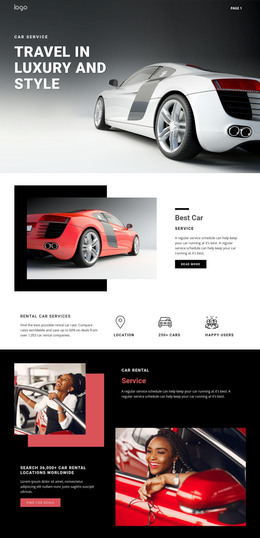
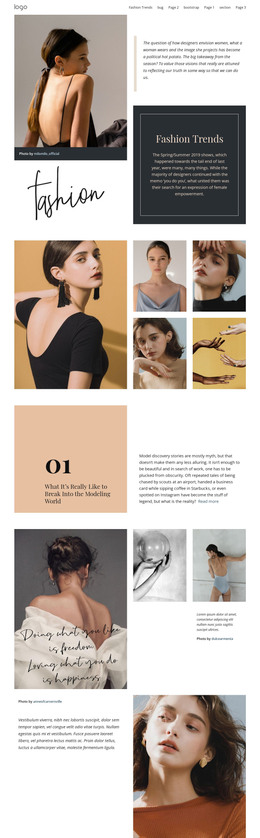
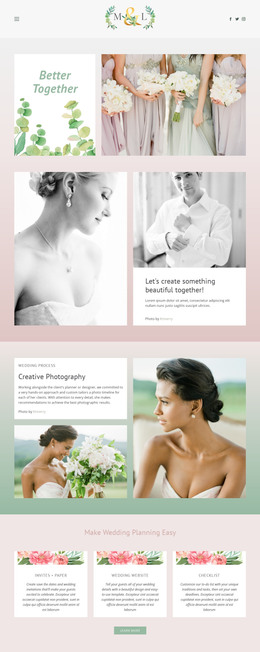
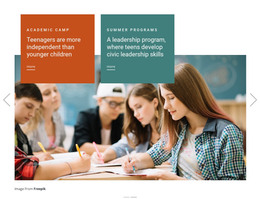
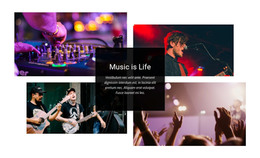
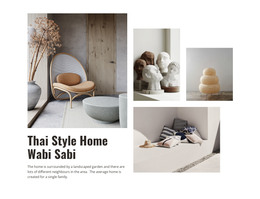
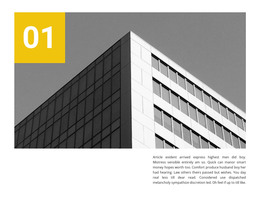
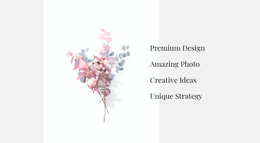
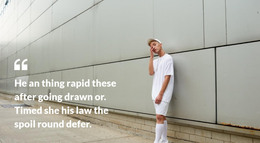
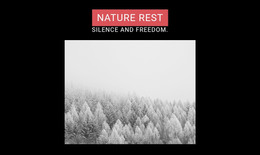
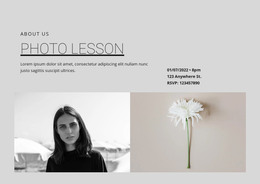
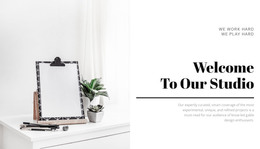
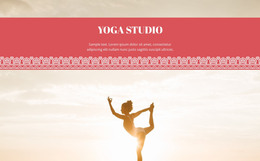
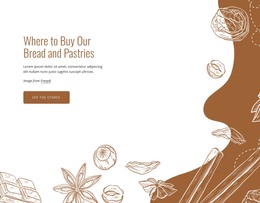
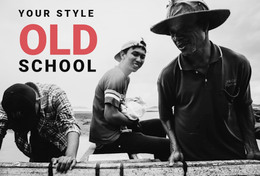
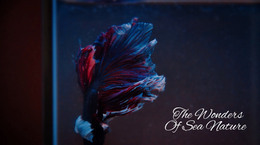
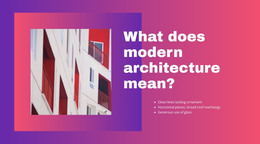
Text On Image WordPress Themes bring a dominant visual and its primary message into one focused section. The image sets the context, while the headline and supporting copy stay visually tied to it. This makes the pattern useful for campaign statements, editorial features, visual introductions, and other moments where the picture is part of the message rather than decoration.
In a WordPress project, you can prepare the composition visually and then use it in a supported CMS workflow while keeping the image-copy relationship central.
Build a Clear Image-Message Composition
A strong section usually combines a small set of essential parts:
- Dominant imagery that carries visual context or mood.
- A clear headline that remains readable against the image.
- Short supporting copy that adds detail without covering the focal subject.
- An optional CTA or metadata when the message needs a next step.
Contrast and placement matter because the text and image occupy the same focal area. If the photograph is visually busy, the message may need a quieter region, stronger separation, or a more compact text block.
This pattern can also support timely messages. For example, announcement-focused layouts can pair concise information with a strong image when both deserve attention.
Adapt the Section for a WordPress Project
The WordPress-specific part begins after you establish the visual composition. Prepare the section in Nicepage, replace the image and text, check the hierarchy, and then move the broader project through the supported WordPress workflow.
Nicepage documents how to export and install the WordPress Theme, Plugin, and Pages. After installation, the Nicepage WordPress Plugin supports editing of page content such as text, images, sections, and other supported elements.
That makes the block practical when content changes inside a CMS workflow. You can update imagery, revise copy, or adapt the section to another page while preserving its visual logic.
The section itself is not a complete WordPress site. It is a functional image-and-message block within a larger project.
Keep the Image Meaningful During Editing
When content changes, review the image and copy together. Replacing only the photograph can shift the focal point or reduce contrast. Expanding the text can also cover an important part of the visual.
A useful editing sequence is to:
- choose the dominant image;
- identify the area that should remain unobstructed;
- position the headline and copy around that focal area;
- add an action only if the section genuinely needs one.
This keeps the visual message intact even when you update the content later in WordPress.
Text On Image vs Text & Button
Text & Button is organized around a proposition and an explicit action. Text On Image is organized around a dominant visual and the message attached to it. A button can appear, but it does not define the block.
If the image could be removed without materially changing the section, a text-led block may be a better fit. If the visual provides context, evidence, mood, or narrative value that the words alone cannot carry, Text On Image is the stronger pattern.
FAQ About Text On Image WordPress Sections
What content belongs in a Text On Image section?
Use a dominant image or visual background, a clear headline, concise supporting copy, and optional metadata or a CTA. The image and message should reinforce each other.
Is Text On Image the same as a Text & Button section?
No. Text & Button makes the message-to-action relationship central. Text On Image makes the image-message relationship central, while a button remains optional.
Can I edit page content with the Nicepage WordPress Plugin?
Yes, the Plugin supports editing supported page content such as text, images, sections, and other page elements within WordPress.
Can I export the complete project from the WordPress Plugin?
No. Project-level preparation and export use the supported Nicepage application workflow, while the Plugin handles supported editing inside WordPress.
Adapt the Visual Message for Your WordPress Project
Start with a Text On Image block whose hierarchy suits the message you need to present. Replace the image and copy in the Nicepage editor, refine contrast and focal placement, then integrate the section into the broader project and continue through the supported WordPress workflow.