Modern architecture WordPress Theme


Question-Led Architecture Content for a WordPress Page
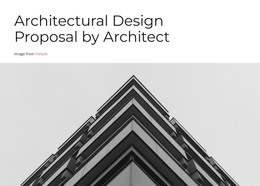
The heading and bullet list make this block well suited to permanent explanatory content within a WordPress-managed page. “What does modern architecture mean?” establishes a clear editorial starting point, and the adjacent three-item list gives the section a compact information structure. Its points—clean lines lacking ornament, horizontal planes with broad roof overhangs, and generous use of glass—can be maintained as stable subject matter rather than treated as a changing feed.
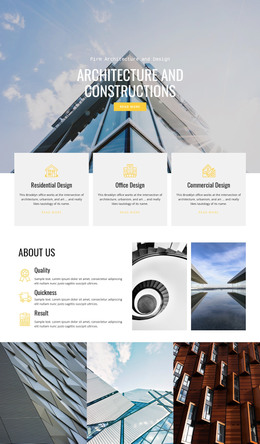
The architectural photograph adds a visual reference without displacing the written explanation. Because the image sits on the left and the text on the right, readers can connect the building example with the characteristics as they scan across the section. The pink-to-purple gradient and white typography create a defined content region that can sit naturally among other page sections, such as project showcases or service descriptions, while retaining its own identity. The static interaction also fits a straightforward page-content role: visitors can read the full explanation immediately without relying on a carousel, accordion, or dynamic post listing. In a broader WordPress project, this block can therefore hold a consistent architecture explanation while surrounding pages and content areas handle additional editorial or project information.
Customize with Nicepage
Open this ready-made template in the WordPress Website Builder and customize it visually in the Nicepage editor. Replace demo content, edit page sections, and adapt the design to your project without rebuilding the template from scratch.
Edit Template Offline
2. Create a new page or select existing
3. Click Add new block, search for id 52139 and click enter
Edit Template Online
Create Awesome Websites


Free Nicepage Builder
Keywords
Manage and Edit This Theme in WordPress
Customize and Install the WordPress Theme
Start with this ready-made theme instead of building the WordPress design from scratch. Customize its layout, content, typography, images, sections, and other design elements visually in Nicepage editor, then export and install the WordPress Theme, Plugin, and Pages on your WordPress site. The Nicepage WordPress Plugin lets you continue working with the site after installation.
Edit the Theme Directly in WordPress
After installation, you can edit the WordPress Theme directly in WordPress with the Nicepage WordPress Plugin. Use Site Style to customize site Colors, Fonts, Header, Footer, Blog, and Post Page Templates while working within your WordPress website.
Edit WordPress Pages Visually
Use the Nicepage WordPress Plugin to edit page content directly from the WordPress admin area. Open a WordPress Page with Nicepage and visually change its text, images, sections, and other page elements while continuing to manage the Page through WordPress.
WordPress Content and Theme Integration
Use the customized theme with WordPress Pages, Posts, Blog and Post Templates, menus, widgets, and other CMS-managed content. Shared theme elements such as Colors, Fonts, Header, Footer, Blog, and Post Page Templates can be managed as part of the overall site design, while WordPress provides the CMS environment for managing site content.
This workflow combines a ready-made WordPress Theme with visual customization, direct theme editing in WordPress, and continued content management through the Nicepage WordPress Plugin.