Photo lessons WordPress Theme


A compact lesson introduction with stable page-content structure
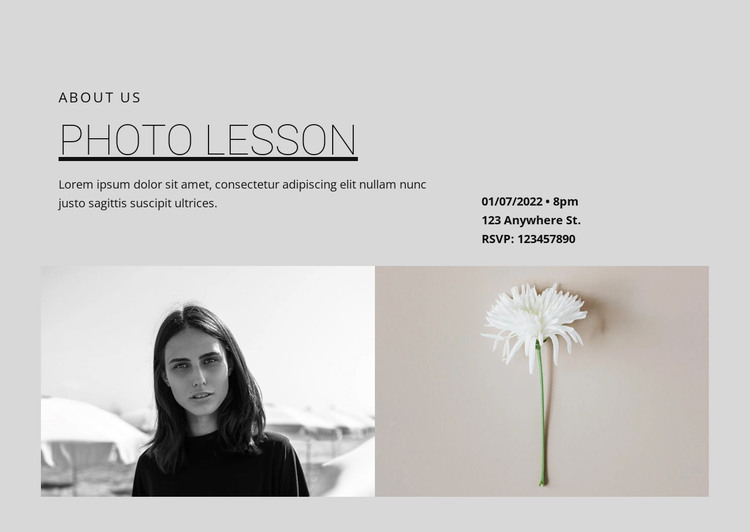
The “about us” label, “Photo lesson” heading, and supporting paragraph form a clear introductory content group. Alongside them, the event-details area gives the section a practical second layer, keeping date and time, address, and RSVP information visually distinct from the descriptive copy. This two-part upper row can present a lesson topic and its associated event context without requiring either information type to dominate the other.
The lower half reinforces the subject through two adjacent photographs. A portrait and a flower image occupy equal-width positions, creating a wide visual band beneath the text. The monochrome treatment of the left image contrasts with the muted natural color of the right image, while the light gray background and dark typography maintain a consistent editorial tone. Together, these choices make the imagery feel connected to the written introduction rather than an unrelated gallery.
For a WordPress-managed page, the block can serve as stable photography-lesson content within a wider site. Its heading and descriptive area suit permanent page information, while the event-details region can be revised when the project’s schedule or contact wording changes. Other page sections can provide navigation, deeper lesson information, or registration actions around it. The WordPress Theme, Plugin, and Pages workflow is a relevant Nicepage context for placing designed content within a broader WordPress project.
Customize with Nicepage
Open this ready-made template in the WordPress Website Builder and customize it visually in the Nicepage editor. Replace demo content, edit page sections, and adapt the design to your project without rebuilding the template from scratch.
Edit Template Offline
2. Create a new page or select existing
3. Click Add new block, search for id 99805 and click enter
Edit Template Online
Create Awesome Websites


Free Nicepage Builder
Keywords
Manage and Edit This Theme in WordPress
Customize and Install the WordPress Theme
Start with this ready-made theme instead of building the WordPress design from scratch. Customize its layout, content, typography, images, sections, and other design elements visually in Nicepage editor, then export and install the WordPress Theme, Plugin, and Pages on your WordPress site. The Nicepage WordPress Plugin lets you continue working with the site after installation.
Edit the Theme Directly in WordPress
After installation, you can edit the WordPress Theme directly in WordPress with the Nicepage WordPress Plugin. Use Site Style to customize site Colors, Fonts, Header, Footer, Blog, and Post Page Templates while working within your WordPress website.
Edit WordPress Pages Visually
Use the Nicepage WordPress Plugin to edit page content directly from the WordPress admin area. Open a WordPress Page with Nicepage and visually change its text, images, sections, and other page elements while continuing to manage the Page through WordPress.
WordPress Content and Theme Integration
Use the customized theme with WordPress Pages, Posts, Blog and Post Templates, menus, widgets, and other CMS-managed content. Shared theme elements such as Colors, Fonts, Header, Footer, Blog, and Post Page Templates can be managed as part of the overall site design, while WordPress provides the CMS environment for managing site content.
This workflow combines a ready-made WordPress Theme with visual customization, direct theme editing in WordPress, and continued content management through the Nicepage WordPress Plugin.