Minimalism in the workplace WordPress Theme


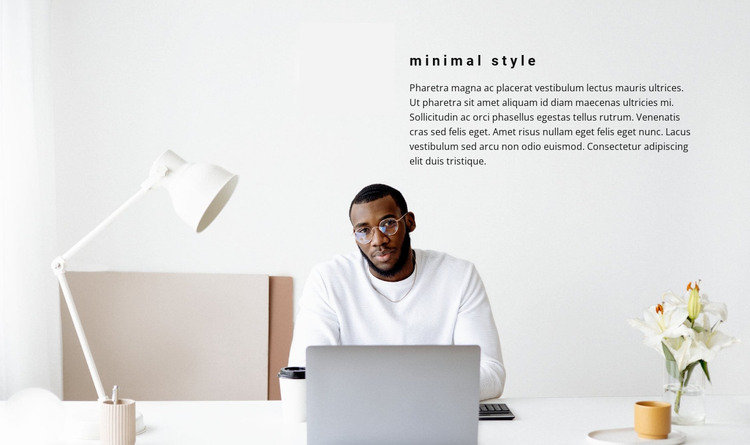
Concise Page Content Against a Quiet Office Image
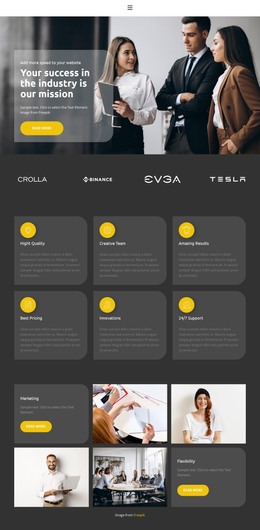
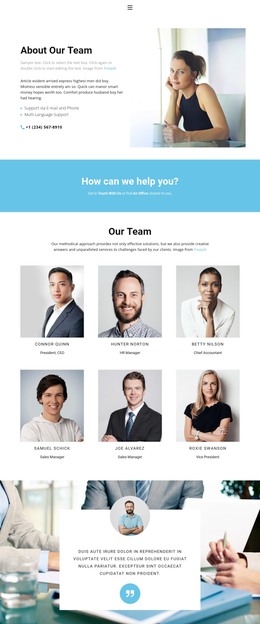
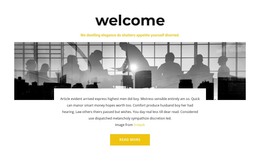
The block’s heading and paragraph read as stable page content: “minimal style” names the statement, and the supporting text develops it immediately below. Their placement in the upper-right portion of a full-width office image gives the section a clear visual anchor without dividing the content into cards or repeated entries. The person working at a laptop remains part of the image context, supporting the message rather than functioning as an independent interactive element.
In a WordPress-managed page, this section can hold a concise introduction or editorial statement while other content areas handle deeper explanations, related material, or page-level actions. Its usefulness comes from being a self-contained content unit with a defined visual treatment. The block can be reused as a consistent presentation area without implying that it contains a complete theme, page structure, or broader publishing system.
The near-white workplace image leaves visual breathing room around the dark text, and the upper-right alignment creates a deliberate offset from the image’s wider field. That relationship helps the section remain readable while preserving the minimalist character suggested by its heading. For WordPress-oriented page content, the block offers a focused place for a short message that can sit alongside richer sections managed elsewhere in the project. Its simple hierarchy also makes the intended content easy to identify and revise without disturbing the image-led composition.
Customize with Nicepage
Open this ready-made template in the WordPress Website Builder and customize it visually in the Nicepage editor. Replace demo content, edit page sections, and adapt the design to your project without rebuilding the template from scratch.
Edit Template Offline
2. Create a new page or select existing
3. Click Add new block, search for id 262910 and click enter
Edit Template Online
Create Awesome Websites


Free Nicepage Builder
Keywords
Manage and Edit This Theme in WordPress
Customize and Install the WordPress Theme
Start with this ready-made theme instead of building the WordPress design from scratch. Customize its layout, content, typography, images, sections, and other design elements visually in Nicepage editor, then export and install the WordPress Theme, Plugin, and Pages on your WordPress site. The Nicepage WordPress Plugin lets you continue working with the site after installation.
Edit the Theme Directly in WordPress
After installation, you can edit the WordPress Theme directly in WordPress with the Nicepage WordPress Plugin. Use Site Style to customize site Colors, Fonts, Header, Footer, Blog, and Post Page Templates while working within your WordPress website.
Edit WordPress Pages Visually
Use the Nicepage WordPress Plugin to edit page content directly from the WordPress admin area. Open a WordPress Page with Nicepage and visually change its text, images, sections, and other page elements while continuing to manage the Page through WordPress.
WordPress Content and Theme Integration
Use the customized theme with WordPress Pages, Posts, Blog and Post Templates, menus, widgets, and other CMS-managed content. Shared theme elements such as Colors, Fonts, Header, Footer, Blog, and Post Page Templates can be managed as part of the overall site design, while WordPress provides the CMS environment for managing site content.
This workflow combines a ready-made WordPress Theme with visual customization, direct theme editing in WordPress, and continued content management through the Nicepage WordPress Plugin.