Blog Posts HTML Templates
-
-

-
-
-
-
-
-
-
-
-
Free Website Builder SoftwareDownload
-
-
-
-
-
-
-
-
-
-
-
-
-
-
-
-
-
-




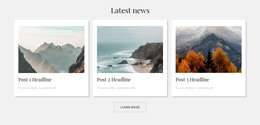
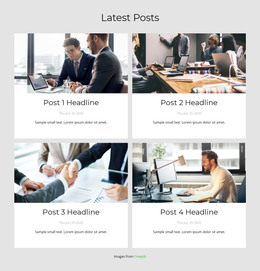
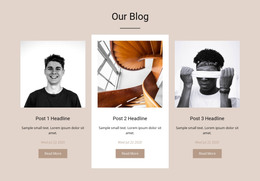
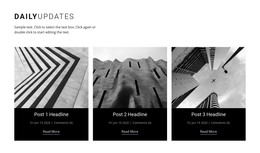
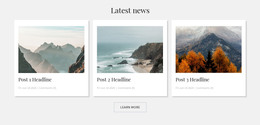
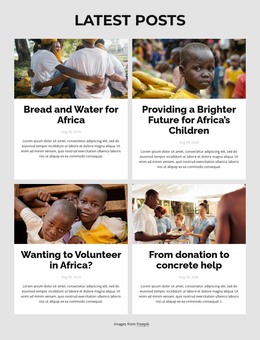
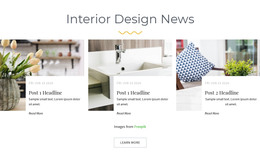
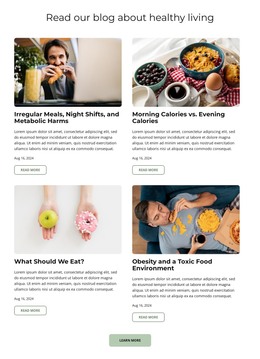
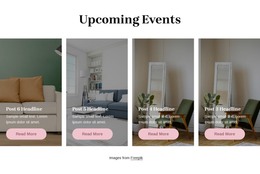
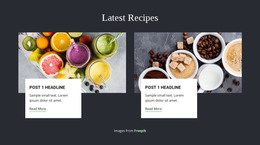



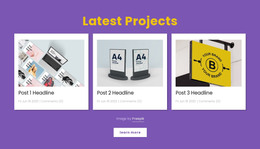
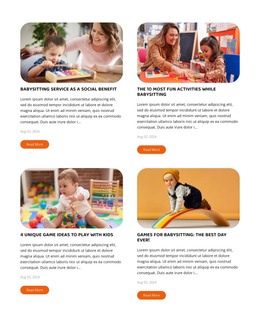
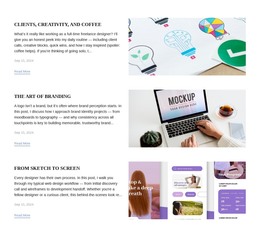



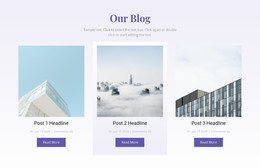
Ready-To-Use Blog Posts HTML Templates for Article Previews in HTML Projects
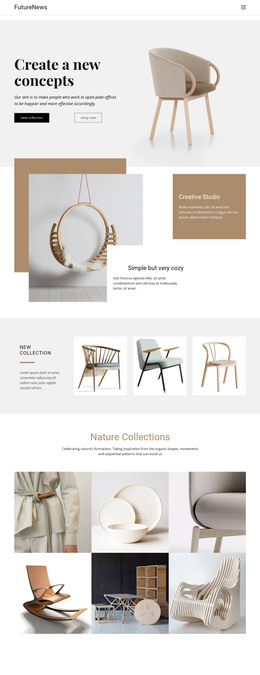
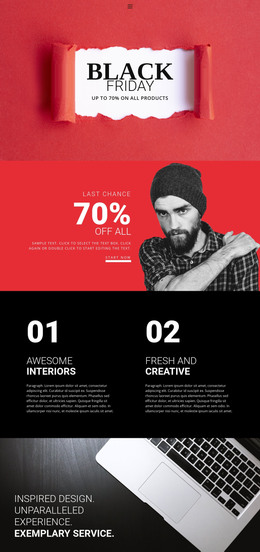
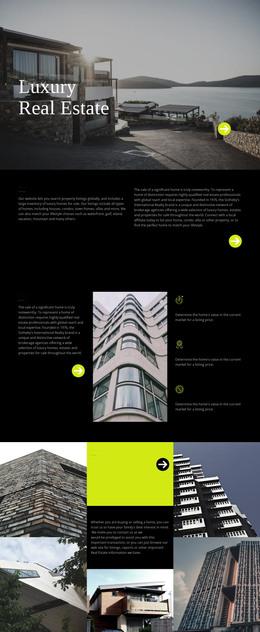
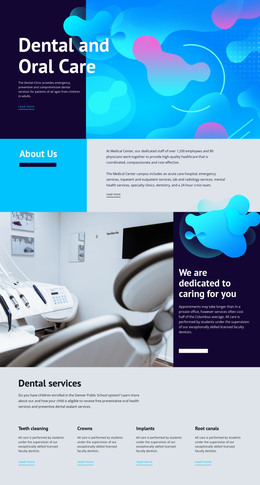
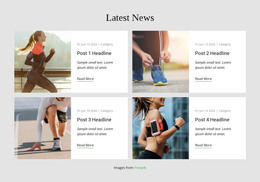
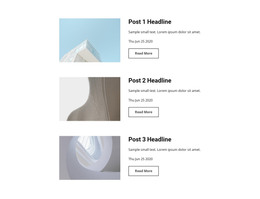
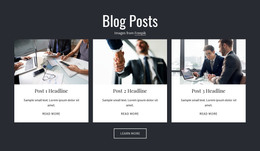
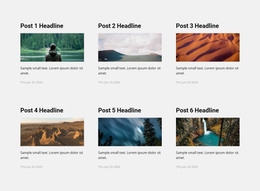
Blog Posts HTML Templates provide ready-made article-listing sections for an HTML website project. You can add a prepared feed to the page, adapt its post previews, and connect the listing to complete article pages that belong to the same HTML site. The main advantage is beginning with an editable layout rather than building the post cards manually or pasting an isolated code snippet.
What Does an HTML Blog Posts Section Include?
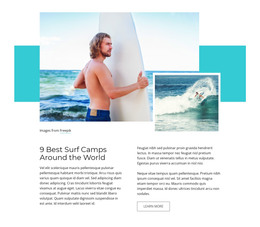
In an HTML project, a prepared Blog Posts section displays article titles, featured images, excerpts, publication dates or categories, and links to full posts. It belongs on a page such as a blog index or a selected-articles area; a separate Post Template handles the appearance of the complete article pages.
When choosing the preset, check the practical requirements of that HTML project: working post destinations, a suitable Post Template, responsive preview layout, and a usable exported result. A section that looks finished in the editor still needs to connect to its corresponding articles after export. Unlike a generic Grid, its entries represent published posts rather than unrelated cards.
Choosing a Clean HTML Article Preview Layout
Select an HTML-oriented Blog Posts preset that fits the page where articles will appear. Before committing, replace placeholder content with real titles, featured images, and excerpts. Use the Blog Posts Element to adjust rows, columns, or filters, then check links to individual posts and the layout on mobile. The priority is a usable listing inside the HTML project—not another catalog-wide comparison of visual styles.
Adapt the Section for an Exportable HTML Blog
A short Nicepage workflow connects the ready-made section to its final HTML output:
- Choose a Blog Posts section and add it to the intended page of the HTML website project.
- Customize article previews with appropriate images, excerpts, and readable links to complete posts.
- Review the Post Template used for individual article pages and follow a preview link to its destination.
- Export with Include Blog Posts using the Export HTML Website workflow when blog content needs to be included.
After export, open the resulting HTML website and test the listing, several article links, and images at a narrow screen width. This is a focused HTML template adaptation check, not a guide to managing a full static-site build pipeline. An HTML template is also different from hand-written HTML code snippets or a review of HTML5 semantic tags.
For examples of how editorial sections fit on a page, explore blog layouts.
Adapting Article Listings for Different Page Roles
The same prepared section can be used for a short recent-posts preview or a fuller article index within an HTML website. Adapt the visible post selection and spacing while preserving the links to full articles and a consistent preview style. Individual post layouts show the separate reading destination; the listing's job is to help readers find it.
Frequently Asked Questions About Blog Posts HTML Templates
How do I connect an HTML Blog Posts listing to individual articles?
Add a Blog Posts section to the relevant page and verify that each preview opens the intended complete post. Review the Post Template for the individual article design, then test the links again in the exported HTML project.
Can Nicepage export blog posts with an HTML project?
Yes. Nicepage supports HTML export with blog content. Select the Include Blog Posts option in the Publish & Export dialog to include the blog and individual posts in the exported HTML project.
What should I check after exporting the HTML blog?
Open the exported listing and several full-post pages. Confirm that links, featured images, and styles load correctly, and review the article previews at a mobile width. Use Include Blog Posts when the project needs its blog content in the HTML export.
Add a Prepared Blog Posts Section to Your HTML Project
Choose a ready-made Blog Posts section, adapt its previews in Nicepage, and confirm that its article destinations use the intended Post Template. Export the HTML project with blog posts included where needed, then follow the links in the generated site to verify the complete reading path.