330 Layered Images HTML Templates




































































Creative Layered Images HTML Templates for Ready-Made Website Sections
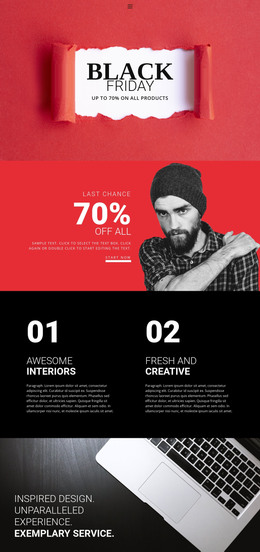
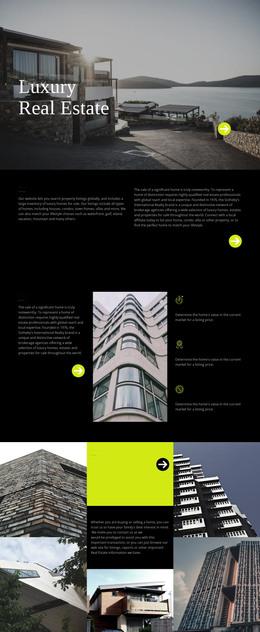
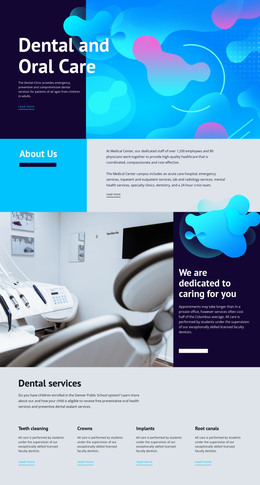
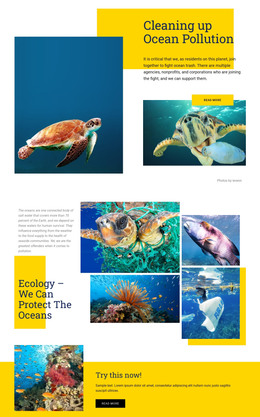
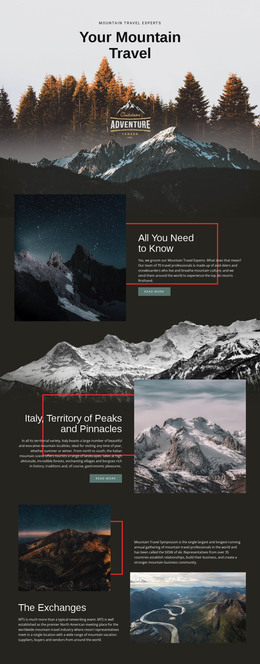
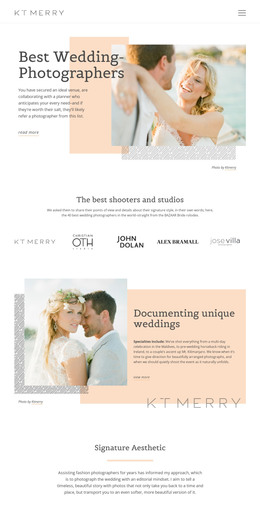
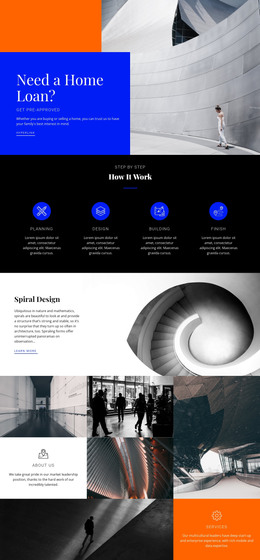
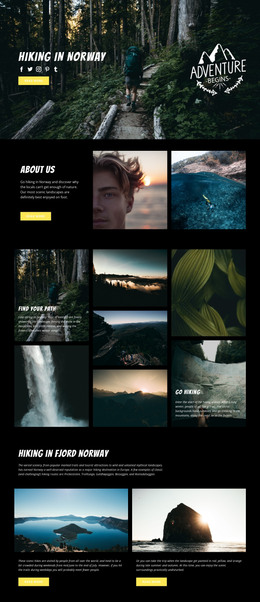
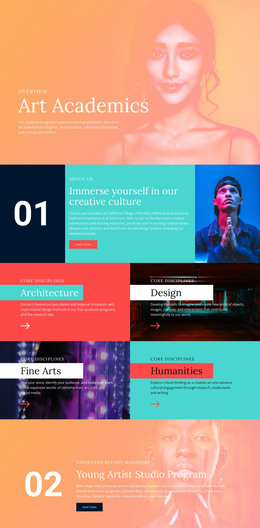
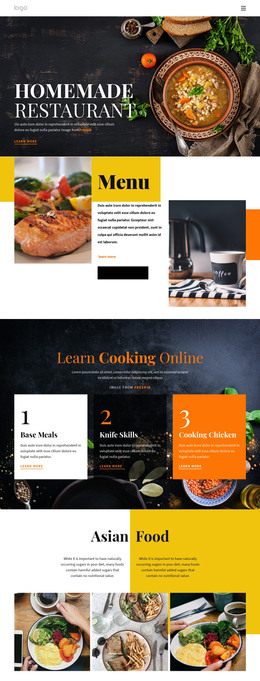
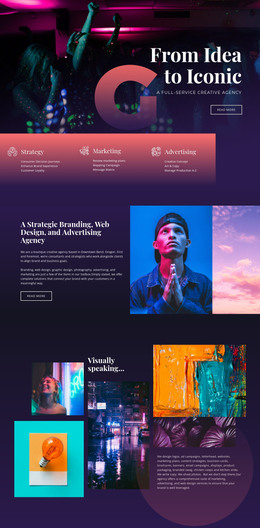
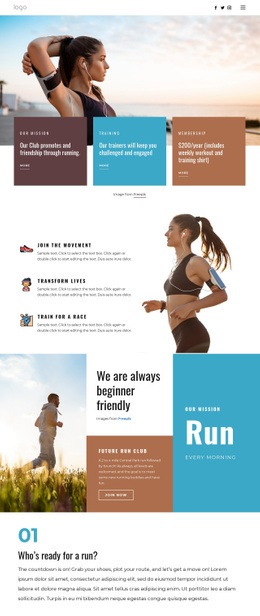
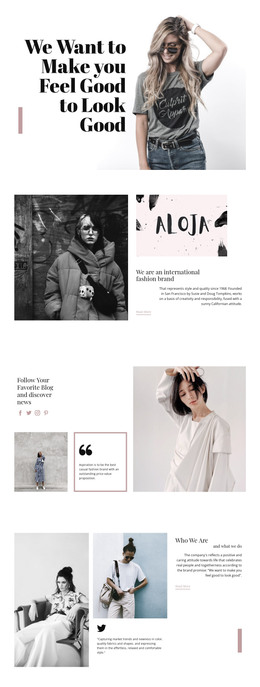
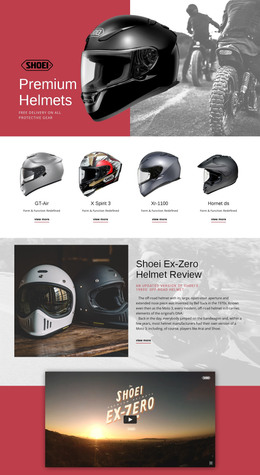
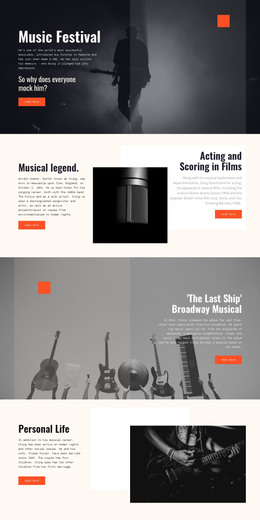
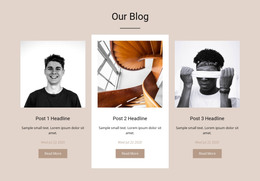
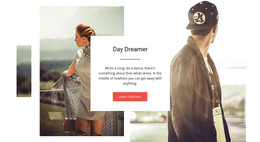
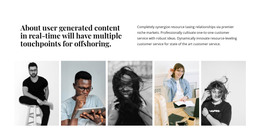
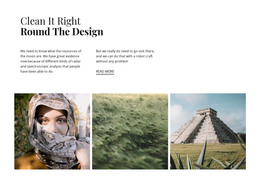
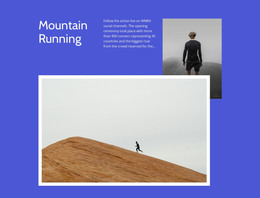
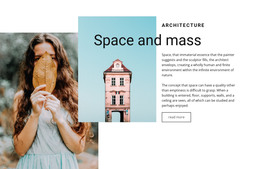
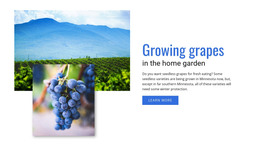
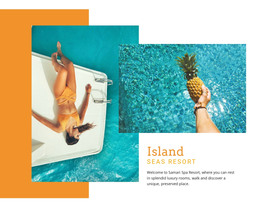
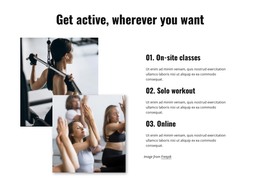
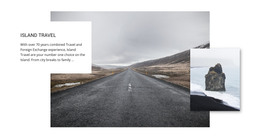
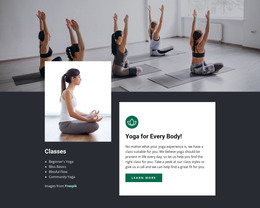
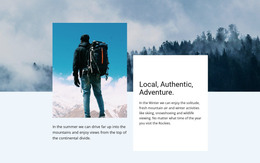
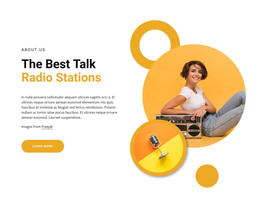
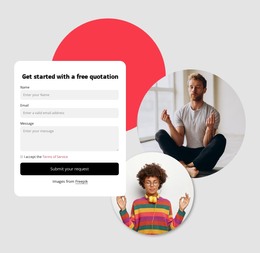
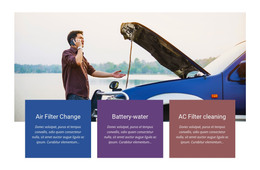
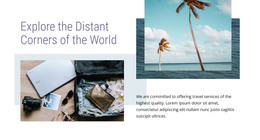
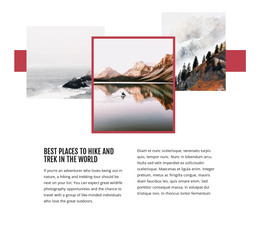
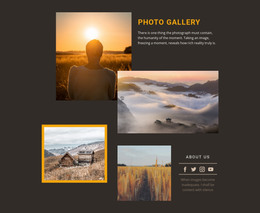
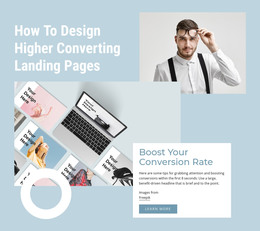
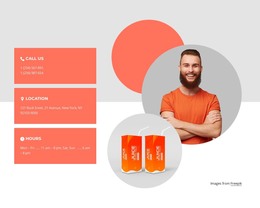
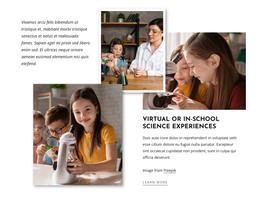
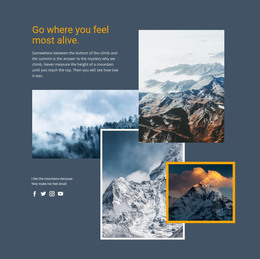
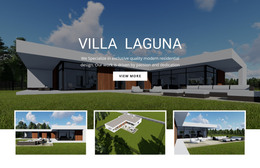
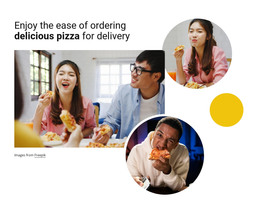
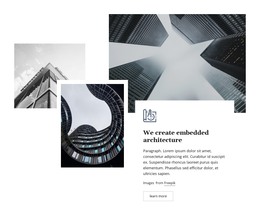
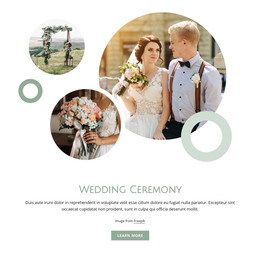
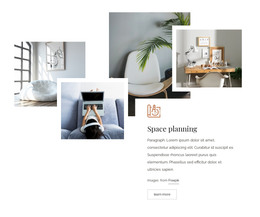
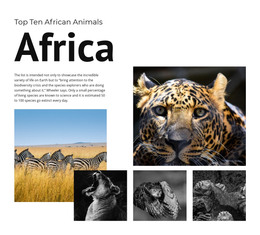
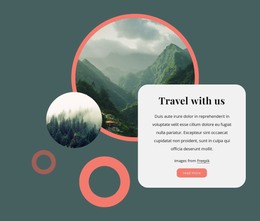
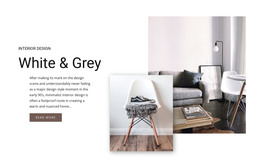
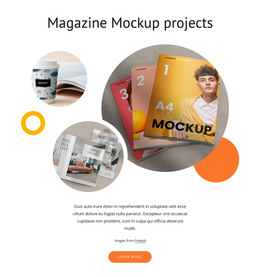
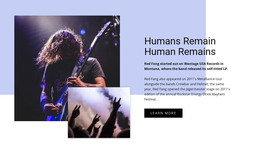
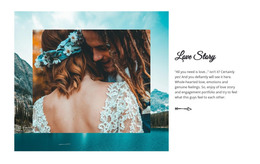
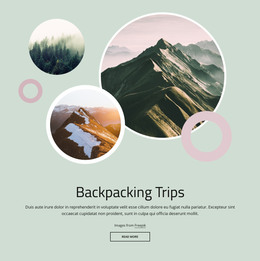
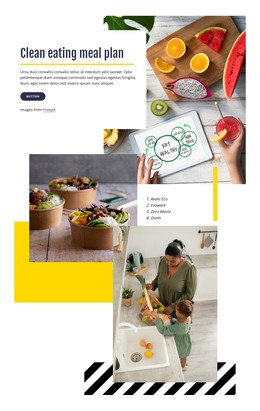
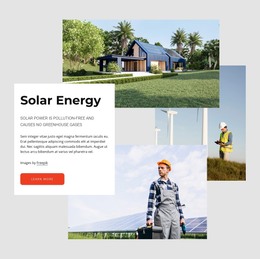
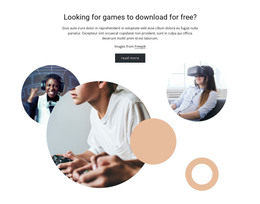
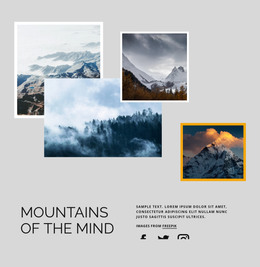
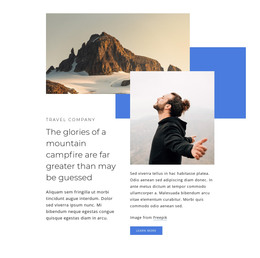
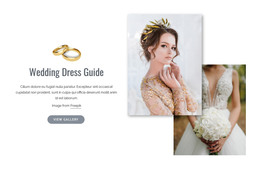
Layered compositions use one dominant image and supporting visuals with deliberate overlap and offsets to create one clear focal area. In a Layered Images HTML Template, that composition is provided as a ready-made HTML-oriented starting point that you can customize, review responsively, and use in a wider HTML project.
Choose a Ready-Made Layered Images HTML Layout
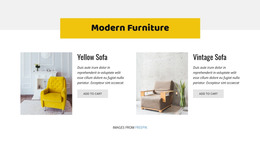
Choose a prepared layout whose image relationship already suits the content. Some use one dominant visual with smaller supporting images, while others balance two or three images more evenly.
When comparing options, look for a layout that already gives you:
- A clear main visual that attracts attention first.
- Supporting images that add context without overwhelming the section.
- Useful overlap and offsets that create depth without making the block crowded.
- Space for text or a CTA when the section needs supporting content.
Customize Images and Content in the Nicepage Editor
After choosing a suitable template, replace the placeholder visuals with project-specific content. Nicepage's Image Element provides the core image content used in these compositions, and the Image Element documentation explains how to work with images in the editor.
You can also update headings, short descriptions, backgrounds, and nearby content while keeping the layered relationship between the visuals readable.
Use Responsive HTML Templates Across Screen Sizes
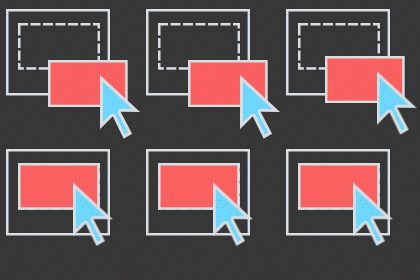
A layered section that feels balanced on a wide desktop may need a different arrangement on a tablet or phone. Responsive Modes let you review and adapt supported desktop, tablet, and phone layouts so the main image remains clear and supporting visuals do not cover important content.
Focus on maintaining the same visual priority at narrower widths, even if supporting images need to move, shrink, or stack differently for a cleaner result.
Export and Continue With an HTML-Oriented Workflow
The HTML-template intent does not end with visual customization. Nicepage Online supports HTML export, so you can continue the project in a workflow where the resulting HTML files are hosted on your own server or integrated into a broader static-site process.
Layered Images HTML Template FAQ
Can I replace all images in a Layered Images HTML Template?
Yes. Replace the visuals with your own product, portfolio, editorial, or brand imagery while keeping the prepared layered composition as the starting point.
Can I adjust the section for different screen sizes?
Yes. Nicepage Responsive Modes support layout customization for Large Screens, Desktops, Laptops, Tablets, and horizontal or vertical phone views.
Can Nicepage Online export an HTML project containing this section?
Yes. Nicepage Online supports HTML export for hosting on your own server, so a project containing the customized section can continue through an HTML-oriented workflow.
What should I check before using the finished HTML template?
Review image scale, text readability, overlap, and responsive behavior. The main visual should remain clear while supporting images add depth without obscuring important content.
Start With a Layered Images HTML Template
Choose a template whose composition already matches the visual story you want to tell. Open it in the Nicepage editor, replace the images and supporting content, review the layout across responsive modes, then continue with the HTML workflow required for your project.