Tabs HTML Templates
-
-

-
-
-
-
-
-
-
-
-
Free Website Builder SoftwareDownload
-
-
-
-
-
-
-
-
-
-
-
-
-
-
-
-
-
-
-
-
-
-
-
-
-
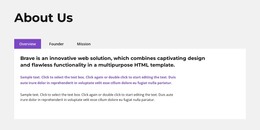
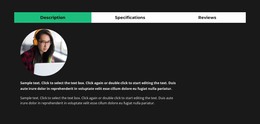


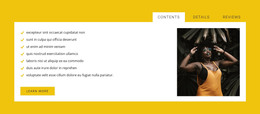
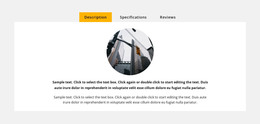
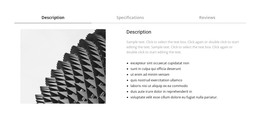
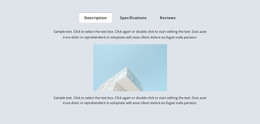
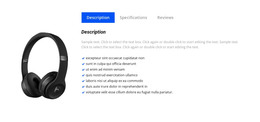
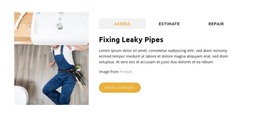
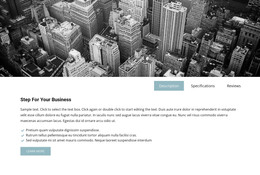
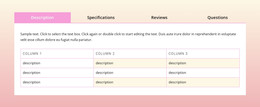
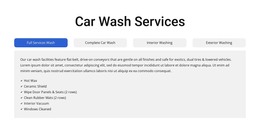
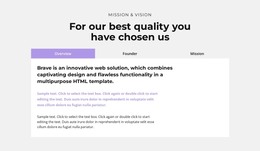





Clean Tabs HTML Templates for Ready-To-Use Section Adaptation
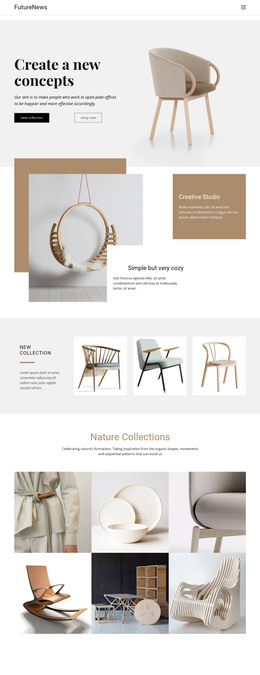
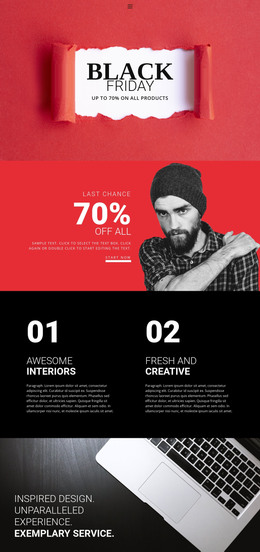
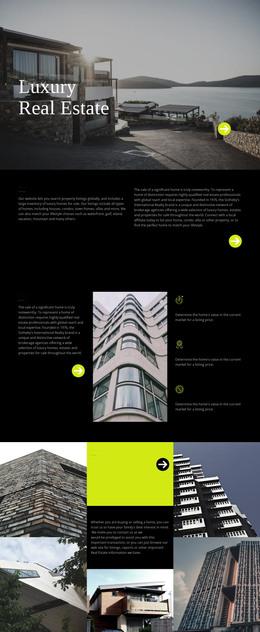
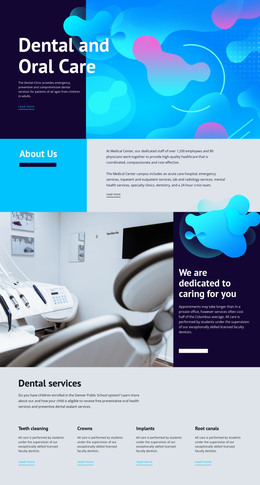
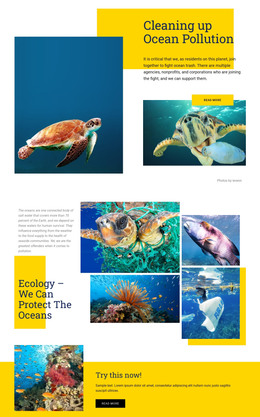
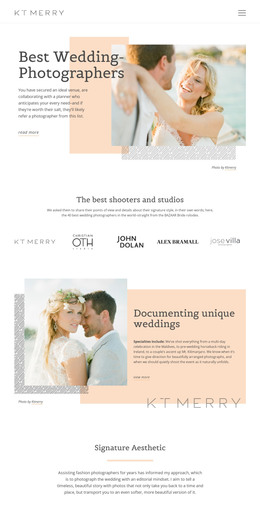
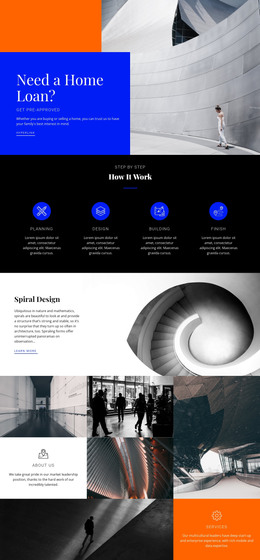
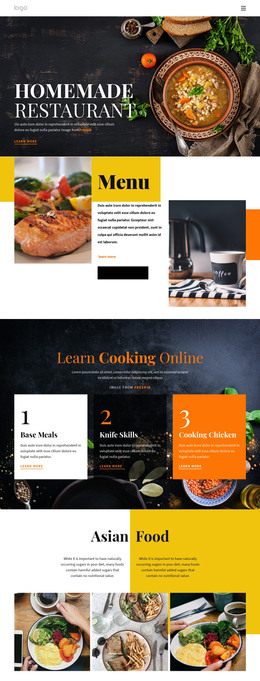
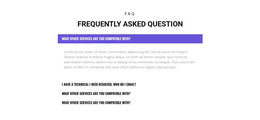
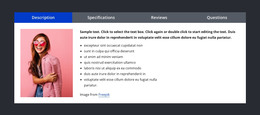
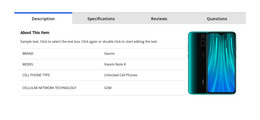
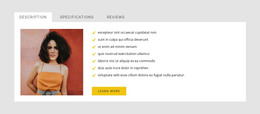
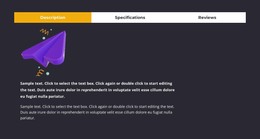
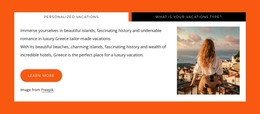
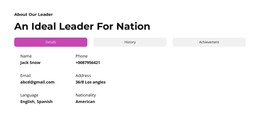
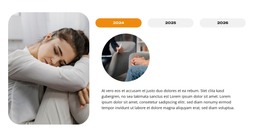
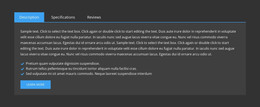
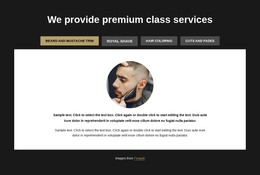
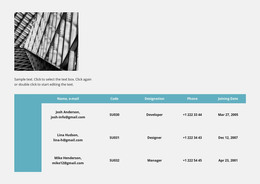
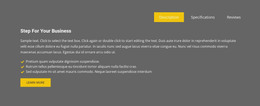
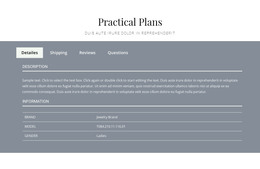
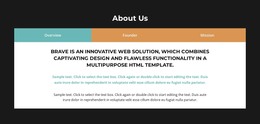
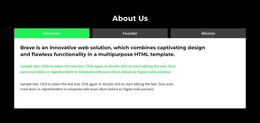
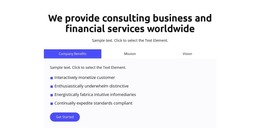
Tabs HTML Templates are useful when you already have a ready-made Tabs section and need to adapt it to real content. The controls, active state, and panels are already formed, so the main task is to replace the demo material and make sure the structure still works.
Nicepage Tabs block designs provide starting sections for that workflow.
Start With the Existing Tabs Structure
At this stage, the main question is whether the selected Tabs section can handle the content you plan to place inside it.
Check:
- the number of controls already included;
- the amount of room inside each panel;
- the relationship between labels and the active panel;
- spacing around text, images, and CTAs;
- how much adaptation is needed before integration.
If the structure is already close to the requirement, refine it instead of restarting the pattern-selection process.
Replace Demo Content With Real Panel Content
Typical edits include:
- replace sample labels with real category names;
- replace demo text and images inside each panel;
- add, remove, or reorder tabs;
- adjust active-state styling;
- refine spacing when panel lengths differ.
The key check is whether the existing controls and panels still feel balanced after the content changes.
Check Content Fit Across Panels
Real content often exposes problems that demo content hides.
Review whether:
- one label is much longer than the others;
- one panel becomes significantly taller;
- media pushes text or CTAs out of balance;
- the active state still connects clearly to the visible panel;
- different panel content types still feel like parts of one Tabs section.
This page is about adapting the chosen Tabs section, not choosing among broad Tabs layout families.
Test the Adapted Tabs Template Responsively
Responsive behavior should be checked after demo content has been replaced.
Nicepage Responsive Modes can be used to review the adapted section across desktops, tablets, and phones.
Pay attention to:
- labels that begin to wrap;
- panels that become too tall;
- images that crowd the content area;
- controls that lose visual connection with the active panel;
- spacing that worked with demo content but not with the final material.
Keep the Ready-Made Tabs Section Simple
A ready-made Tabs template doesn't need extra code to stay useful. Start with the existing controls, panels, and editor options. The value is speed: adapt the formed Tabs section instead of rebuilding the interaction from scratch.
Tabs HTML Templates FAQ
Can I Replace Content in a Ready-Made Tabs Template?
Yes. Replace the sample labels, text, images, and other panel content with the information required for your project.
Can Tabs Panels Contain Different Content Types?
Yes. One panel may contain more text while another uses media or a CTA, as long as the views remain related and the section stays balanced.
Can I Change the Number or Order of Tabs?
Yes. Adjust the tab count and order so the existing section matches the final content group.
What Should I Check After Adapting a Tabs Template?
Check label fit, active-state clarity, panel balance, spacing, content height, and responsive behavior after real content replaces the demo material.
When Should I Replace the Ready-Made Tabs Section?
Only when the existing structure no longer fits the real labels, panel content, or responsive requirements. Otherwise, refine the chosen template.
Adapt and Integrate the Ready-Made Tabs Section
Replace the labels and panel content, adjust order and styling, verify content fit, check responsive behavior, and then integrate the finished Tabs section into the wider project.