270 Counter HTML Templates

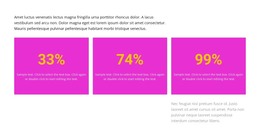


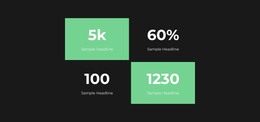



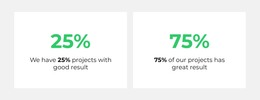





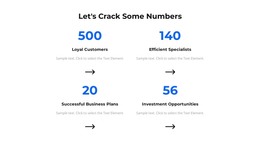



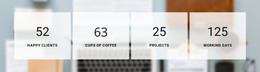










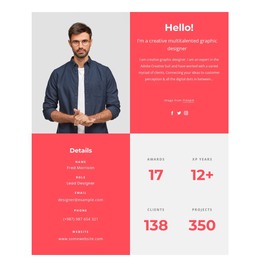
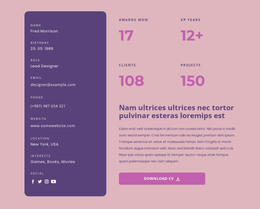


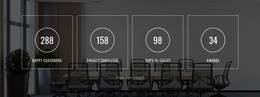










































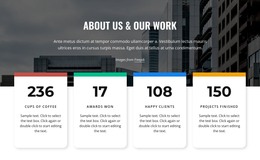



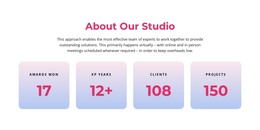



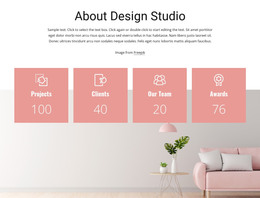

Counter HTML Templates for Ready-Made Statistics Sections and HTML Projects
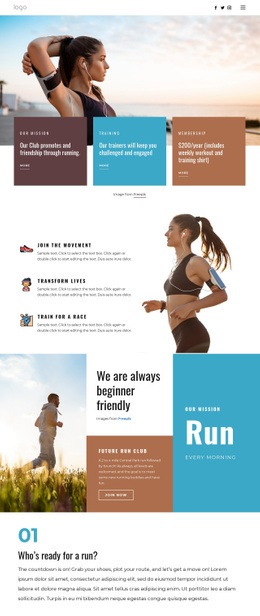
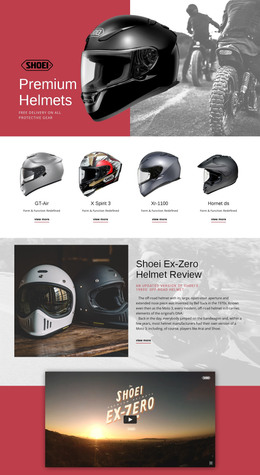
Counter HTML Templates provide prepared Counter layouts for HTML website projects. Choose a suitable design, replace the sample numbers and labels, and adjust its appearance in Nicepage. The practical goal is to take a ready-made numerical section from selection through Preview, HTML export, and a working published page.
Choose and Customize a Ready-Made Counter HTML Template
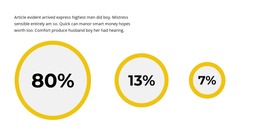
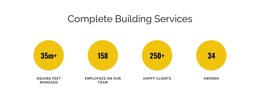
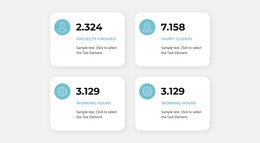
Start with the available Counter designs and choose a layout that suits your actual statistics. A single achievement may need one prominent figure; several related totals may fit a compact band. Check that different number formats and label lengths fit the design before making changes.
Then follow a straightforward sequence for the HTML project:
- Select the template: Choose an existing Counter layout that fits the number and format of your metrics.
- Replace values: Enter verified numbers and corresponding labels instead of demo content.
- Customize styles: Adjust the available typography, spacing, and presentation to match the HTML page.
- Preview: Check the visible numbers, responsive layout, and optional counting animation.
- Export: Generate the complete HTML project with its supporting assets.
- Verify the published page: Open the exported site in a browser and confirm the Counter still works.
When extensive comparisons are needed rather than a handful of highlights, a data presentation section may be more appropriate.
Preview the Counter Before Export
Nicepage's native Counter Element displays configured values with optional counting animation. In Preview, scroll to the section and check that each number reaches its intended value. Review labels and the appearance at desktop and mobile widths, particularly when figures include percentages or longer totals.
You can also browse counter design examples if the original layout does not suit the page. The aim is to adapt a ready-made section, not to program a new counting component.
Export the Complete HTML Project
After Preview, use the supported HTML Website Export workflow. Available methods may include a folder, ZIP package, or FTP upload, depending on the Nicepage application and its options.
The exported website uses HTML pages, CSS stylesheets, JavaScript files, and required image assets. Keep the referenced resources together; the Counter is part of the complete website project rather than a separately exported application.
Verify the Counter on the Published Page
Open the exported site in a browser and confirm that the final values display, stylesheets load, and scripts are available. The counting animation behaves as expected when the section enters view. Check a narrow viewport as well: a layout that looked correct in the editor should still present its figures and labels cleanly after publication.
If something fails, check missing asset paths and browser errors before changing the Counter design. A working editor Preview alone does not prove that all exported files were uploaded correctly.
Expert Tip: Complete the workflow with a browser check of the actual HTML output. This catches missing resources that you can't diagnose from the original template's appearance alone.
Counter HTML Templates FAQ
How do I customize a ready-made Counter HTML Template?
Select a prepared layout in Nicepage, replace its demonstration figures and labels, and adjust the available styles to suit the HTML page.
Can I preview the Counter before exporting?
Yes. Use Nicepage Preview to check numbers, labels, responsive appearance, and the optional counting effect.
What should I check after HTML export?
Open the generated site in a browser and verify its numbers, CSS and JavaScript resources, required images, and mobile layout.
How do I verify that animation works on the published page?
Scroll to the Counter in the browser and confirm that the optional animation runs and the final configured number is shown correctly.
Publish Your Ready-Made HTML Counter Section
Choose and customize the Counter layout, review it in Preview, and export the full HTML project. Verify its displayed values, animation, and supporting files in the published browser environment.