Full Width Slider HTML Templates
-

-

-
-
-
-
-
-
-
-
-
Free Website Builder SoftwareDownload
-
-
-
-
-
-
-
-
-
-
-
-
-
-
-
-
-
-
-
-
-
-
-


































Professional Full Width Slider HTML Templates With Ready-Made Slider Implementation
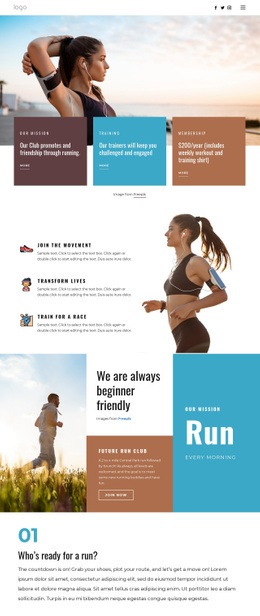
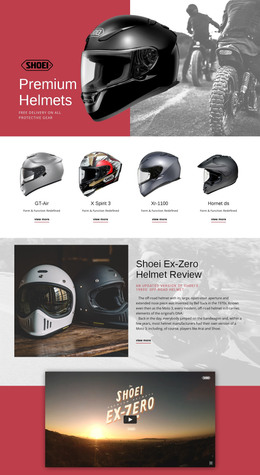
Full Width Slider HTML Templates provide a ready-made Full Width Slider implementation inside an HTML-oriented website or page template. The main value is that the slider already exists as part of the template: you can adapt its slides, controls, media areas, text content, and responsive states before exporting the finished project as HTML.
The Full Width Slider remains the central object, while HTML defines the final output format.
Start With an Implemented Full Width Slider
A typical Full Width Slider HTML template can already include:
- multiple slider states for different messages or visuals;
- image or video areas inside the slides;
- headlines, text, and buttons positioned within the composition;
- arrows, dots, or other navigation controls;
- responsive slider behavior for desktop, tablet, and mobile.
This means the user starts with a working slider layout rather than building the visual sequence from scratch.
The Slider Element is the direct Nicepage feature for working with several slide states in one section.
Customize the Slider Before HTML Export
Before export, the slider can be adapted in the Nicepage editor around the actual project content.
Typical changes include:
- replacing slider images or video;
- rewriting headings and supporting text;
- changing button labels and links;
- increasing or reducing the number of slides;
- adjusting arrows, dots, or other controls;
- refining the responsive composition.
The goal is to finish the Full Width Slider itself before the project is exported, rather than shifting the page into a general discussion of HTML structure.
Refine Responsive Slider States Before Export
Responsive behavior matters here because it belongs directly to the implemented slider.
Before exporting, review:
- image cropping and focal points;
- text positioning and line breaks;
- button placement;
- navigation control visibility;
- slide height on narrower screens.
A responsive Full Width Slider should preserve its visual scale while remaining readable and easy to navigate on tablets and phones.
Export the Finished Slider as Part of the HTML Project
Once the slider content, controls, media, and responsive states are ready, you can export the completed Nicepage project as a static HTML website.
Nicepage can export the project with the HTML, CSS, JavaScript, and image files the site needs. An existing generated HTML site cannot be imported back into the Nicepage editor, so slider changes should be completed in the Nicepage project before export.
This keeps the HTML-template workflow clear:
- Start with an implemented Full Width Slider.
- Customize the slider in the visual editor. **
- Review its responsive states. **
- Export the finished project as HTML.
Keep the HTML Template Focused on the Slider Implementation
The HTML-template angle should not turn the page into a generic article about HTML, CSS, JavaScript, or website architecture. What matters is that the Full Width Slider is already implemented, can be customized visually, and is included in the exported HTML.
That is the practical difference between choosing a slider pattern and choosing an HTML-oriented template with the slider already prepared for use.
Full Width Slider HTML Template FAQ
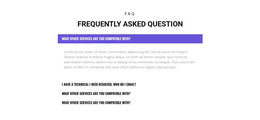
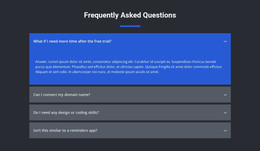
What Is Already Implemented in a Full Width Slider HTML Template?
The template can already provide the slide sequence, media areas, text layers, controls, and responsive slider states as part of the ready-made layout.
What Can I Change Before HTML Export?
You can adapt slide images or videos, headings, supporting text, buttons, slide count, controls, and responsive composition in the Nicepage editor before export.
What Do I Get After Export?
You get the completed project as a static HTML website, including the HTML, CSS, JavaScript, and image files required for the finished site.
Can an Existing HTML Site Be Imported Into the Nicepage Editor?
No. The Nicepage product information states that you can't import HTML or another generated site into the Nicepage editor. Changes should therefore be made in the Nicepage project before export.
Customize the Full Width Slider Before HTML Export
Start with a Full Width Slider already implemented in the HTML-oriented template, customize its slide content, media, controls, and responsive behavior in the Nicepage editor, then export the finished project as HTML.