570 Wide Website Templates


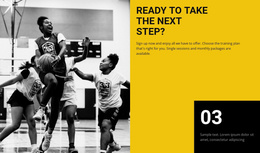









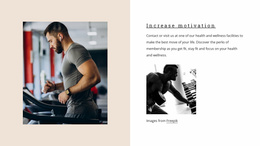

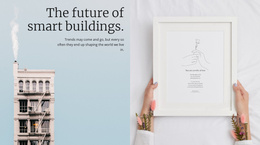




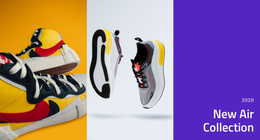










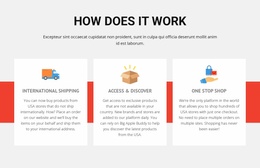

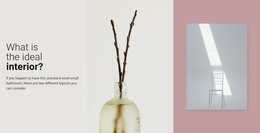

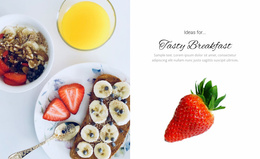



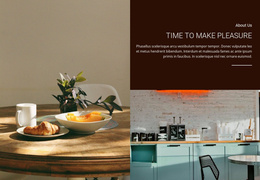
















































Modern Wide Website Templates for Ready-Made Functional Sections
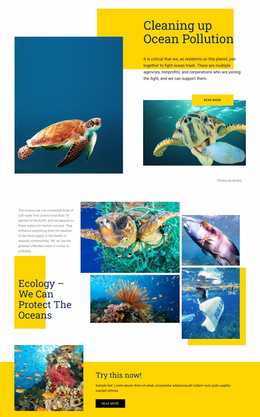
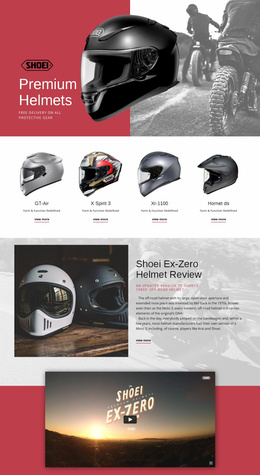
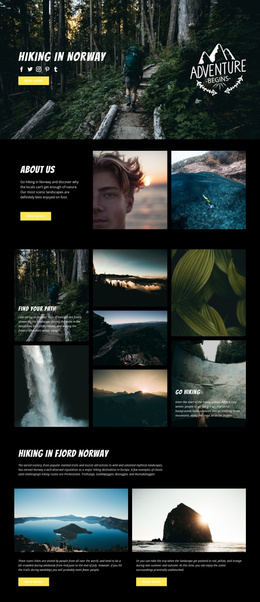
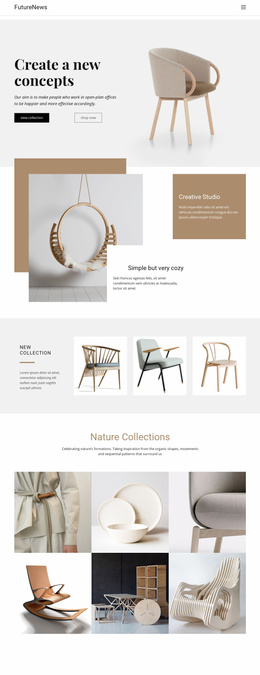
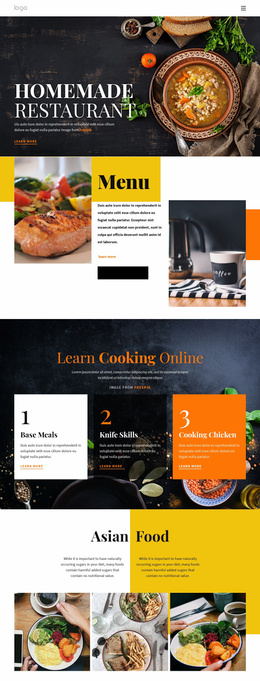
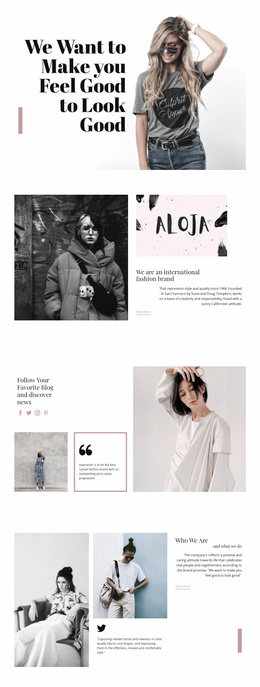
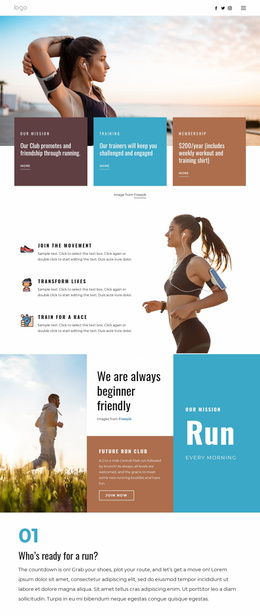
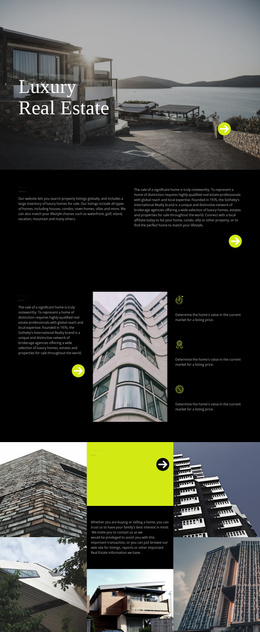
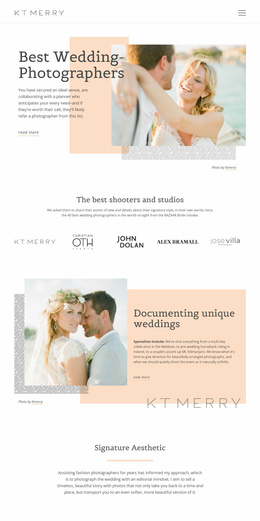
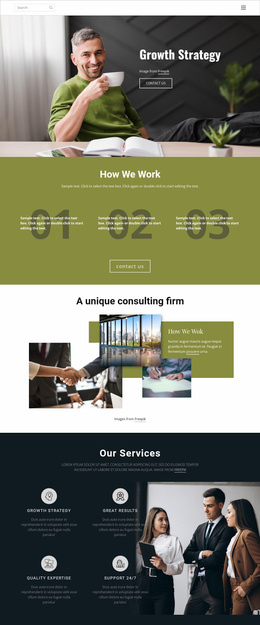
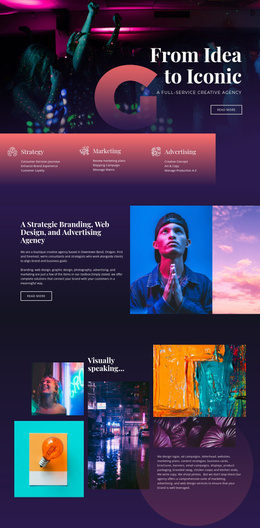
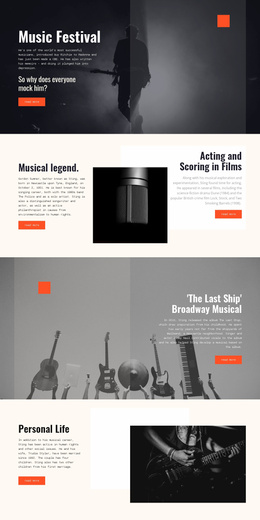
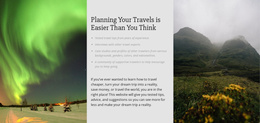
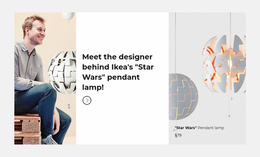
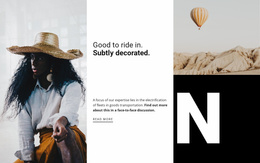
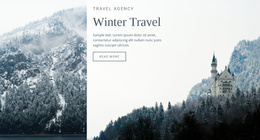
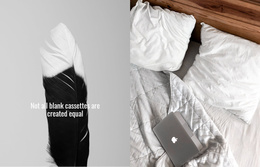
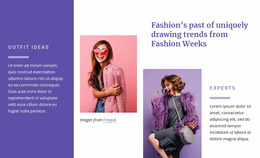
Wide Website Templates help you answer one practical question: what kind of broad block does this page need? Instead of designing a Wide section from an empty area, you can start with a prepared functional pattern and adapt it to the content.
The category is useful when the task is already clear, but the section still needs a suitable format. Common options include:
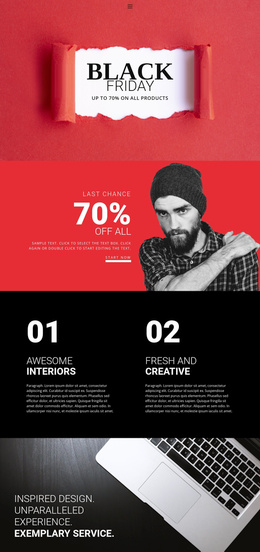
- promotional Wide blocks for launches, offers, or new collections;
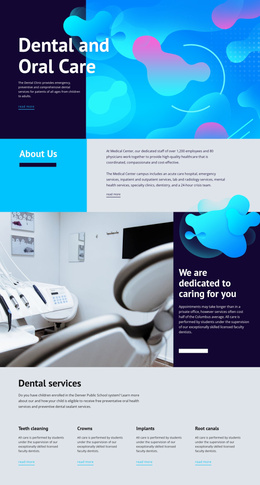
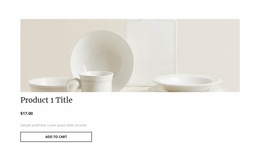
- product feature sections for one highlighted item or category;
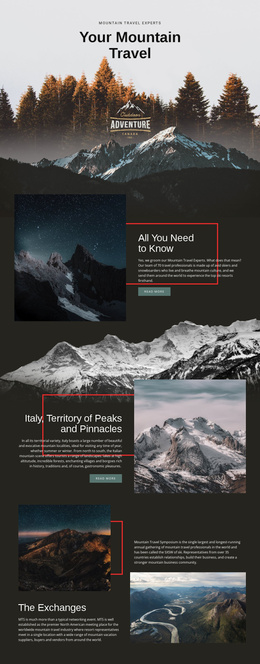
- portfolio highlights for a featured project or case study;
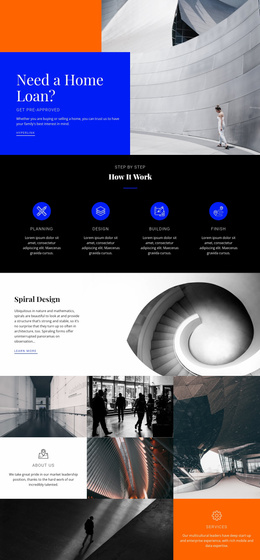
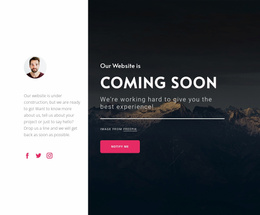
- banner-style announcements with concise supporting copy;
- transition blocks between two major content stages.
The main value is selection: find the block type that matches the job, then customize its content.
Match the Wide Block to the Page Task
Start with the purpose of the section rather than with its appearance.
If a shop needs to introduce a new collection, a promotional Wide block is a natural fit. If a portfolio needs to interrupt a project grid with one featured case, use a portfolio highlight. If a business page needs to announce an event or service update, a concise banner-style block may be enough.
A practical selection sequence is:
- Define the section task.
- Decide what content must appear inside it.
- Pick the prepared Wide block that already matches that function.
- Replace demo content and remove anything unnecessary.
This keeps the page focused on function and selection, not on abstract design theory.
Use Different Wide Types for Different Jobs
Not every Wide section serves the same purpose.
A product feature may need an image, heading, short description, and CTA. A promotion may work with a stronger message and fewer supporting elements. A portfolio highlight can give one project more room than the surrounding grid. A transition block may use very little copy because its job is to separate two major content areas.
That difference is what makes the category useful as a template library: you are choosing among ready-made functional patterns rather than forcing one generic Wide layout into every page.
Adapt the Selected Template in Nicepage
After the right block type is chosen, replace the sample content with project-specific material. Nicepage lets you edit the section through the Nicepage block-editing interface.
Typical adaptations include:
- replacing the main image or illustration;
- rewriting the heading and supporting copy;
- removing unused buttons or secondary elements;
- adjusting the block for a product, campaign, case study, or announcement.
For image-led templates, Expand Image can turn an image into a background when that better supports the chosen block.
The goal is simple: keep the functional pattern, change the content.
Wide vs Full Width Slider
Wide and Full Width Slider may occupy similar space, but they solve different functional needs.
Use a Wide template when one prepared section is enough: one promotion, one featured project, one product highlight, or one transition. Use a Full Width Slider when the content needs several states that visitors move through with slide navigation.
For checking layouts at different screen sizes, Responsive Modes provide Large Screen, Desktop, Laptop, Tablet, and phone views.
Wide Website Template FAQ
What types of Wide website templates can I use?
Common options include promotional blocks, product features, portfolio highlights, announcement banners, and transition sections.
How should I choose the right Wide template?
Choose by function first. Define what the section needs to achieve, identify the required content, and select the prepared block that already supports that task.
Can I replace the sample content in a Wide template?
Yes. You can replace imagery, headings, text, buttons, and other supporting elements in the Nicepage editor.
Can I use a Wide template for a new product collection?
Yes. A promotional or product-feature Wide block can work well for introducing a new collection with one primary visual and a concise message.
When should I use Wide instead of a Full Width Slider?
Use Wide when the page needs one broad functional section. Use a Full Width Slider when several large content states need slide navigation.
Choose the Wide Block That Matches the Job
Start from the page requirement: promotion, featured product, portfolio case, announcement, or transition. Select the matching Wide template, replace the demo content, and keep the prepared functional structure that makes the section useful.