1380 Grid Website Templates






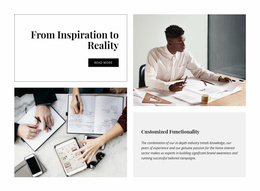







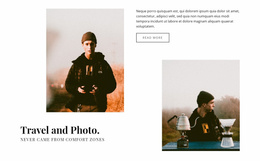



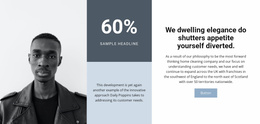
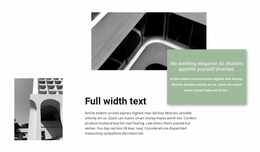

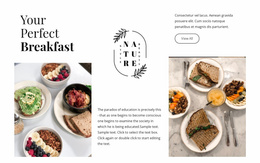



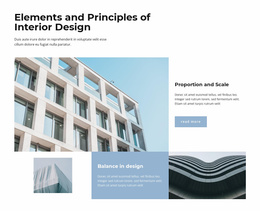





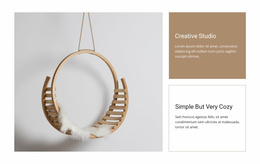








































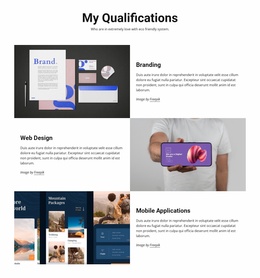
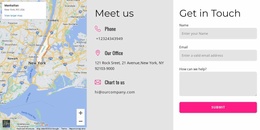
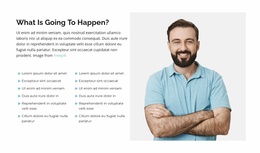



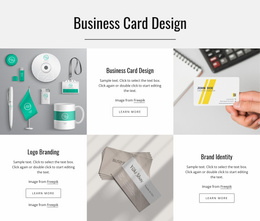

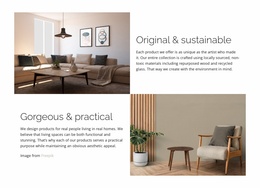
Grid Website Templates for Pages, Sections, and Site Layouts
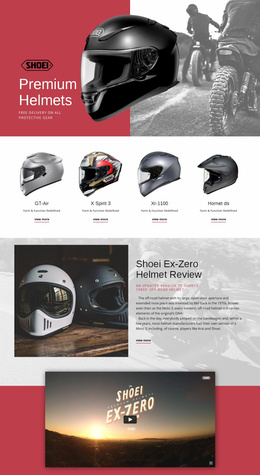
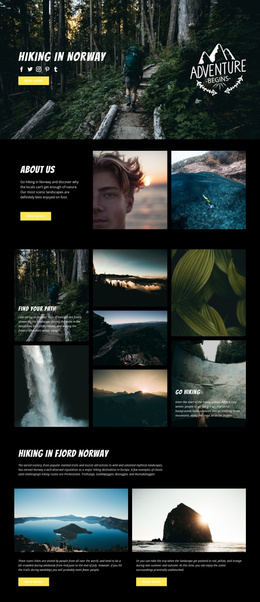
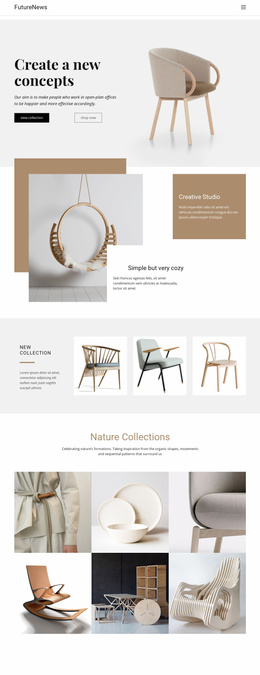
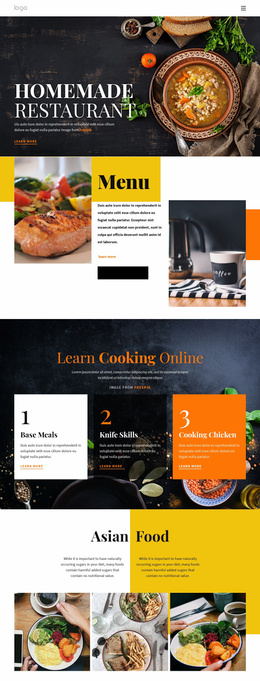
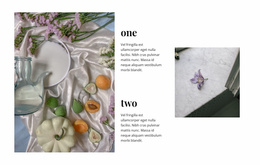
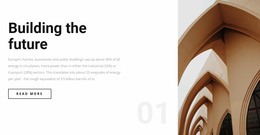
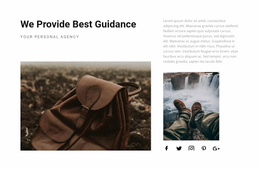
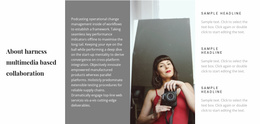
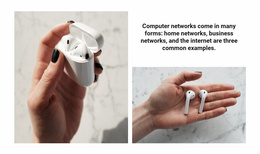
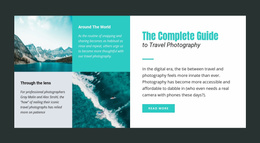
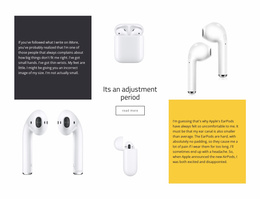
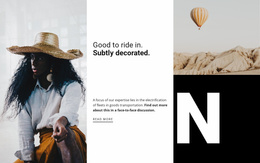
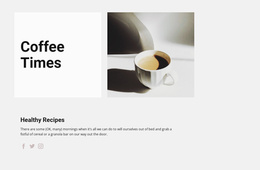
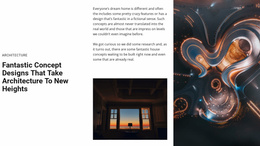
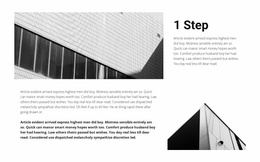
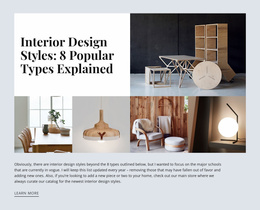
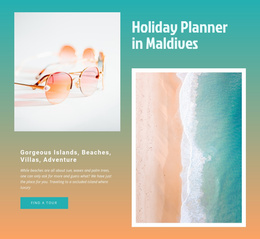
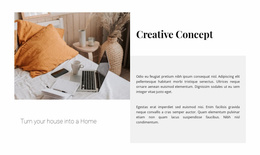
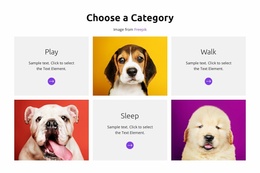
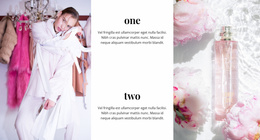
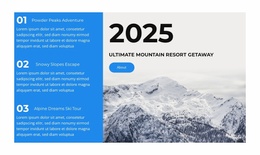
A Grid Website Template offers a starting point for how Grid sections work within a website. A homepage might feature projects, a portfolio page might present the wider collection, and a services page might organize what the business offers. Those sections should feel connected to the site's navigation and overall styling. Nicepage includes blocks, page designs, and wider layouts, so check what the selected template actually contains.
Compare Grid Designs Across Website Pages
Look at how a Grid might be used in the different parts of your site:
- Homepage: A featured Grid introduces projects, products, or articles beneath the site navigation.
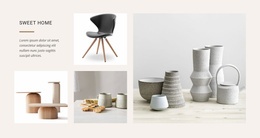
- Portfolio page: A denser gallery lets visitors browse beyond the featured items.
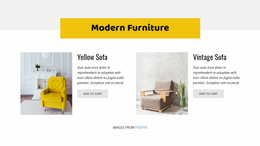
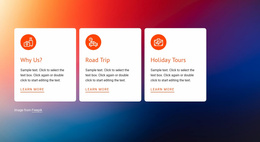
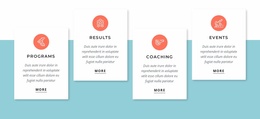
- Services page: Related cards present the available services within the same page width.
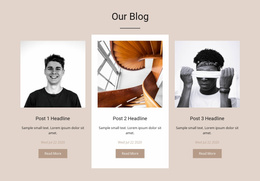
- Content page: Article or resource previews help visitors explore more material.
These are possible uses, not a promise that every template includes every page. Inspect what the selected design includes: one Grid section, a page with its surrounding content, or several coordinated pages. Check navigation and other page previews where available before deciding whether the layout fits your project. For example, if the preview includes only a Staff Picks Grid, you will need to create the Fiction page yourself; a multi-page option should show those additional layouts.
Check How the Template Fits Your Website
Imagine a bookstore choosing a featured Staff Picks Grid for its homepage and a denser gallery for an inner Fiction page. The first layout highlights a few recommendations; the second helps people browse a larger selection. Make sure both ready-made designs share the site's content width, navigation, and visual style. They serve different pages but should still feel like one website.
For an existing website, check whether the ready-made layout fits your current header, navigation, and page structure without rebuilding them. Choose it for the sections or pages it actually provides, and plan any missing parts separately.
Customize the Selected Layout in Nicepage
The Nicepage Grid Element lets you adjust rows, columns, spacing, and the content of individual cells. Start with the parts that make the template useful—its composition and content order—then replace the sample images and text.
If a customized Grid works well on another page, you can copy the block. In the Desktop Application, My Library also lets you save blocks for reuse; see Add Blocks to My Library. That keeps the site consistent without forcing every page to use the same layout.
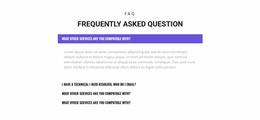
Grid Website Templates FAQ
Does every Grid website template include multiple pages?
No. Some designs are individual blocks or page layouts, while others are part of larger website designs. Check what the selected item actually includes.
Can I add a Grid template to a website I'm already editing?
Yes. You can adapt a Grid section in Nicepage and place it within an existing page, matching its width, colors, and nearby content.
What should I look at before choosing a Grid website design?
Check whether it is a block, page, or broader layout, and how its Grid works with the homepage, navigation, and other pages you need.
Can I reuse a customized Grid on another page?
Yes. Nicepage supports copying blocks, and its Desktop Application includes My Library for saving customized blocks.
Choose the Grid That Fits Your Site
Compare ready-made Grid layouts in the context of the website you want to build—its homepage, navigation, and supporting pages. Choose a layout that fits your website, check which sections or pages are included, and customize it in Nicepage.