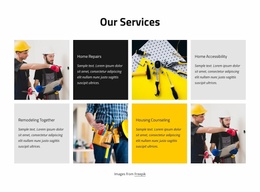
Commercial projects Website Template


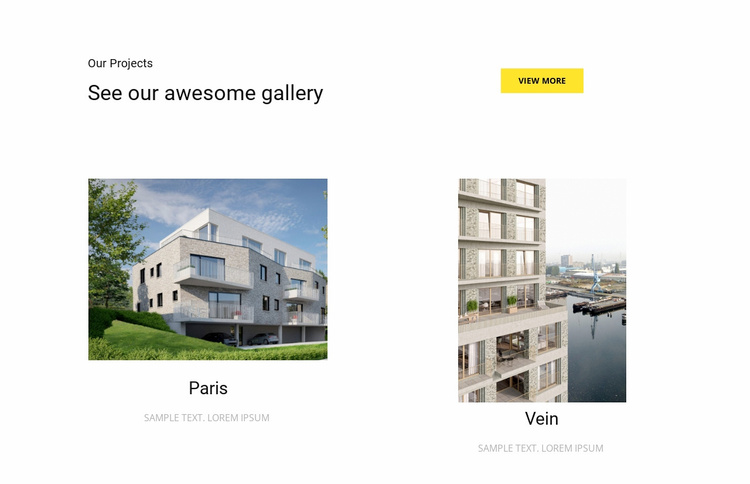
A two-column gallery for a broader project collection
The block defines one self-contained project area for a larger website project. Its opening row combines the “Our Projects” label with the stronger “See our awesome gallery” heading, then balances that introduction with a right-aligned “View More” button. This makes the section easy to coordinate with other content areas: it can show a small selection of work here while a separate destination provides the full project collection.
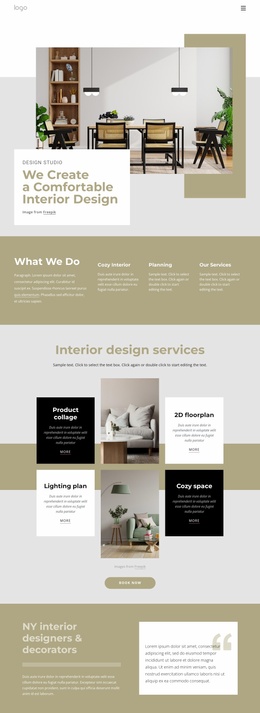
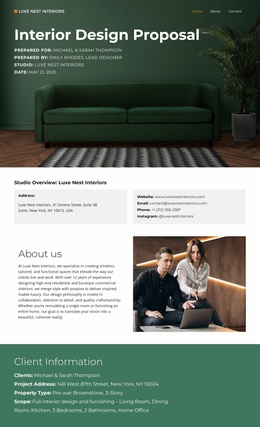
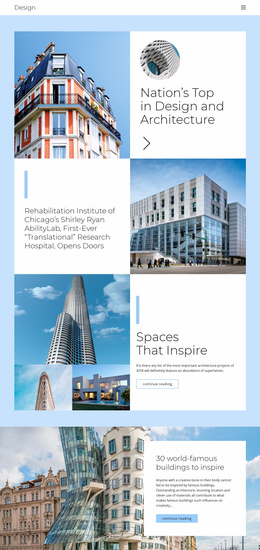
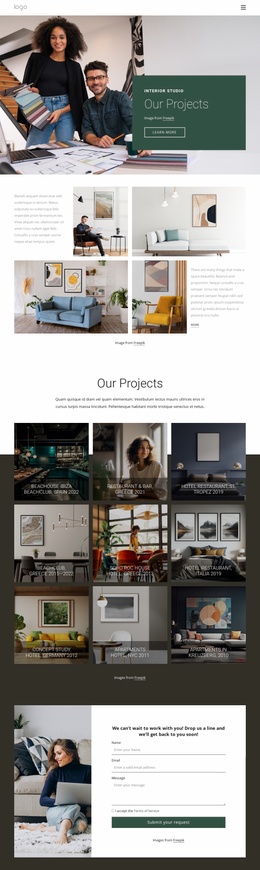
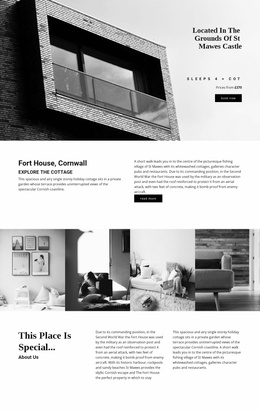
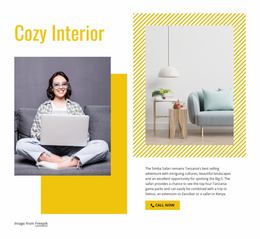
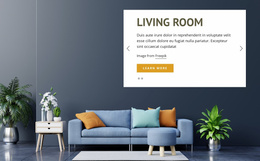
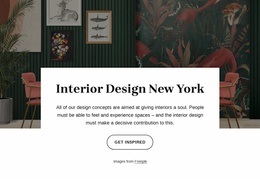
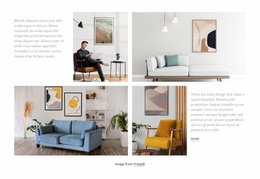
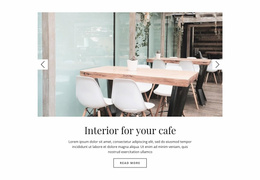
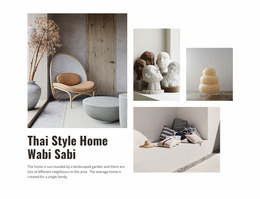
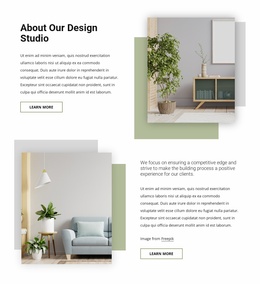
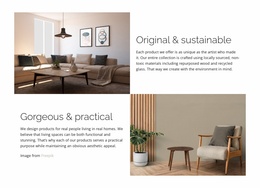
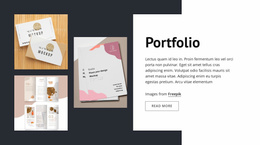
Below the heading row, two peer gallery items share the same visual pattern. Each item uses a large project image followed by a centered title and a compact uppercase gray description. Because the items are aligned in two columns, visitors can compare the examples at a glance, while the generous white space preserves separation between the image-and-caption groups. The black text and yellow action button add a restrained accent system without making the section dependent on a larger site layout.
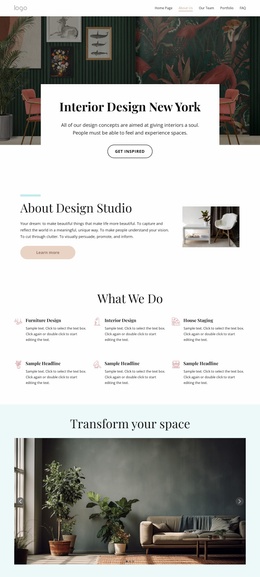
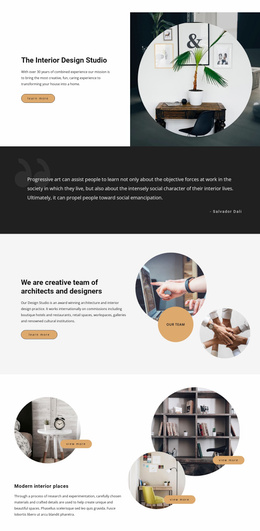
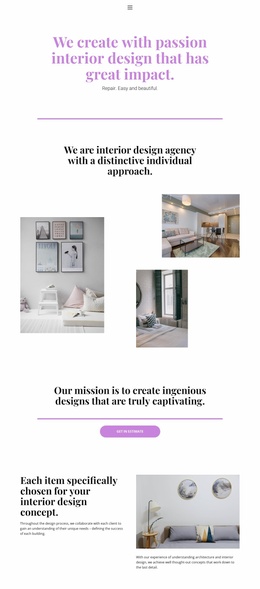
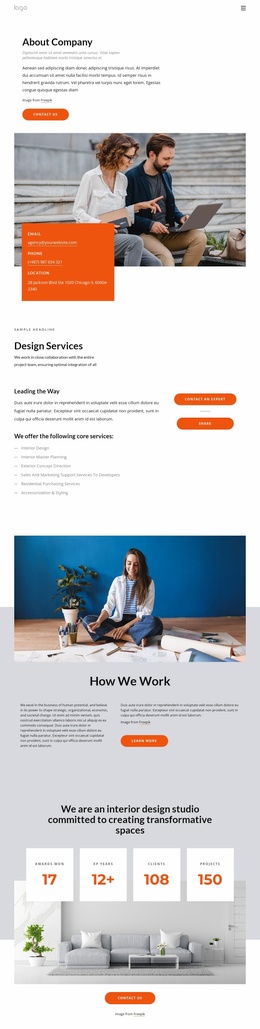
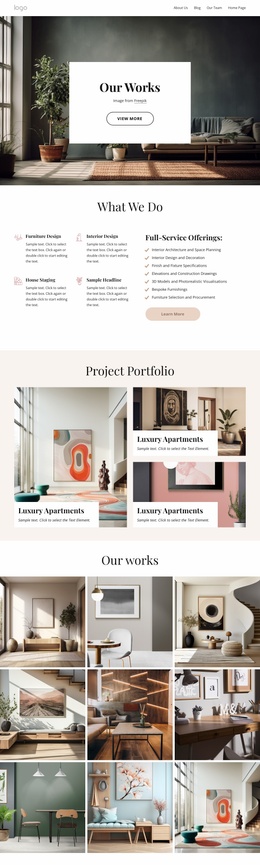
Within a broader Website Template project, this block can function as a reusable portfolio or project-gallery section for architecture and interior work. Other pages or sections may handle service details, company information, contact content, or additional case studies. The block contributes a defined gallery pattern that can be placed where selected project work needs to support the surrounding website narrative.
Customize with Nicepage
Open this ready-made template in the Website Template Builder and customize it visually in the Nicepage editor. Replace demo content, edit page sections, and adapt the design to your project without rebuilding the template from scratch.
Edit Template Offline
2. Create a new page or select existing
3. Click Add new block, search for id 42189 and click enter
Edit Template Online
Create Awesome Websites


Free Nicepage Builder
Keywords
Build a Complete Website From This Template
Customize the Website Visually
Use this ready-made website template as a starting point for your project and adapt its pages visually in Nicepage. Change content, images, typography, navigation, sections, and other design elements while keeping the website together as a single editable project.
Manage Website Pages in One Project
Use the Pages panel to open, add, duplicate, and manage the pages of your website. Work on individual pages while keeping navigation and the overall site structure accessible from the same project, making it easier to develop a complete website instead of managing separate page files.
Expand the Website With Matching Designs
When you need additional pages or sections, use Page Design Sets to find Page and Block Designs created in the same visual style. Design Sets group matching designs together, making it easier to expand the website with new content while maintaining a consistent look across its pages and sections.
Organize Larger Multi-Page Websites
As the website grows, use Page Folders to organize related pages and keep larger multi-page projects easier to navigate in the editor. This is especially useful for websites with separate service pages, company information, contacts, landing pages, and other content areas.
This workflow makes the template a practical foundation for building and expanding a complete website while managing its pages, content, and visual design within one Nicepage project.