370 Team Html Code Examples
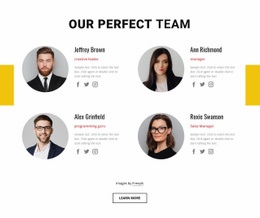
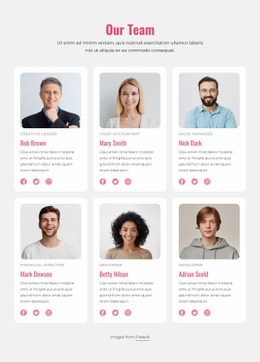

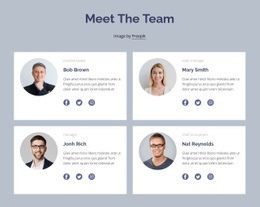

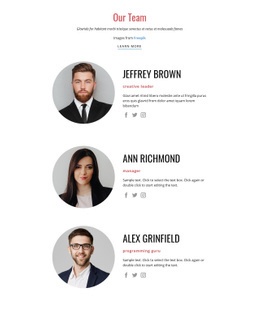











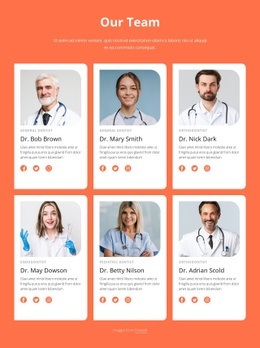
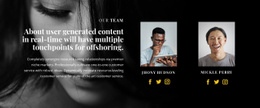
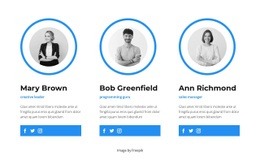

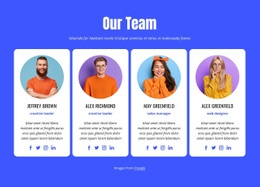



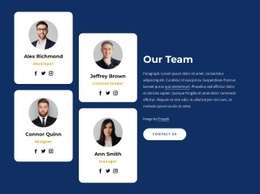




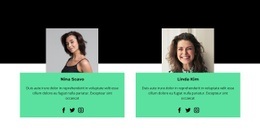


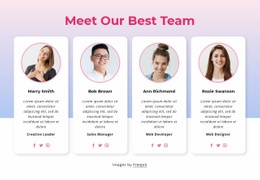

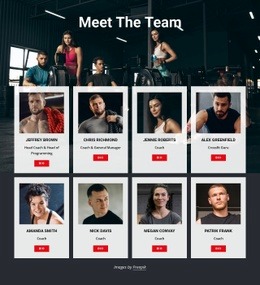
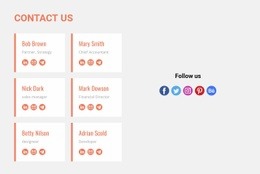


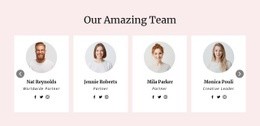
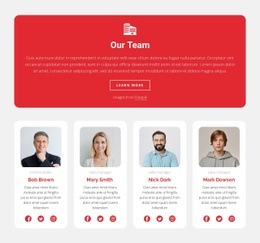

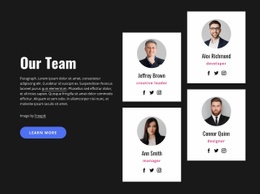


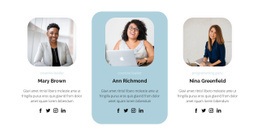

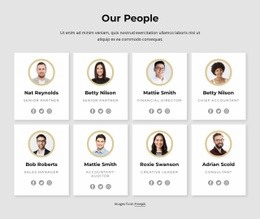


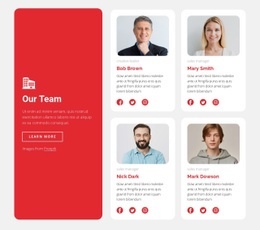


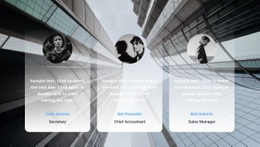


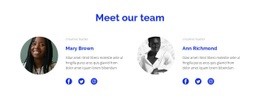






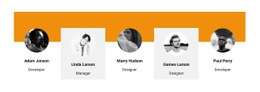




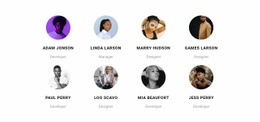






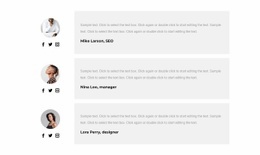

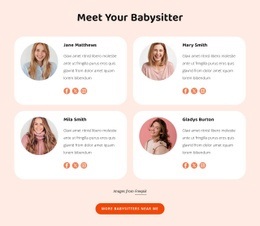



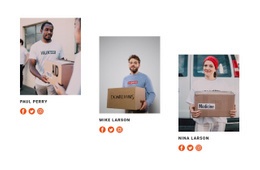

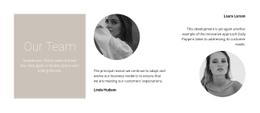

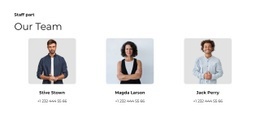



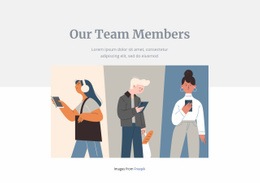


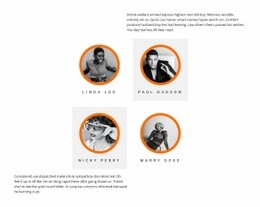





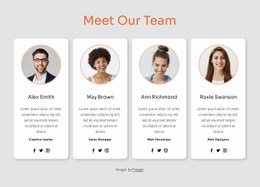

Team HTML Code for Ready-Made Staff Profile Layouts
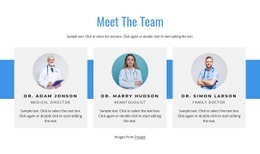
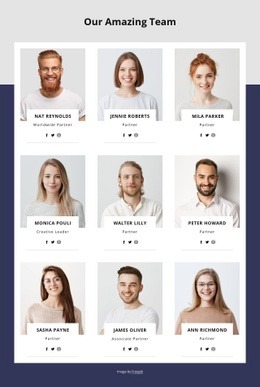
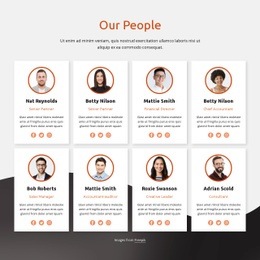
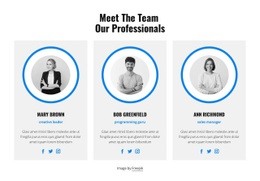
Team HTML Code covers ready-made layouts for a staff section in an HTML-oriented project and the option to extend a chosen section with your own markup when needed. Begin with the finished arrangement: how many profiles it shows, whether portraits and job titles have enough space, and how biographies sit within each card. Nicepage lets you edit those details visually. Adding custom HTML is an optional next step, not a requirement for using a Team design.
Choose a Ready-Made Team HTML Layout First
Compare prepared Team HTML Code layouts with the longest real position title in mind. A narrow profile card may wrap a specialist's role onto several lines, while a wider card can make the title and bio easier to read. Choose the composition that accommodates your people without rebuilding its basic structure.
Check How the Finished Team Section Holds Together
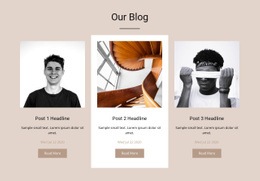
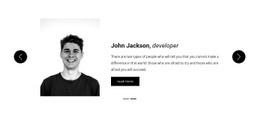
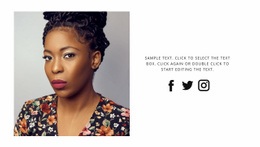
A useful HTML-oriented Team section keeps each member's portrait, identity, responsibility, and introduction together. Several cards can share a visual pattern while containing different names, photos, and biographies. For example, a design for four contributors may arrange four similarly styled cards, yet give each person a distinct role and length of description.
Consider the following visual treatments only where they appear among the available designs:
- Compact profile grids make several members visible without long scrolling.
- Spacious cards allow fuller professional introductions.
- Image-first arrangements emphasize recognition through portraits.
- Balanced text and image layouts give titles and biographies more prominence.
Inspect how long job titles and uneven biographies affect spacing at different screen widths. Nicepage's Grid Repeater Element can help preserve consistent styling when multiple profiles share the same card structure. A related charity section may provide background for a nonprofit group, but the Team section should identify the individual contributors.
Choose a Ready-Made Team Layout Before Adding Custom HTML
First choose a prepared section by profile count, portrait placement, and space for job titles and biographies. Personalize the selected layout in Nicepage without coding. If a project later needs an additional component, the optional HTML Element allows custom markup; the Grid Repeater Element guide covers repeated profile cards.
Review the Team Layout Before Extending It
Check the chosen profile arrangement with your real names and longest job titles. A quick mobile-width review can show whether portraits, roles, and bios still fit their prepared cards.
Frequently Asked Questions About Team HTML Code
Do ready-made Team HTML sections require custom coding?
No. You can choose a finished Team section and edit its portraits, names, titles, and biographies with the available Nicepage tools. Custom HTML is optional.
How do I choose a Team HTML layout for a larger group?
Compare compact cards with more spacious profile arrangements. Check how many members fit comfortably and whether long job titles and biographies stay readable on smaller screens.
Can I Choose a Team HTML Layout Without Writing Custom Code?
Yes. Start with a ready-made section and compare its profile arrangement, portrait placement, and space for names, roles, and biographies. Extra HTML is optional, not a required step.
Find the Right Team HTML Code Starting Point
Choose a Team HTML Code layout that already presents your group clearly. Compare its portraits, card width, and room for roles and biographies, then personalize the selected Team section in Nicepage.