Tabs Html Code Examples
-
-

-
-
-
-
-
-
-
-
-
Customize Any TemplateDownload
-
-
-
-
-
-
-
-
-
-
-
-
-
-
-
-
-
-
-
-
-
-
-
-
-


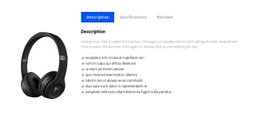

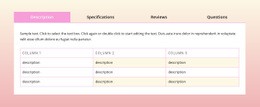
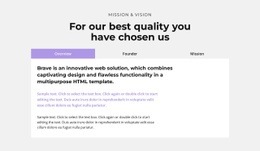

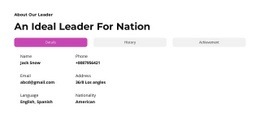




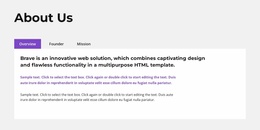
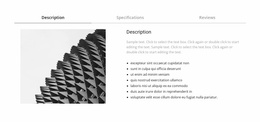
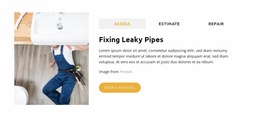
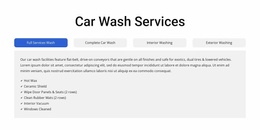



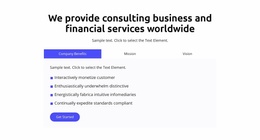

Advanced Tabs HTML Code Blocks for Custom Markup and Integrations
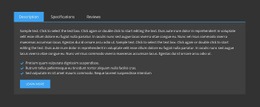
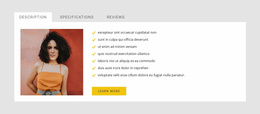
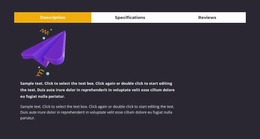
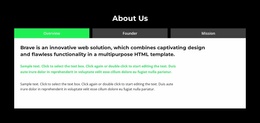
Tabs HTML Code becomes useful when the standard tabbed section needs something more technical inside one or more panels. The core interaction can stay native, while a panel receives custom markup, an embedded tool, a script-supported widget, or another integration that is not covered by standard elements.
This keeps the section easier to maintain than rebuilding the entire Tabs interaction with custom code.
Add Code for Real Panel-Level Requirements
Custom code is most valuable when it solves a specific requirement. Typical examples include:
- embedded calculators or configurators;
- third-party forms or scheduling widgets;
- interactive maps or external media embeds;
- script-driven charts or dynamic data views;
- project-specific components supplied by another service.
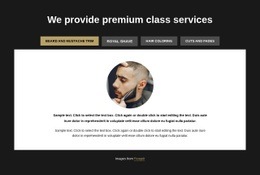
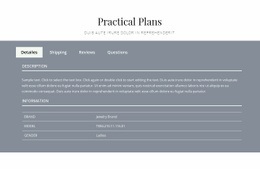
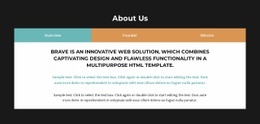
Nicepage provides Tabs block designs for the main interaction, and the HTML Element documentation explains how custom code can be added through a dedicated Code field.
The clearer separation is simple: Tabs manage the section structure, while the HTML Element handles the specialized addition.
Keep Scripts and Embeds Scoped to the Panel That Needs Them
A custom integration should not make the whole block harder to understand. If only one panel needs an external widget, keep that code close to the relevant content instead of turning every tab into a custom implementation.
Before adding code, check:
- where the embed will appear;
- whether its width and height fit the panel;
- whether it loads correctly when its tab becomes visible;
- whether it introduces extra spacing or overflow;
- whether it behaves acceptably on smaller screens.
These checks matter because third-party components can have fixed dimensions or scripts that don't automatically match the surrounding layout.
Use Custom Code Without Rebuilding the Native Interaction
The strongest approach is usually extension rather than replacement. Let the Tabs element continue to handle the control set and visible panels, then use code only for the additional feature.
That makes future editing more predictable:
- labels and basic panel content stay editable in the normal workflow;
- custom code remains isolated to the technical requirement;
- the tabbed section still behaves as one recognizable Nicepage block.
If a project genuinely requires a fully custom scripted Tabs component, that becomes a broader development task. For most content-oriented pages, a native Tabs block plus a focused code extension is easier to manage.
Review Code Behavior Across Screen Sizes
Custom embeds can create responsive issues even when the surrounding Tabs block is well designed. Use Nicepage Responsive Modes to inspect the section at smaller widths and verify that the added component does not force horizontal scrolling or break the panel composition.
Tabs HTML Code FAQ
What Kind of Custom Code Can Be Useful Inside a Tabs Panel?
Embeds, external forms, maps, charts, dynamic widgets, and project-specific components are common reasons to add custom markup or scripts inside a tabbed section.
Should Custom HTML Control the Entire Tabs Interaction?
Not by default. Use the native Tabs element for the main switching model and add custom code only where a panel needs functionality beyond the standard element set.
What Should I Check After Adding a Third-Party Widget?
Check panel dimensions, overflow, loading behavior, mobile width, and whether the widget still works correctly when users switch between tabs.
Can I Add Custom CSS Around Code Used With a Tabs Section?
Yes. Nicepage supports custom CSS where needed. Keep those rules focused on the custom component or required styling rather than replacing the native Tabs behavior without a clear reason.
Extend the Block Only Where the Project Needs It
Start with a Tabs design that already handles the main interaction. Add an HTML Element only for the panel or component that needs custom code, then test the result across screen sizes. This keeps the section flexible without turning a straightforward tabbed layout into unnecessary custom development.