Blog Posts Html Code Examples
-
-

-
-
-
-
-
-
-
-
-
Customize Any TemplateDownload
-
-
-
-
-
-
-
-
-
-
-
-
-
-
-
-
-
-








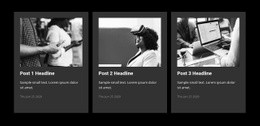


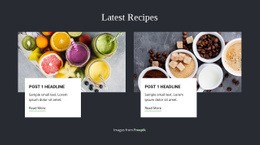












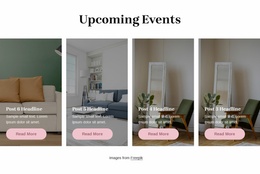

Blog Posts HTML Code Examples for Editable Article Listings
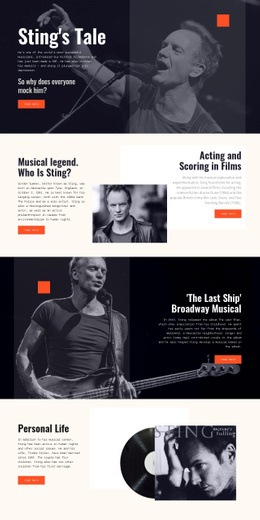
Blog Posts HTML Code examples in the Nicepage catalog offer ready-made article-listing designs to adapt within an HTML-oriented project. When a project needs functionality beyond those layouts, Nicepage also provides an HTML Element for supplementary markup or external embeds. These are separate options: a catalog design does not necessarily include custom code or an embedded widget.
How Can HTML Code Extend a Blog Posts Section?
Start with a catalog design for a recent-articles feed, such as a news or magazine-style listing. If your project additionally needs an external information panel or embed, place it beside the feed as a separate component. The article-listing design itself remains focused on published posts and their reading destinations.
See the Boundary Between Native Posts and Custom HTML
Start with a ready-made Blog Posts HTML Code example when you need an article listing, then adapt its titles, excerpts, images, and reading links to your content. Nicepage's Blog Posts Element supports the recurring native feed; a separately inserted HTML Element is useful for a custom embed or a project-owned component beside it.
To add such a component, open the HTML Element, enter the supported HTML, CSS, or JavaScript, and review the rendered result in Preview. Keep in mind that a static HTML snippet is not a dynamic CMS-fed post list: hand-written entries do not automatically receive new posts or inherit the native Blog Posts data source.
Only introduce custom markup for a specific requirement that the ready-made listing does not cover. External embeds also depend on their provider and need testing after publication.
Adding Custom HTML Components in Nicepage
In the Nicepage HTML Element, adjust the component's size, margins, and alignment to suit the surrounding article section. Keep the embed separate from the native feed, and verify its behavior in Preview and after publication. An HTML Code example from the catalog does not imply that every displayed design comes with a third-party widget.
Deciding When Custom Markup Is Necessary
Use custom markup only when a specific external widget or project-owned component is required. For instance, it may complement individual post designs without replacing their reading links or content management. Avoid rebuilding a working article feed as static markup to add one supplementary element.
Frequently Asked Questions About Blog Posts HTML Code
Can I add custom HTML code to a Blog Posts section in Nicepage?
Yes. Nicepage provides an HTML Element that can be added to a page block containing a Blog Posts section. It can hold supplementary markup or embedded content alongside the native article listing.
Can the Nicepage HTML Element contain JavaScript and CSS?
Yes. The HTML Element supports HTML, CSS, and JavaScript. Enter the required code in the Code field and review the rendered result in Preview or after publishing.
What is the difference between a Blog Posts Element and an HTML Element?
The Blog Posts Element presents recurring article previews with titles, images, excerpts, metadata, and reading links. The HTML Element inserts custom code or embedded components. It does not automatically provide the native Blog Posts publishing structure.
Can I import an existing HTML blog into the Nicepage editor?
No. Nicepage does not support importing arbitrary HTML websites directly into the editor. You can recreate an article-listing section with Nicepage elements and use the HTML Element for supported custom code additions.
What should I check before publishing this Blog Posts section?
Open a few article links, review real headline lengths, and check the layout on a narrow screen. Confirm that every preview leads to the intended complete story.
Extend Your Blog Posts Section With Custom HTML
Start with a Blog Posts block that presents your articles clearly, then review whether the section needs supplementary functionality. If it does, add an HTML Element in the Nicepage editor, insert the required code, and position it alongside the editorial previews. Check the rendered result in Preview to confirm that the additional component supports rather than interrupts article browsing.