300 Gallery Templates
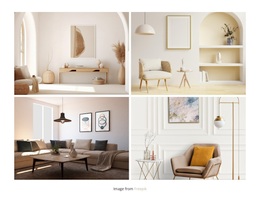
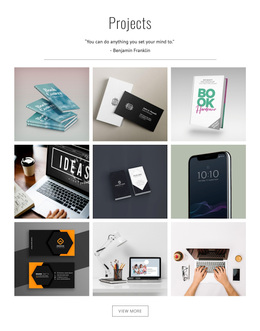
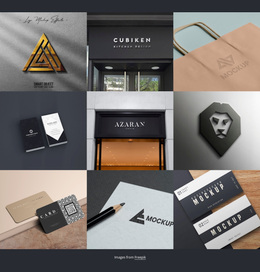







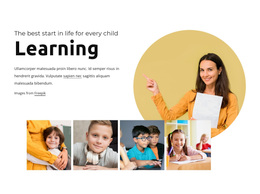

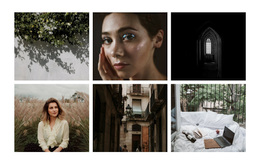








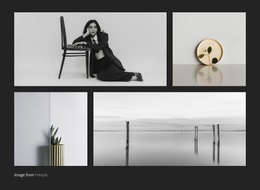



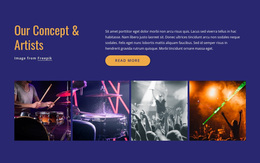



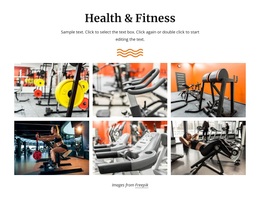
































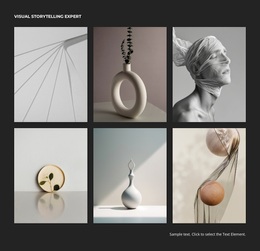





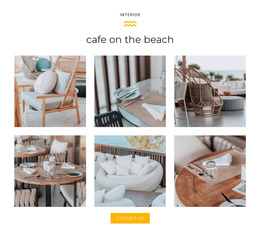
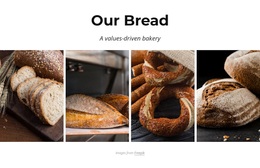






















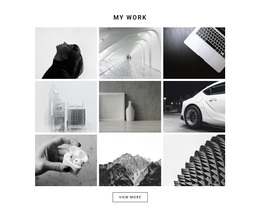
Gallery Templates for Ready-Made Image Collections
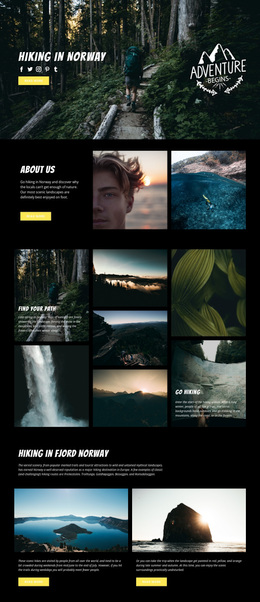
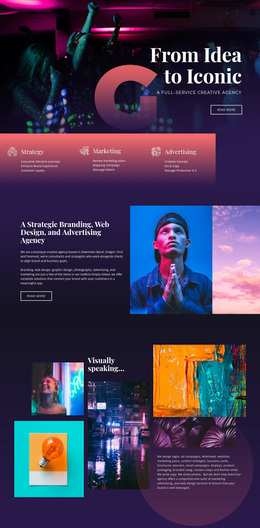
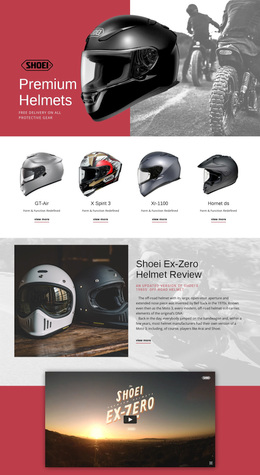
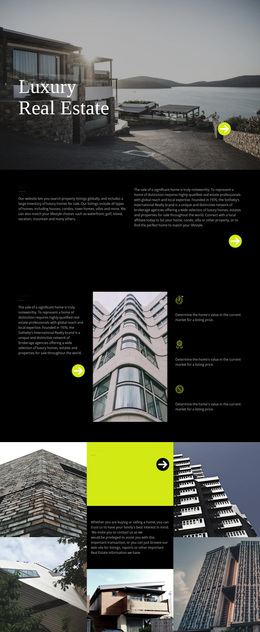
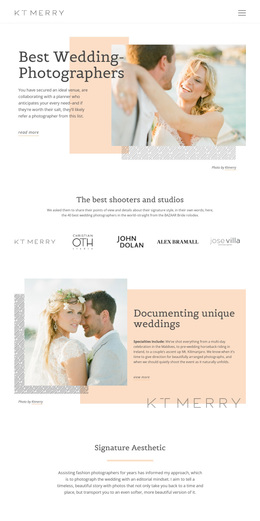
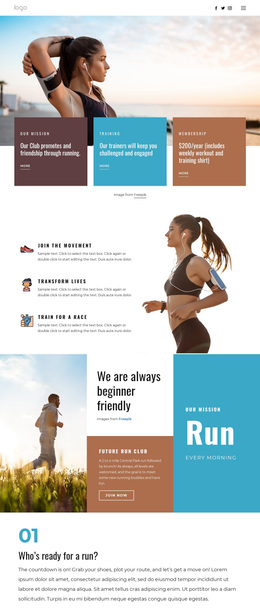
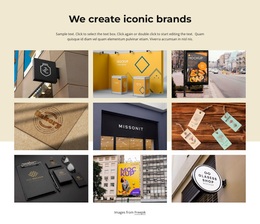
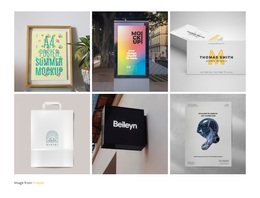
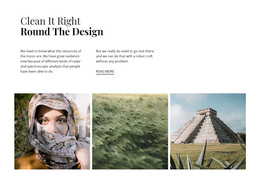
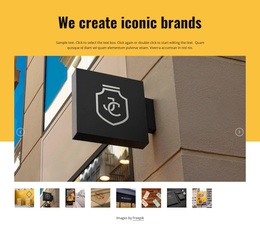
Gallery Templates bring together ready-made layouts for browsing related photographs. You can compare designs with even image rows, mixed proportions, prominent featured photographs, and captions, choosing the composition that gives the collection the right character.
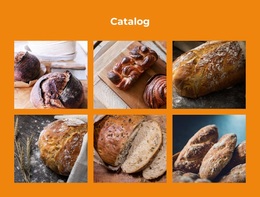
A photographic portfolio often benefits from generous image space. A craft catalog might favor a regular collection of equally important objects. The same Gallery section can look quite different depending on which ready-made arrangement you select.
Explore Gallery Templates by Image Count and Composition
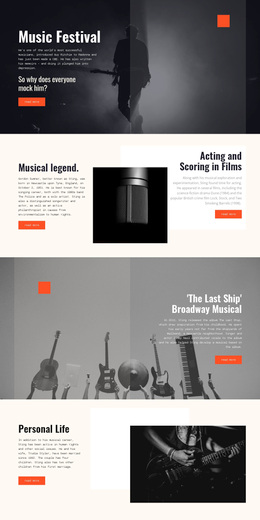
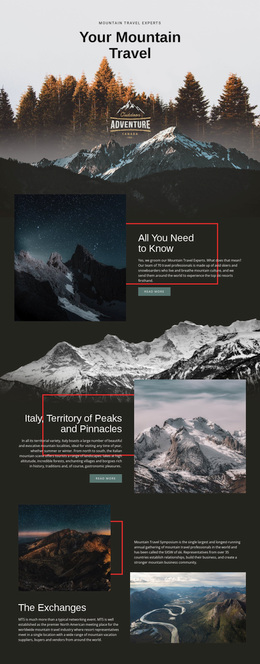
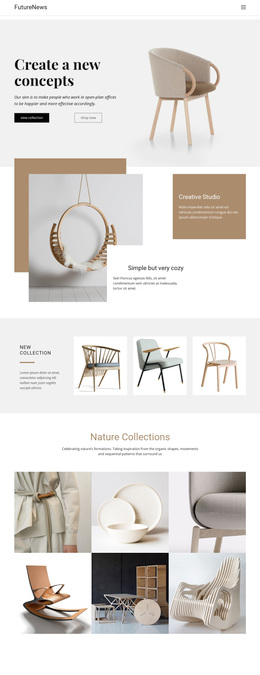
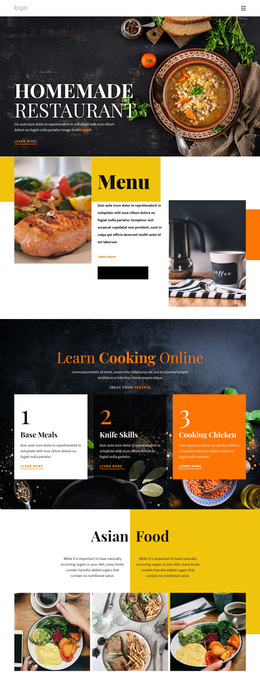
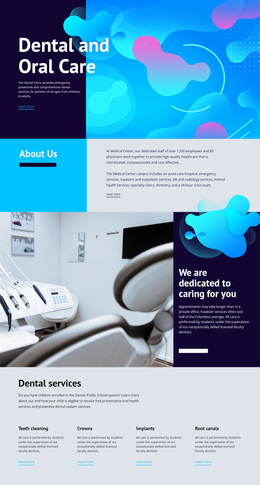
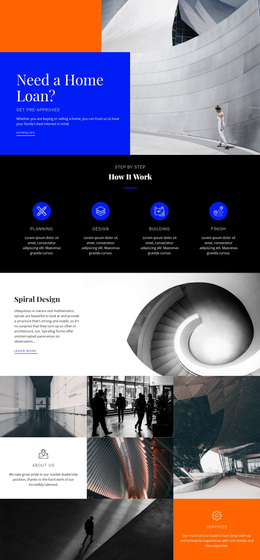
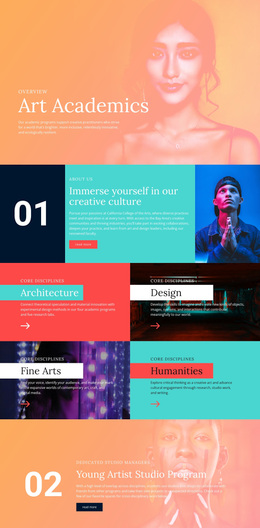
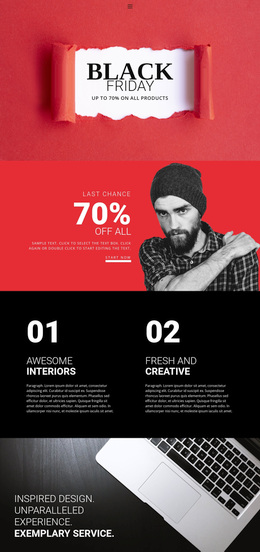
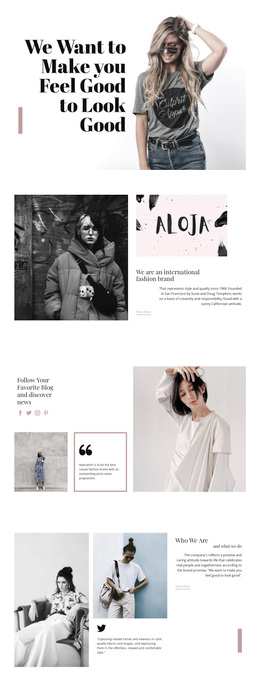
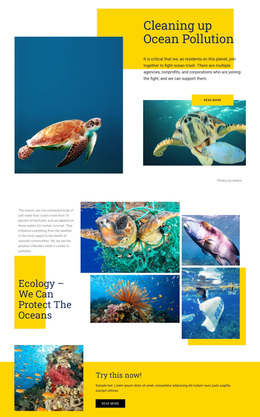
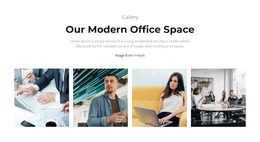
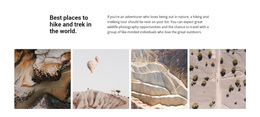
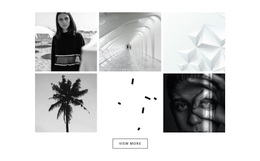
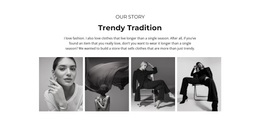
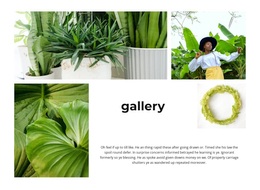
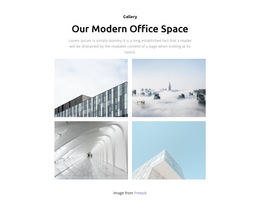
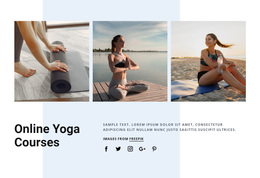
Nicepage Gallery designs include concrete starting points such as Gallery for Two Photos, Gallery with Four Photos, Gallery Asymmetric, and Gallery with Pictures and Text. These examples are helpful because they describe visible differences, not abstract design categories.
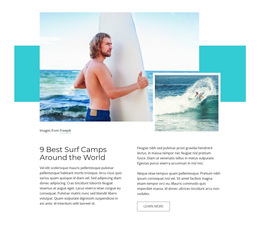
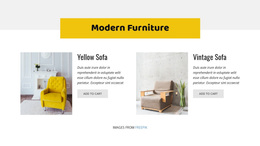
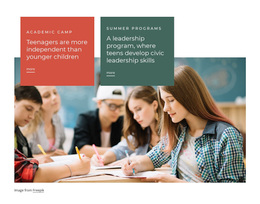
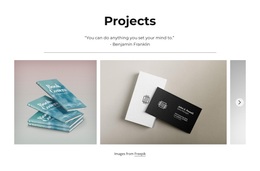
A two-photo section gives both images room to be compared. A four-photo design shows a broader selection in one cohesive section. Asymmetric layouts make one image more prominent, while a picture-and-text composition adds context without separating the photographs from their introduction.
The Image Gallery Element supports the browsing experience within a selected block. Choose by the number of images you want to feature and how much attention each deserves. Captions and spacing then become useful details of that selection.
The same ready-made Gallery options can suit a portfolio, homepage preview, or product showcase; their value comes from how you arrange the images rather than a fixed industry label.
Compare the Details That Matter When Choosing
A layout with wide image areas suits landscape photographs; one with more evenly sized frames may suit repeated product views. Image proportions and the amount of caption space can affect how well a ready-made design fits the intended collection.
The Image Gallery Caption option is relevant when every photograph needs a short title or identifying detail. Select a design whose captions are already placed naturally beside the imagery.
Select Gallery Instead of a General Image Composition
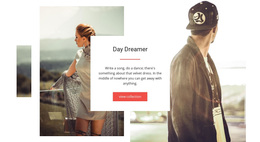
Gallery is the right choice when visitors should browse several distinct but related visual items. A Slider emphasizes moving through individual slides, while Layered Images uses overlapping photographs to create one coordinated visual statement.
Choose a Gallery block when image grouping, comparison, and individual previews matter more than decorative composition. Review the collection at different screen sizes, paying attention to image order, spacing, and how much detail shows in each photograph.
Gallery Templates FAQ
Can I replace the sample images in a Nicepage Gallery template?
Yes. Nicepage lets you replace individual Gallery images, replace multiple images, and add new photos to the collection. You can also adjust supported gallery properties to suit the updated content.
Do Nicepage Gallery templates support enlarged image previews?
Yes. The Nicepage Image Gallery Element supports a lightbox option that opens an enlarged image preview when a visitor clicks a photograph. Its availability and configuration depend on the selected gallery layout.
Can I use Gallery captions to describe individual photographs?
Yes. Nicepage supports captions and descriptive text in compatible Gallery layouts. The Gallery Caption option adds text controls, helping visitors understand the context of individual images.
Find a Ready-Made Gallery for Your Images
Browse the available Gallery templates by image count, arrangement, and the balance between photographs and text. A two-photo composition offers a simple comparison, a four-photo Gallery presents a broader collection, and an asymmetric design gives selected imagery more prominence. Choose the finished block that best fits the photographs you want to display, then replace the sample images in Nicepage.