Blog Posts Templates
-
-

-
-
-
-
-
-
-
-
-
-
-
-
-
-
-
-
-
-
-
Free Website Builder SoftwareDownload
-
-
-
-
-
-
-
-
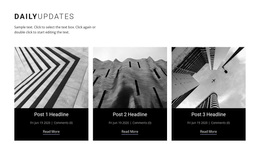

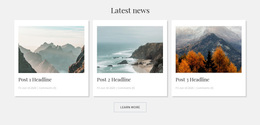
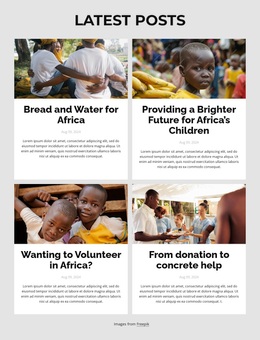
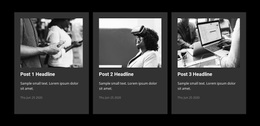
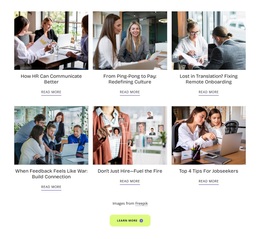
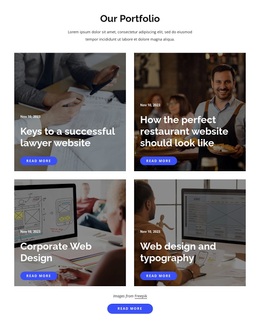

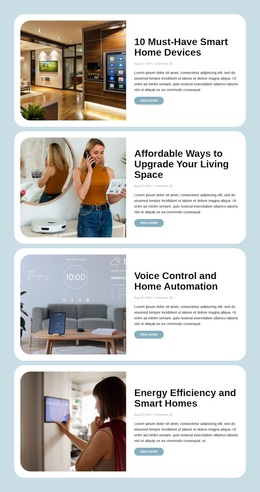
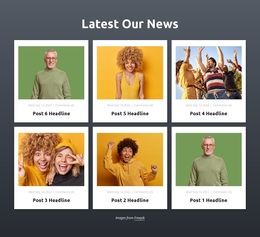
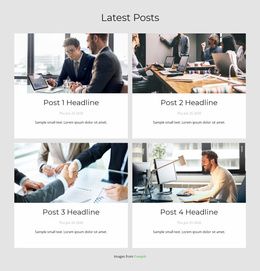
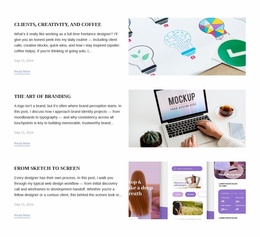
Creative Blog Posts Templates for Choosing Editorial Feed Layouts
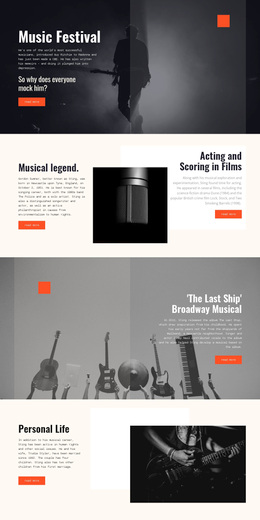
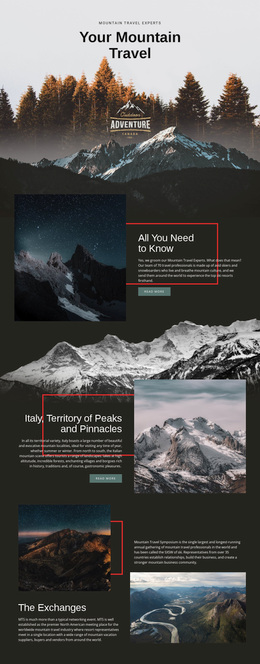
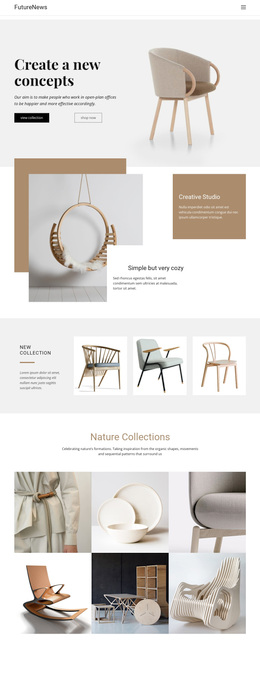
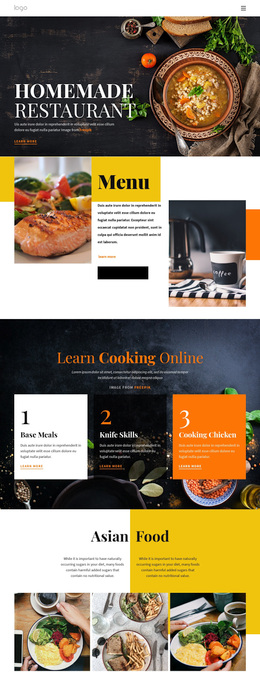
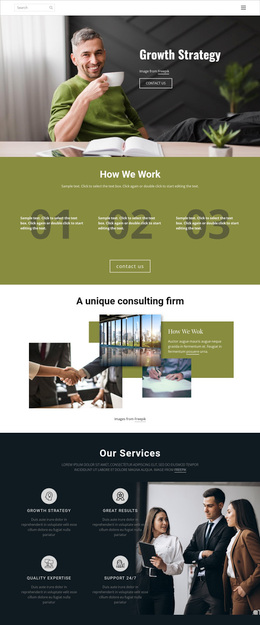
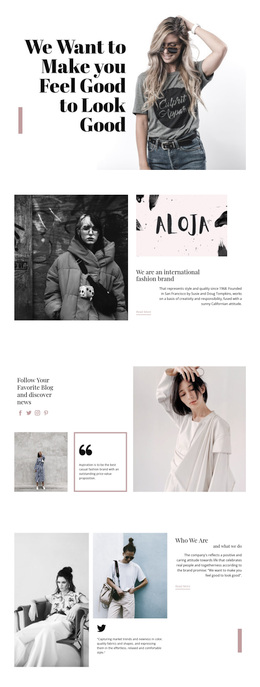
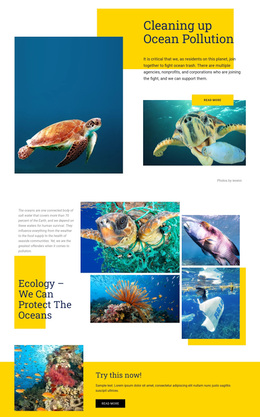
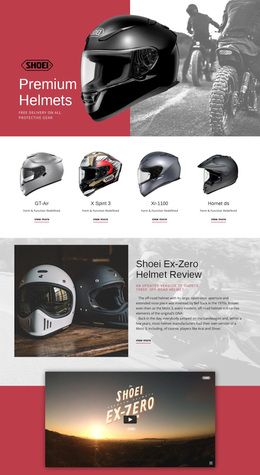
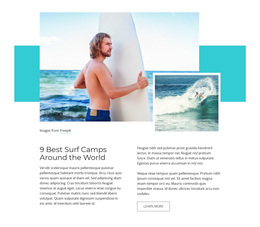
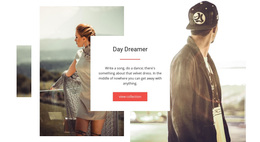
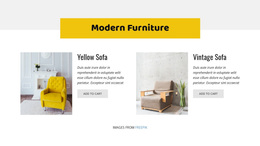
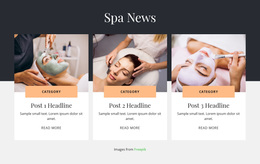
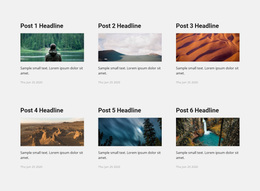
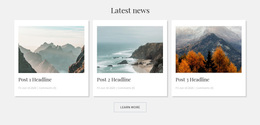
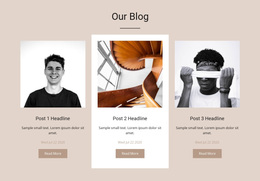
A collection of articles needs a layout that helps readers identify stories before opening them. Blog Posts Templates provide different section designs for arranging recurring editorial previews with titles, featured images, excerpts, publication details, and reading links. Some emphasize recent headlines, while others give featured stories more space. Choosing the right block begins with understanding how visitors will browse the content.
Which Blog Posts Template Fits Your Editorial Content?
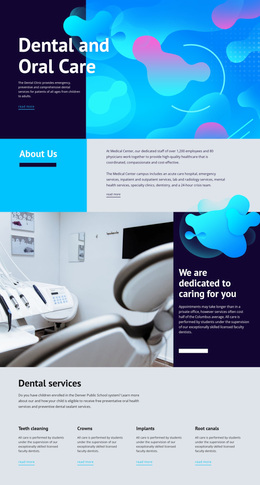
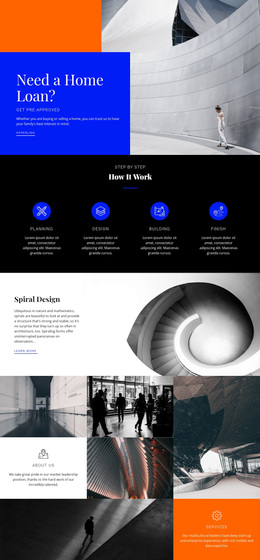
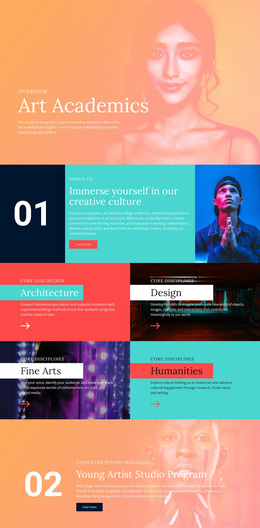
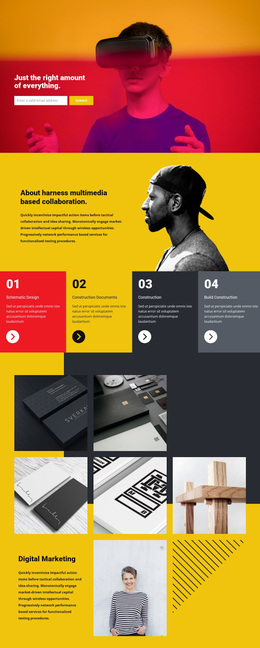
A Blog Posts template provides a starting layout for displaying multiple published articles within one section. Each preview represents an individual post, allowing readers to compare topics, review summaries, and continue to full stories.
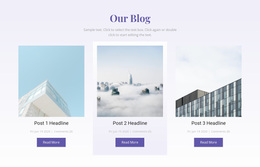
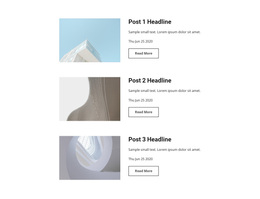
The best layout depends on the content. A recent-news collection may benefit from compact entries with visible dates. A featured-articles section can use larger images and longer excerpts to give selected stories more attention.
Unlike a general Grid, which arranges various content types, Blog Posts follow an editorial publishing model. Its repeated entries include article-specific information and clear destinations for reading.
This distinction matters when comparing templates. The goal isn't simply to arrange cards, but to help visitors discover relevant publications.
Compare Blog Posts Templates by Their Editorial Job
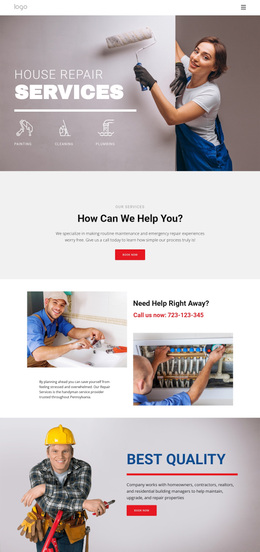
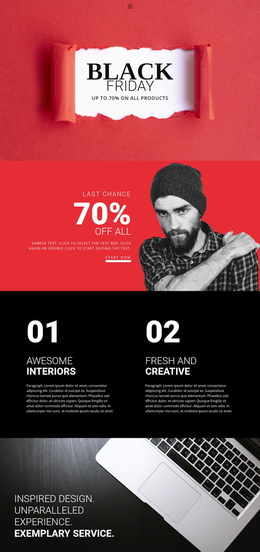
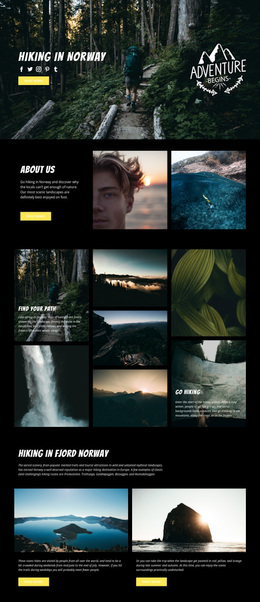
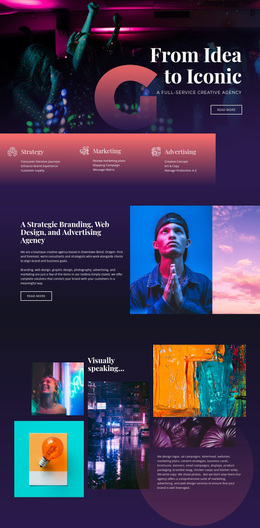
Browse the Blog Posts section catalog according to the articles you want readers to discover. Four preset approaches are worth comparing:
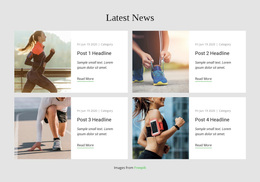
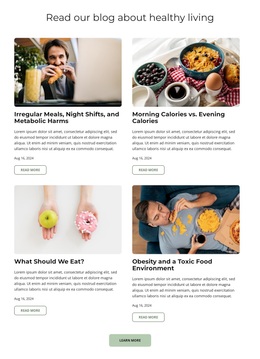
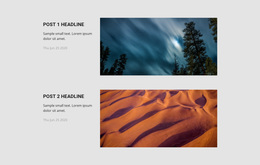
- Compact News Lists: put dates and headlines first when you publish frequent short updates.
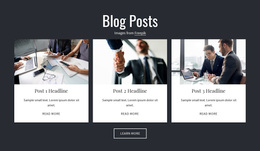
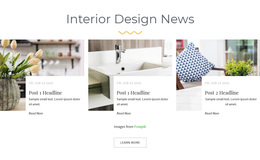
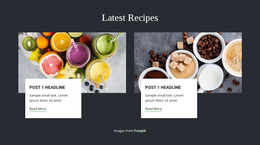
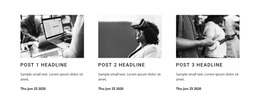
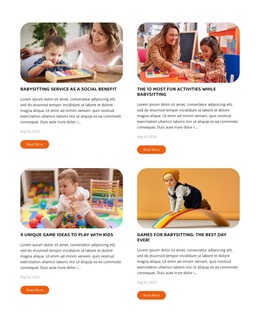
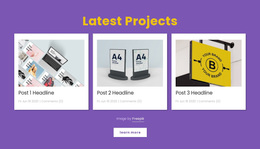
- Equal-Card Collections: give several equally important stories a balanced mix of images, titles, and excerpts.
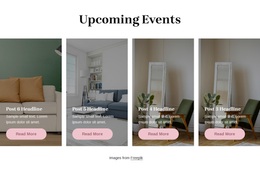
- Featured-Story Sections: give one lead article more space while keeping supporting stories easy to open.
- Image-Led Feeds: prioritize photography for visual subjects without losing the article titles and reading links.
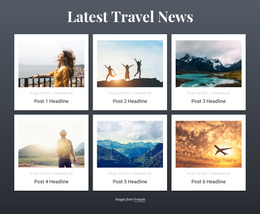
Choose between these designs using post count, excerpt length, image priority, and editorial hierarchy. For example, six short announcements call for a different preview density than three long-form illustrated features. Try the longest headline, a typical excerpt, and the actual image ratios in each shortlisted preset.
The choice here is the article-listing section itself: how many publications visitors can compare and which details they notice first. For additional inspiration, explore blog layouts.
Selecting the Right Content Structure in Nicepage
After shortlisting a preset, check whether the repeated post previews have room for titles, publication details, and a distinct reading link. The Blog Posts Element lets you adjust rows, columns, and spacing without recreating each entry. For a complete single article rather than a collection, see post layouts.
Avoiding Common Mistakes When Choosing a Blog Feed
Avoid choosing solely from identical sample cards. Test a long headline and a short excerpt in the same preset: the mismatch quickly reveals cramped titles or wasted space. If images dominate while article subjects become hard to identify, try a less image-heavy section rather than changing the entire website.
Frequently Asked Questions About Blog Posts Templates
Can I customize a Blog Posts template in Nicepage?
Yes. You can start with a ready-made Nicepage block design and adjust its layout and appearance in the editor. The Blog Posts Element provides controls for arranging recurring article previews.
How do I choose a Blog Posts template without design experience?
Start with the purpose of the article collection and the information readers need. Compare layouts using realistic titles, images, and excerpts, then refine a suitable ready-made design in Nicepage.
Can I change the number of posts and spacing in a preset?
Yes. The Nicepage Blog Posts Element provides controls for rows, columns, and spacing. You can adjust a ready-made editorial section to accommodate your headlines, images, and excerpts without assembling each preview separately.
Which Blog Posts preset works for a larger article collection?
For frequent updates, begin with a compact list that exposes more headlines and dates. Use an equal-card or featured-story preset when a smaller selection deserves more visual space. Test the layout with the actual number of posts before choosing.
Choose a Blog Posts Template for Your Next Section
Compare the available Blog Posts designs and select one that fits your editorial content. Open the block in the Nicepage editor, adapt its article previews, and review how titles, images, excerpts, and reading links work together. A suitable section layout makes published stories easier to browse without requiring a completely new design for every article collection.