Alumni Spotlight Template


A Three-by-Two Gallery Balances Variety and Compact Presentation
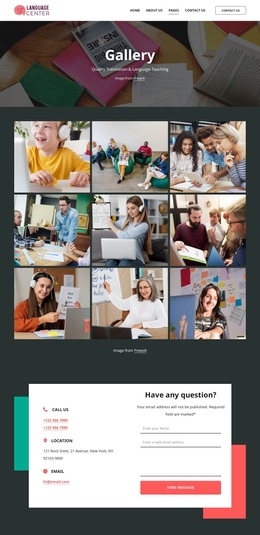
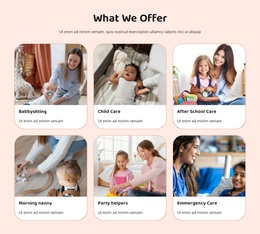
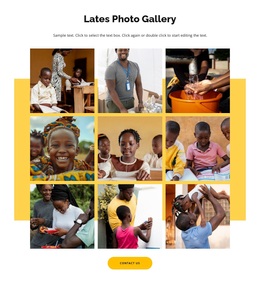
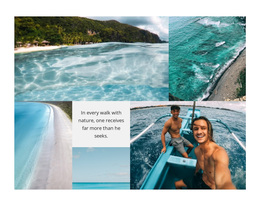
The block combines a centered “Latest events” label, the “Meet Our Graduates” heading, and six photographs into one focused gallery option. Its visual distinction comes from the balance between variety and order: the images depict graduates, study spaces, group activities, and student life, yet their consistent rectangular sizing keeps the collection unified. The three-column, two-row arrangement presents several scenes at once without requiring a long sequence of separate image sections.
That combination makes the design useful when a page needs more visual evidence than a single feature image but less density than a large gallery wall. The white background and centered black typography provide a quiet frame for the photographs, while tight spacing maintains a connected rhythm across both rows. The attribution line adds a prepared supporting detail, and lightbox viewing gives interested visitors a closer view of any selected image. As a section choice, this block works especially well for an alumni highlight, campus-events record, or graduate-life showcase where the content benefits from multiple related moments. Its value lies in the specific relationship between a clear introductory label, broad photographic coverage, and a compact repeatable arrangement.
Customize with Nicepage
Open this ready-made template in the Template Builder and customize it visually in the Nicepage editor. Replace demo content, edit page sections, and adapt the design to your project without rebuilding the template from scratch.
Edit Template Offline
2. Create a new page or select existing
3. Click Add new block, search for id 6557840 and click enter
Edit Template Online
Create Awesome Websites


Free Nicepage Builder
Keywords
Start With a Ready-Made Template
Choose a Design for a New Page
Use a ready-made template as a starting point instead of creating every page from a blank canvas. When adding a new page in Nicepage, browse available designs, compare different layouts, and choose an option that already fits the general purpose and visual direction of your project.
Browse Different Page Designs
Explore Page Designs using search, thematic categories, Design Sets, and full-page previews. The collection includes layouts for different subjects and page purposes, making it easier to compare alternatives before selecting a design to customize.
Customize the Selected Template
After choosing a design, create the page and continue editing it visually in Nicepage. Replace the demo content, adjust images, typography, colors, sections, and other elements, and adapt the ready-made layout to your own content instead of rebuilding the design from the beginning.
Explore More Design Directions
If the first option does not match your project closely enough, return to the design collection and compare other templates before committing to a layout. This makes the template library useful not only for faster page creation, but also for exploring different visual approaches and finding a suitable starting point for a new project.
This workflow gives you access to a broad collection of ready-made designs that can be selected, compared, and customized according to the needs of each new page or project.