Mood board Template


Four Contrasting Photographs Make a Compact Gallery Choice
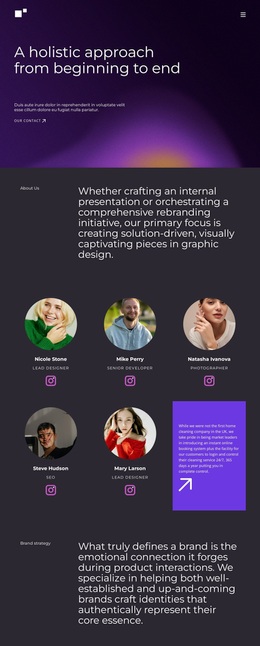
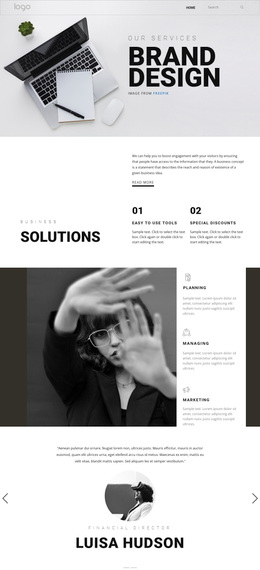
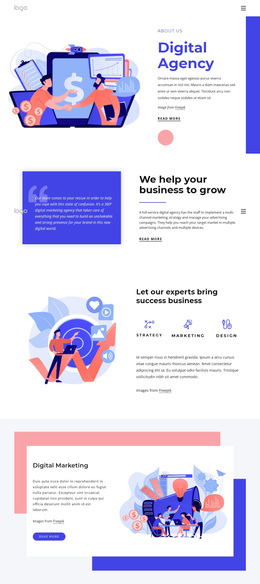
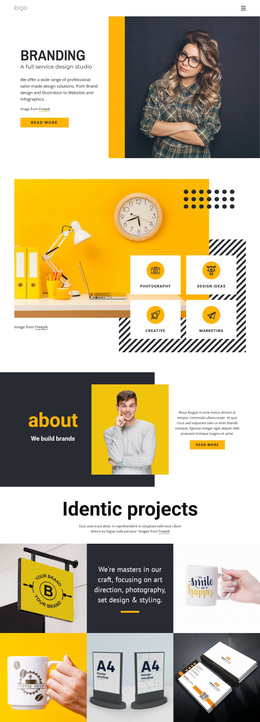
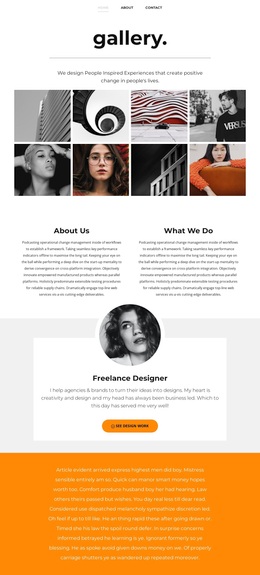
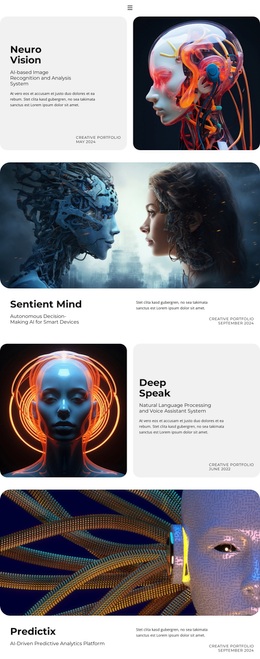
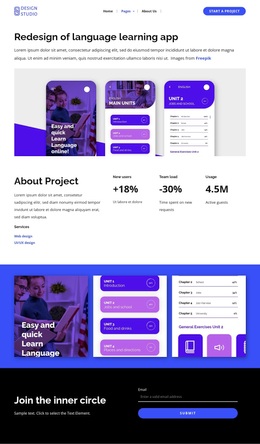
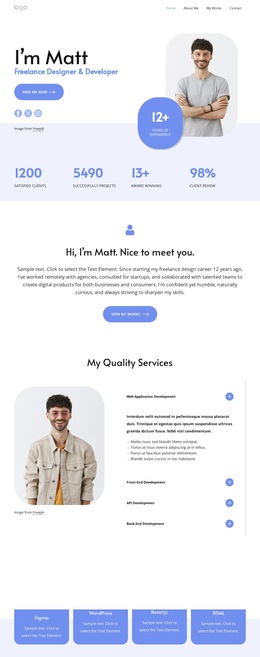
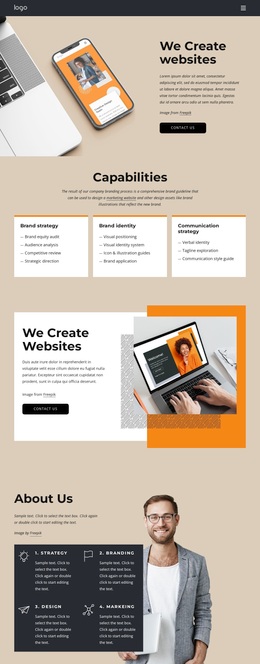
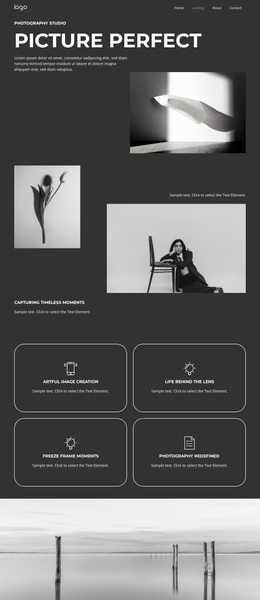
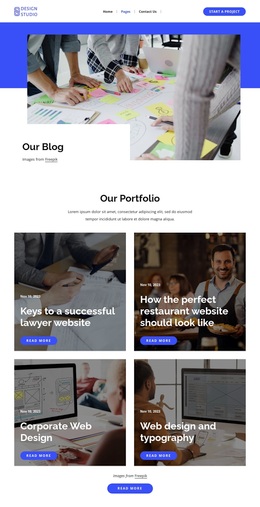
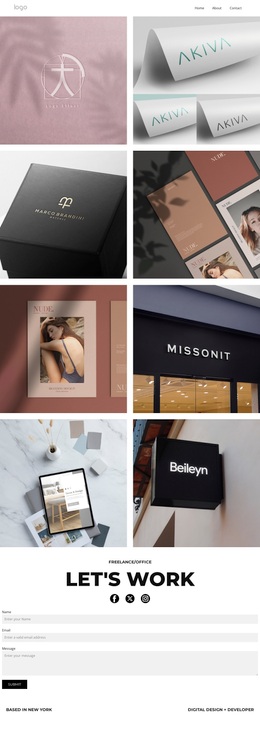
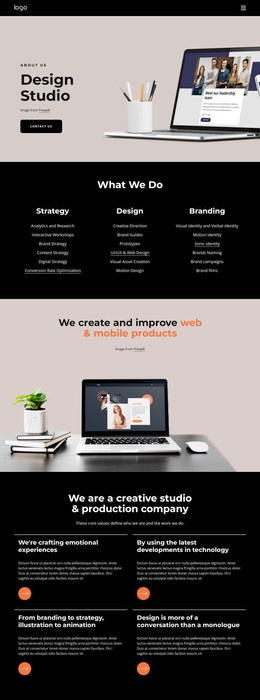
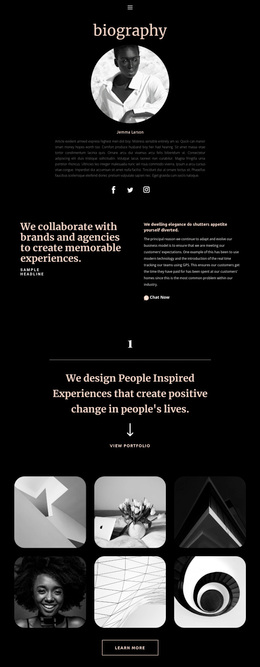
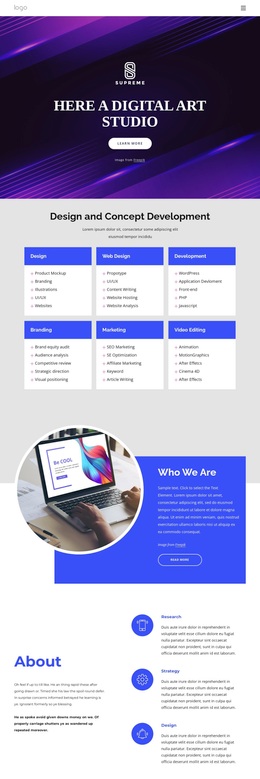
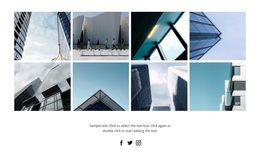
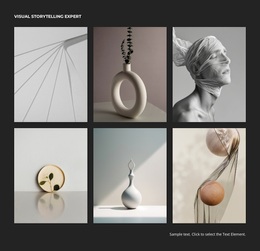
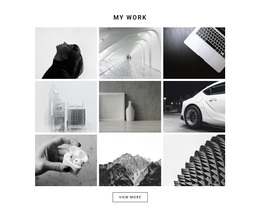
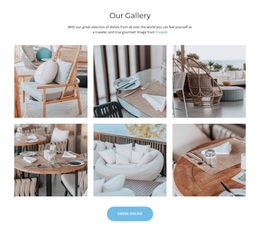
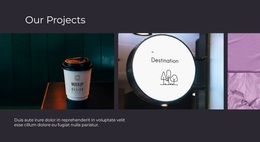
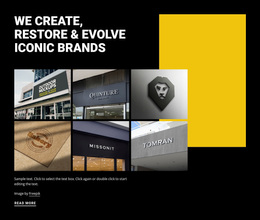
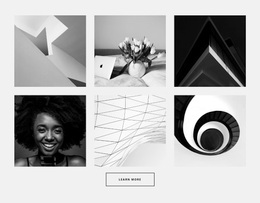
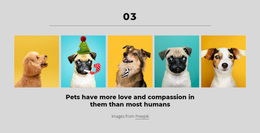
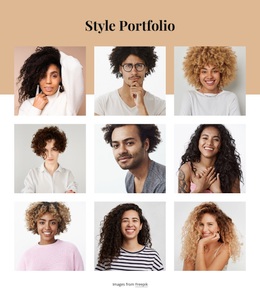
The block offers a specific alternative to a conventional card grid or a single large feature image: four tall photographs share one horizontal row with equal-height vertical panels and minimal spacing. The subjects—a botanical silhouette, a desk workspace, knitted textile, and framed interior decor—create contrast across the sequence while remaining connected through the repeated panel format. Neutral, black, white, and coral tones add further variation without requiring decorative text or multiple content groups.
This design is useful when a page needs to show several visual references at once while keeping the gallery’s footprint compact. The hover overlay regions give each panel a subtle interactive state, and lightbox viewing supports closer examination when an image deserves more attention. The choice is therefore not only about displaying four images; it is about balancing immediate comparison with optional detail. The block can suit a mood board, visual portfolio, material study, or inspiration area where image relationships matter more than extended written explanation. Its consistent proportions make the four subjects feel deliberately curated, while the simple structure leaves the surrounding page free to provide context or additional content. Compared with a text-heavy section, this option makes visual sequencing the central design decision.
Customize with Nicepage
Open this ready-made template in the Template Builder and customize it visually in the Nicepage editor. Replace demo content, edit page sections, and adapt the design to your project without rebuilding the template from scratch.
Edit Template Offline
2. Create a new page or select existing
3. Click Add new block, search for id 223062 and click enter
Edit Template Online
Create Awesome Websites


Free Nicepage Builder
Keywords
Start With a Ready-Made Template
Choose a Design for a New Page
Use a ready-made template as a starting point instead of creating every page from a blank canvas. When adding a new page in Nicepage, browse available designs, compare different layouts, and choose an option that already fits the general purpose and visual direction of your project.
Browse Different Page Designs
Explore Page Designs using search, thematic categories, Design Sets, and full-page previews. The collection includes layouts for different subjects and page purposes, making it easier to compare alternatives before selecting a design to customize.
Customize the Selected Template
After choosing a design, create the page and continue editing it visually in Nicepage. Replace the demo content, adjust images, typography, colors, sections, and other elements, and adapt the ready-made layout to your own content instead of rebuilding the design from the beginning.
Explore More Design Directions
If the first option does not match your project closely enough, return to the design collection and compare other templates before committing to a layout. This makes the template library useful not only for faster page creation, but also for exploring different visual approaches and finding a suitable starting point for a new project.
This workflow gives you access to a broad collection of ready-made designs that can be selected, compared, and customized according to the needs of each new page or project.