

Calendar Templates
Browse calendar designs for web pages and compare how they show dates, recurring activities, and upcoming events. Choose a presentation that matches how much schedule information you want visitors to see.
-
-

-
-
-
-
-
-
-
-
-
-
Free Website Builder SoftwareDownload

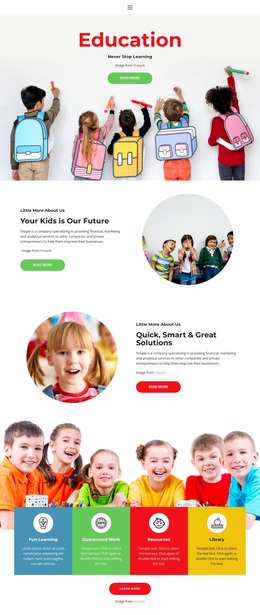
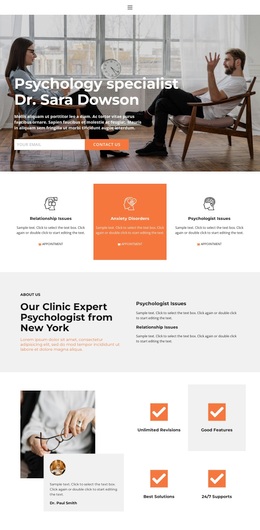
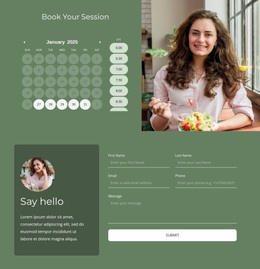
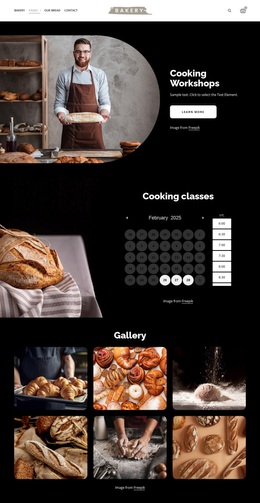
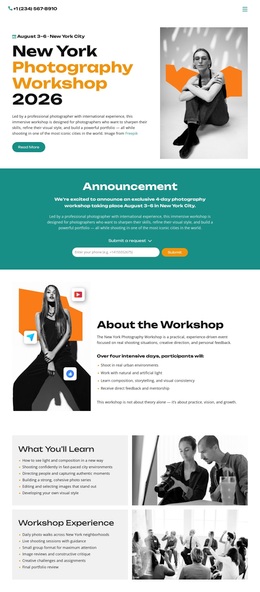
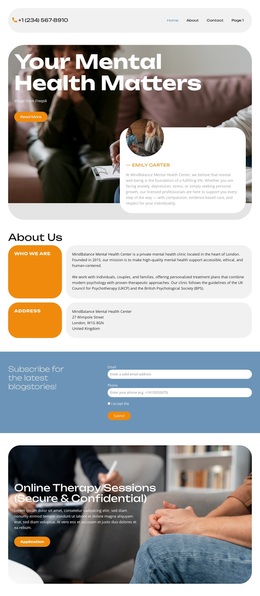

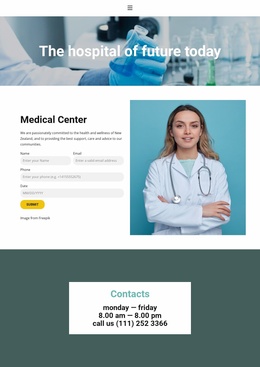
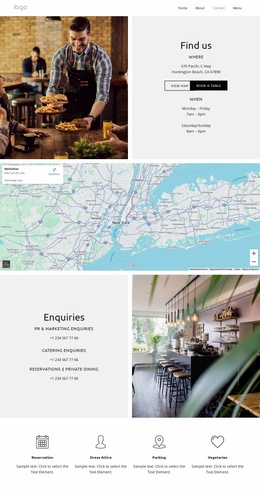
More Templates from Calendar & Booking Category
Other Calendar & Booking Templates
Creative Calendar Templates for Different Web Schedules
Browse calendar templates to find a web page design for your events, recurring classes, or date-focused content. This collection offers different visual approaches to compare, from monthly calendars to weekly timetables and event listings. Some are deliberately minimal, while others pair dates with larger descriptions or decorative sections. Choose the layout that fits your content and visual style, then personalize its text, colors, and schedule details in Nicepage. These designs are for website pages, not downloadable paper planners or standalone scheduling software.
Find a Layout That Suits Your Schedule
A small gallery announcing occasional exhibitions has a different presentation problem from a training school running the same lessons every week. The gallery needs visitors to notice specific dates and open event descriptions. The school needs them to compare weekdays and time periods without losing sight of recurring class names.
Common Web Calendar Layouts
Typical web calendar presentations include:
- Monthly Event Calendars: Give a broad overview of scheduled dates across several weeks.
- Weekly Timetables: Make recurring classes and regular sessions easier to compare by day.
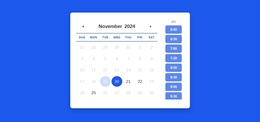
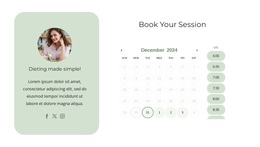
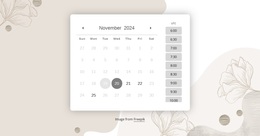
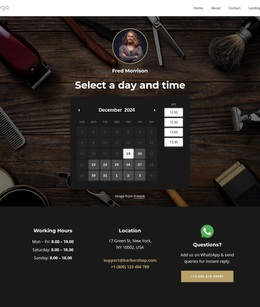
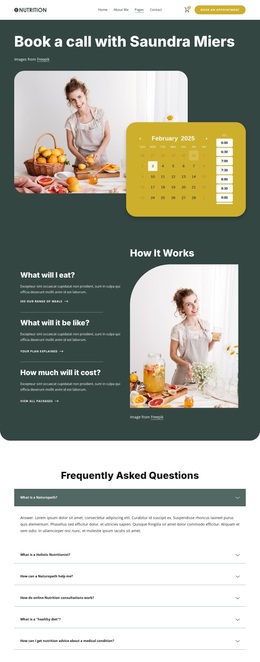
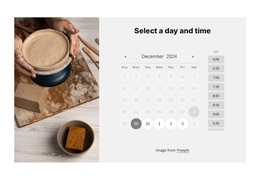
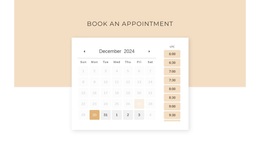
- Appointment-Oriented Layouts: Emphasize time periods and date choices, with booking behavior added when required.
- Upcoming Event Lists: Prioritize titles and summaries when a full month grid would add unnecessary complexity.
The distinction becomes obvious when actual entries are added. Eight performances scattered across a month are easy to spot in a grid. Twenty recurring classes, however, are often easier to compare in a weekly timetable with consistent row labels.
Customize the Calendar Design You Choose
Choose a preview that already gives your essential information room to breathe. A month display works when each date needs only a brief label and perhaps a link. An event with a speaker, venue, and longer description benefits from a card or linked detail section. A class timetable should leave enough space for repeated lesson names and start times. These are easy differences to spot when browsing ready-made calendar designs.
Nicepage provides Page Presets and Calendar Presets as design starting points. You can use Add Pages, Blocks & Elements to find and insert suitable layouts in the editor. When comparing designs, check the presentation type, the space reserved for descriptions, and how much adaptation is needed for your visual identity. Not every preview includes every interaction or content block.
A single calendar block suits a page that only needs to highlight a few dates. A dedicated events page provides room for descriptions and links, while a fuller timetable works better when visitors need to scan many recurring sessions. These are different uses, not competing versions of the same universal calendar.
Test the design with your busiest realistic week or month. If the dates and activities remain legible after replacing the sample entries, you have a practical match.