Select a day and time Template


Edit Template Offline
2. Create new page and search for id 6410540
Edit Template Online
Create Awesome Websites


Free Nicepage Builder
Keywords
A Booking Calendar and Grooming Menu Make This Design Easy to Choose
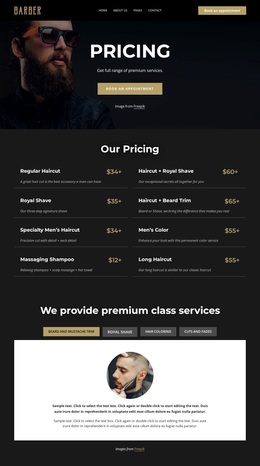
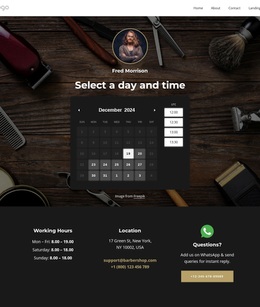
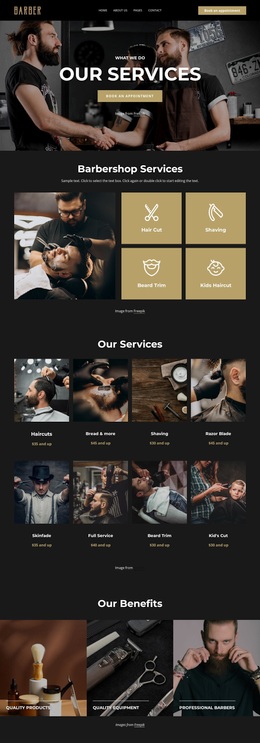
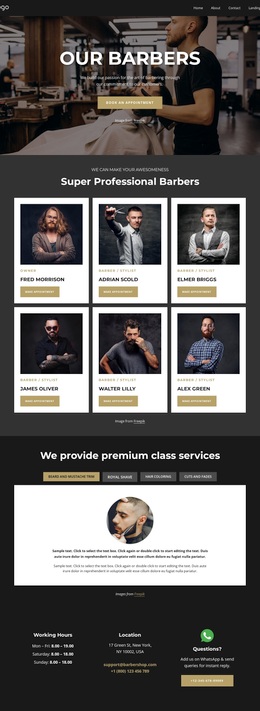
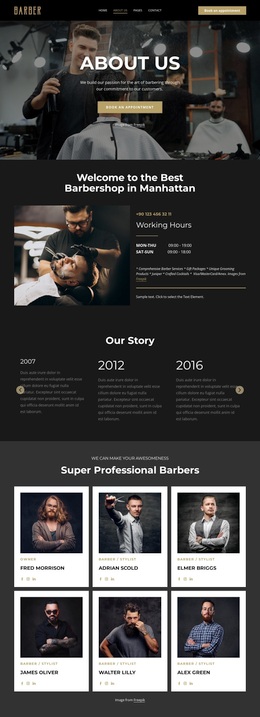
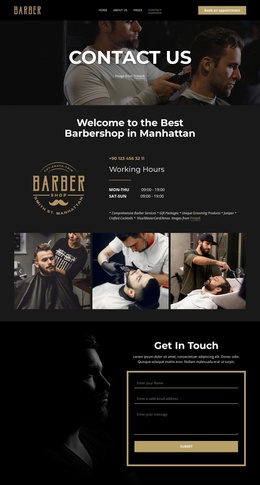
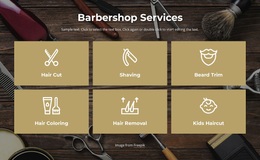
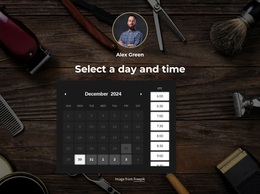
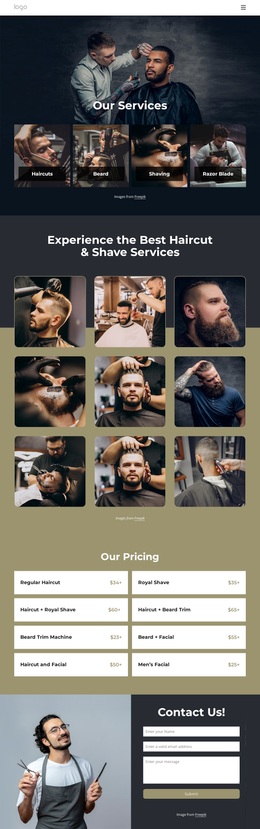
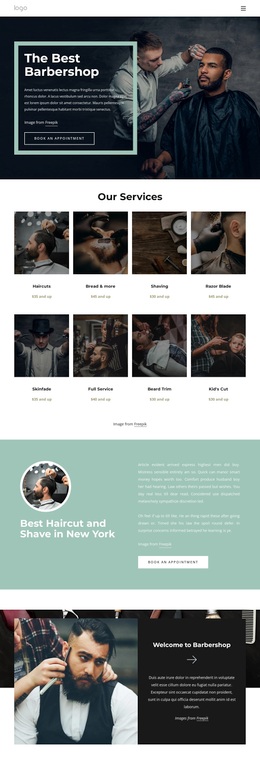
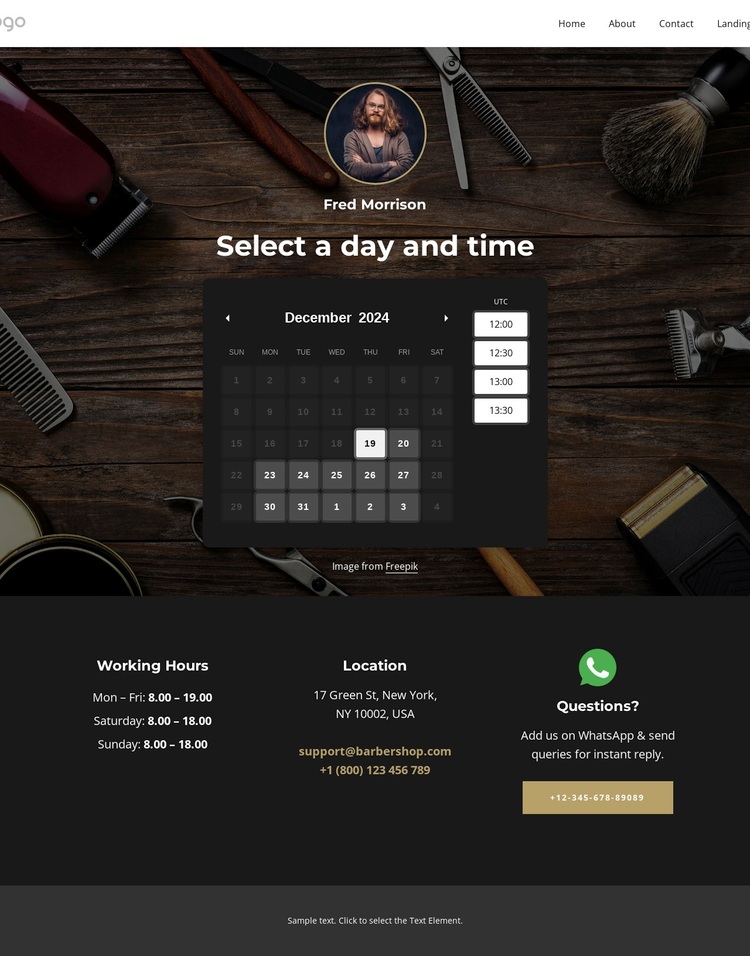
The calendar-led opening immediately identifies the page’s subject through a practical relationship between barber imagery and appointment selection. Visitors are not asked to infer whether the page is informational or transactional: the date picker, available time slots, and booking action establish a clear use case from the start. The eight pricing cards then broaden that purpose by showing the range of grooming choices, from a regular haircut and royal shave to beard and facial combinations. This gives the design useful content coverage for a barber service project without relying on dense explanatory copy.
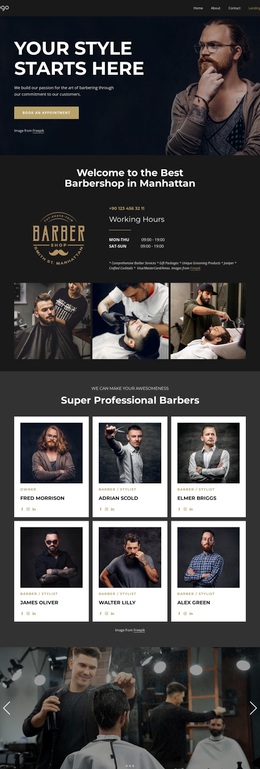
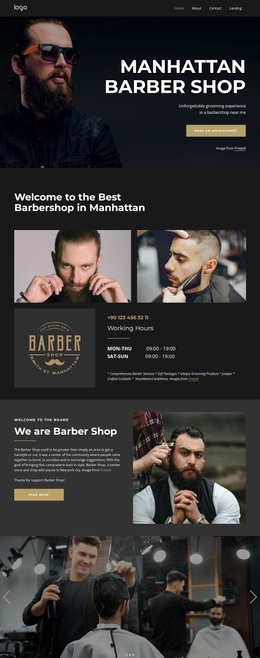
The seven-image gallery adds a distinctive visual layer, showing barber-service work in a horizontal sequence after the service cards. That placement makes the design suitable for projects where visitors should see the type of grooming presentation alongside the practical booking information. The closing footer completes the option with opening hours, location, email, telephone, social links, and a questions area. Together, these facts make the design a strong choice for a local barber or men’s grooming service that needs scheduling, price clarity, visual context, and direct contact on one page. Its distinguishing quality is not just its dark palette; it is the way a booking interface, service menu, gallery, and contact structure are combined around one focused use case.
Customize with Nicepage
Open this ready-made template in the Template Builder and customize it visually in the Nicepage editor. Replace demo content, edit page sections, and adapt the design to your project without rebuilding the template from scratch.
Start With a Ready-Made Template
Choose a Design for a New Page
Use a ready-made template as a starting point instead of creating every page from a blank canvas. When adding a new page in Nicepage, browse available designs, compare different layouts, and choose an option that already fits the general purpose and visual direction of your project.
Browse Different Page Designs
Explore Page Designs using search, thematic categories, Design Sets, and full-page previews. The collection includes layouts for different subjects and page purposes, making it easier to compare alternatives before selecting a design to customize.
Customize the Selected Template
After choosing a design, create the page and continue editing it visually in Nicepage. Replace the demo content, adjust images, typography, colors, sections, and other elements, and adapt the ready-made layout to your own content instead of rebuilding the design from the beginning.
Explore More Design Directions
If the first option does not match your project closely enough, return to the design collection and compare other templates before committing to a layout. This makes the template library useful not only for faster page creation, but also for exploring different visual approaches and finding a suitable starting point for a new project.
This workflow gives you access to a broad collection of ready-made designs that can be selected, compared, and customized according to the needs of each new page or project.