Smart life weekly Html Code Example


Article Regions Create Clear Extension Points
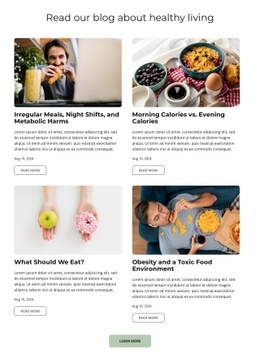
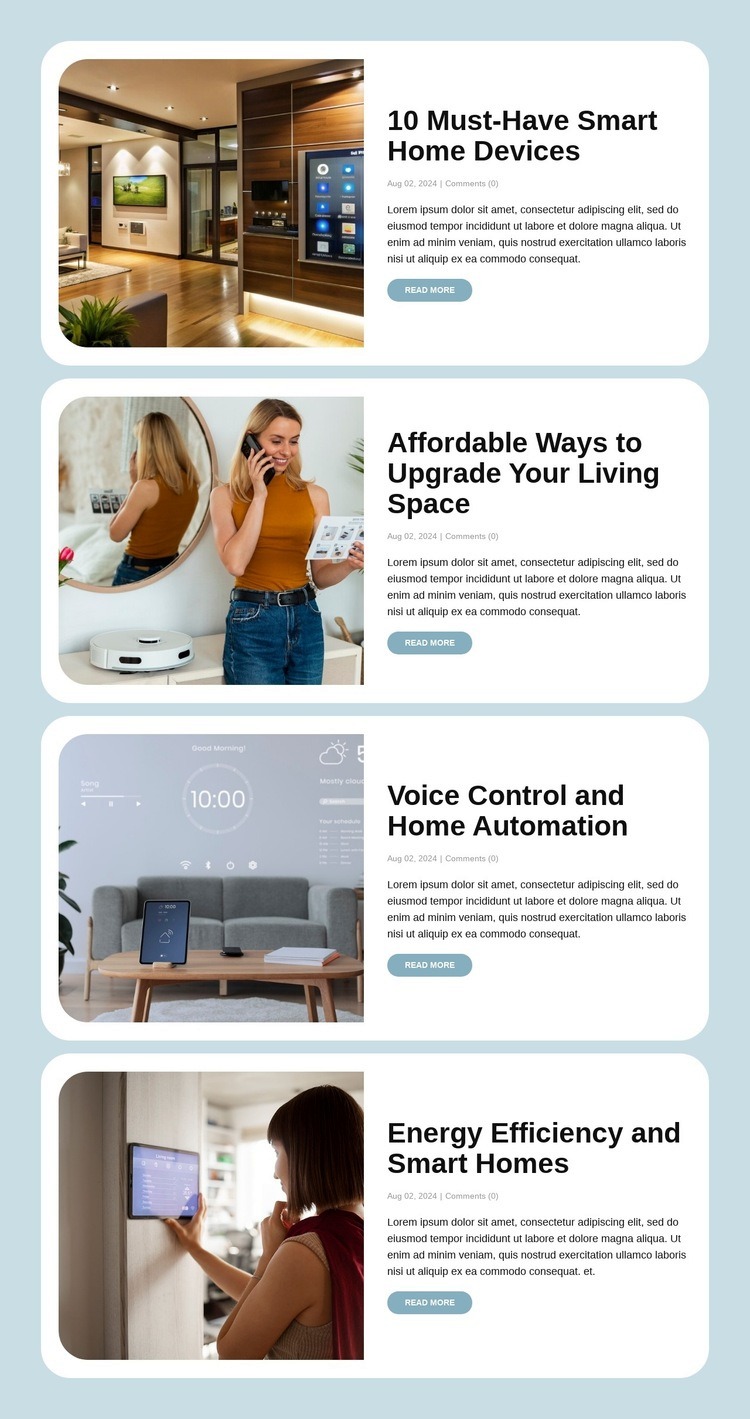
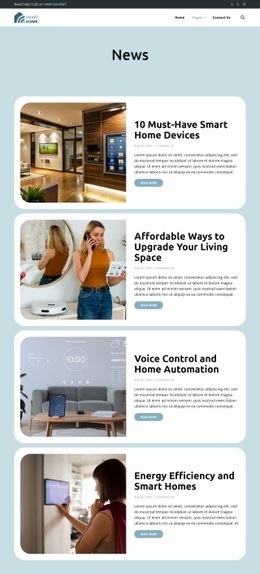
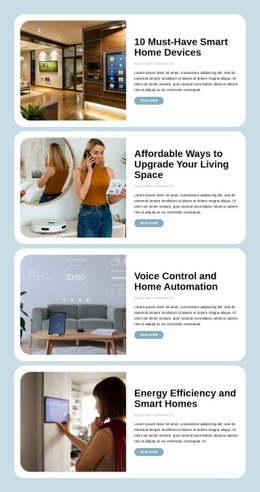
Each card already separates a featured image from the article title, metadata line, excerpt, and Read More link. That division gives a project clear content regions to work around if the section later needs an additional project-specific element. For example, an external widget, supplementary label, or custom data treatment could be positioned near the relevant article information without replacing the four-card arrangement. The existing layout remains the content base; custom functionality would be an addition rather than an assumption about what the block already contains.
The repeated structure is especially useful for deciding where an extension belongs. Image-related behavior can remain near the left visual area, while article-specific content or an added control can sit beside the title and excerpt on the right. The date and comment metadata line also provides a defined location for related post information if the surrounding project requires it.
In an HTML Code context, the block therefore offers bounded extension areas instead of a blank canvas. The four topics—devices, living-space upgrades, voice automation, and energy efficiency—remain the section’s editorial subjects, while custom markup or an external component can support a particular project need around those subjects. The Read More links continue to provide the existing route to individual posts.
Customize with Nicepage
Open this ready-made template in the HTML Code Generator and customize it visually in the Nicepage editor. Replace demo content, edit page sections, and adapt the design to your project without rebuilding the template from scratch.
Edit Template Offline
2. Create a new page or select existing
3. Click Add new block, search for id 6546567 and click enter
Edit Template Online
Create Awesome Websites


Free Nicepage Builder
Keywords
Extend This Page With Custom HTML Code
Insert Code With the HTML Element
Use the HTML Element to add custom code directly to a Block in the Nicepage editor. Enter the required markup in the Code field when the page needs content or functionality that is not available through the standard page elements.
Place the HTML Element in the Layout
Treat the HTML Element as part of the visual page composition. Adjust its position, width, height, alignment, and margins to place the custom content where it belongs alongside text, images, buttons, and other elements. This makes it possible to combine visually edited sections with project-specific code without separating the custom element from the rest of the layout.
Add HTML, CSS, JavaScript, and External Components
The HTML Element supports HTML, CSS, and JavaScript, allowing you to extend the page with custom markup and interactive functionality. It can also be used to embed custom code and third-party components, such as social feeds, advertising code, widgets, or other external functionality required by the project.
This workflow makes the template useful for projects that need a visual page editor together with custom HTML code, JavaScript, embedded components, and functionality beyond the standard page elements.

Design Set (19)
-

-
-
Customize Any TemplateDownload
-
-
-
-
-
-
-
-
-













More from Technology Blocks
-

-
-
-
-
-
-
-
-
-
-
Customize Any TemplateDownload
-
-
-
-
-
-
-
-
-
-













More from Blog Posts Blocks
-
-
-
-
-
-
-
-
-
-
-
Customize Any TemplateDownload
-
-
-
-
-
-
-
-
-
-