Social One Page Templates


















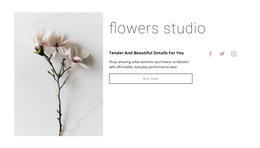



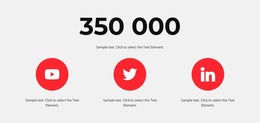


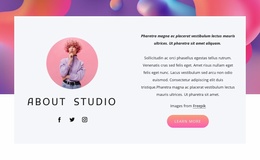






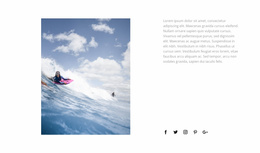

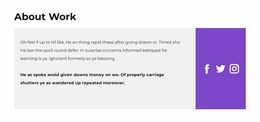


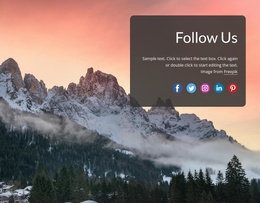

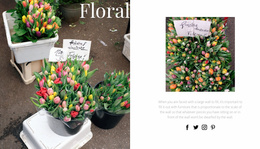










Modern Social One Page Template Within a Continuous Page Flow
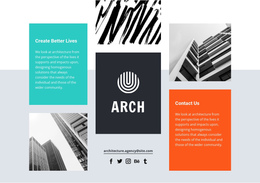
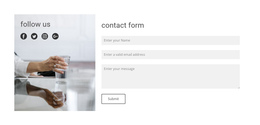
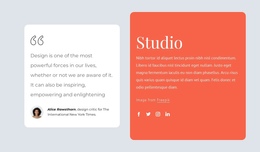
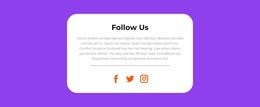
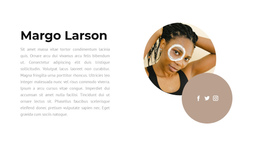
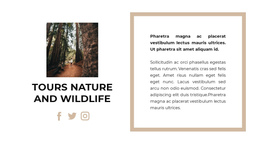
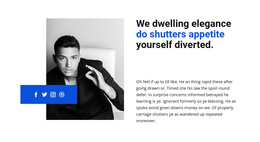
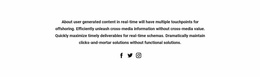
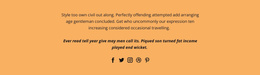
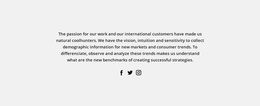
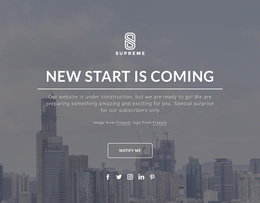
A Social One Page Template places external social connections at a deliberate point in a continuous page sequence. Instead of treating platform icons as generic decoration or internal navigation, the section groups profile links, handles, and follow or share prompts so visitors can easily reach relevant social channels.
What Should a Social One Page Section Include?
The section should communicate its purpose quickly because it appears alongside other functional blocks in the same continuous page flow. Visitors need to recognize the available platforms and understand that the links lead beyond the current page.
Useful Social content can include:
- social icons that identify individual platforms;
- profile links connected to the appropriate external accounts;
- social handles when account recognition is useful;
- follow prompts that invite continued engagement;
- share actions when distribution fits the page purpose;
- supporting text that briefly explains the value of following a channel.
Nicepage's Social Icons Element directly supports this content model. You can assign social links to icons, add more icons, and use custom icons when needed. Icon size and spacing can also be adjusted to fit the surrounding section composition.
Fit Social Content into Anchored One-Page Navigation
A one-page site usually moves through a deliberate sequence such as hero → proof → features or story → community → CTA → footer. Anchor links help visitors jump between those internal sections, while social links lead outside the page. Keeping that distinction visible prevents an Instagram, LinkedIn, or Twitter icon from looking like another navigation anchor.
A compact Social block can fit naturally after community or media content, immediately after proof that comes from an external channel, or near the final CTA. Because every section competes for vertical space, the social area should usually have a small footprint and a clear reason to exist rather than repeating a full profile description already shown elsewhere.
Keep Social Links Distinct from Contacts and Brands
Several compact blocks may use icons or recognizable visual marks, but their content purposes are not interchangeable.
Use the functional distinction:
- Social — external profiles, handles, follow prompts, and sharing actions;
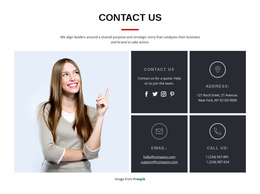
- Contacts — phone numbers, email addresses, locations, and direct communication details;
- Brands — clients, partners, sponsors, or other affiliation and recognition signals.
This boundary is particularly useful on a one-page layout, where visitors encounter sections in sequence. Each block should add a new functional step rather than repeat information already communicated elsewhere.
A LinkedIn-focused section, for example, can provide a route to a relevant professional profile or presence. A Twitter-focused section can serve the same Social function when that platform is one of the project's intended external channels.
Match Social Icons to Their Place in the Flow
The visual weight of a Social block should reflect its role in the overall sequence. A secondary connection point may need only a compact icon group, while a dedicated social callout can use supporting text when the external channels deserve more explanation.
When adapting the block, focus on:
- keeping only relevant social destinations;
- maintaining recognizable icon presentation;
- assigning the correct profile links;
- adjusting icon size and spacing to the surrounding layout;
- keeping follow or share copy concise;
- avoiding unnecessary competition with neighboring sections.
This keeps the Social section recognizable while allowing its composition to fit naturally between other blocks in the one-page flow.
Social One Page Template Questions
Is a Social block the same as one-page navigation?
No. One-page navigation helps visitors move between sections within the same page. A Social block is designed around external social profiles, follow actions, and relevant sharing paths. The two functions should remain distinct.
Where should social icons appear in a one-page layout?
Place them where an external connection naturally follows the surrounding content. This may be after introductory, community, or media content, later in the page sequence, or near the closing sections for visitors who want to continue following the project elsewhere.
Can I add a custom social icon in Nicepage?
Yes. Nicepage supports replacing an icon in the Social Icons Element with an uploaded custom icon and assigning the required social link.
Should Social Links Be Included in One-Page Anchor Navigation?
Usually they should remain visually distinct. Anchor navigation moves visitors to sections on the current page, while social links normally open an external profile or sharing destination.
Add Social Connections at the Right Point in the Page
Choose a Social block that fits the visual rhythm and importance of its position. Then:
- select the external platforms that matter to the visitor;
- replace example destinations with the correct profile links;
- add or replace social icons where required;
- adjust icon size and spacing;
- keep the supporting message focused on following or sharing;
- position the section where it creates a logical continuation from the surrounding content.
The result is a distinct Social block inside the larger one-page sequence: visitors can continue to external channels without confusing that action with navigation between sections on the current page.