1380 Grid One Page Templates










































































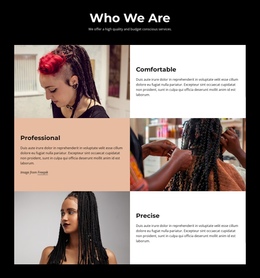





Grid One Page Templates With Portfolio and Section Navigation
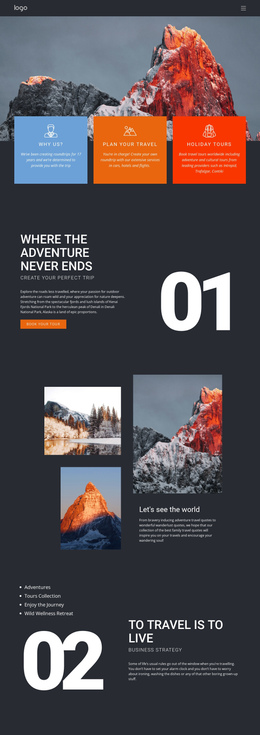
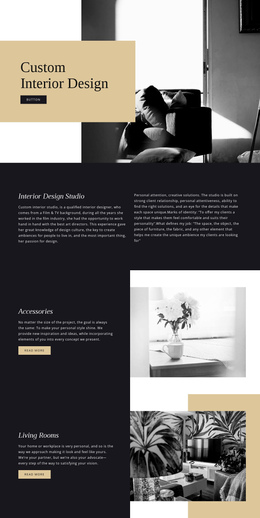
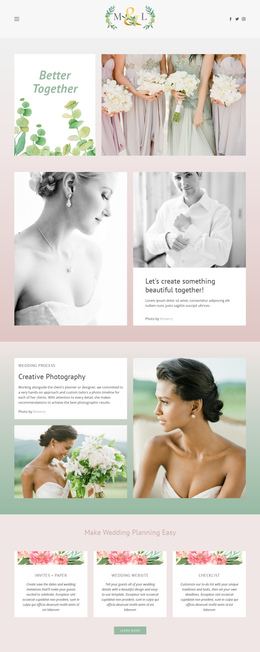
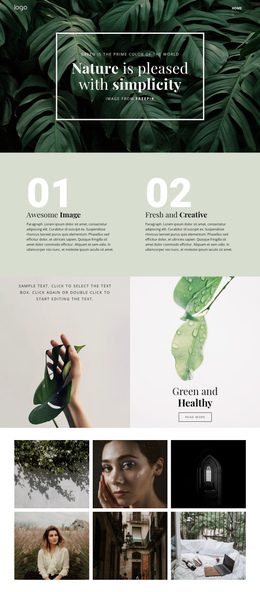
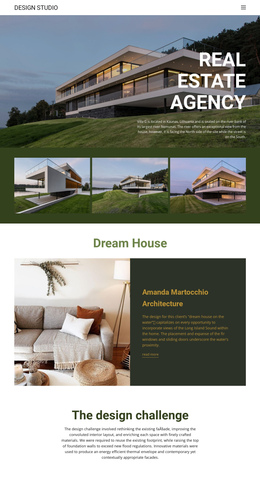
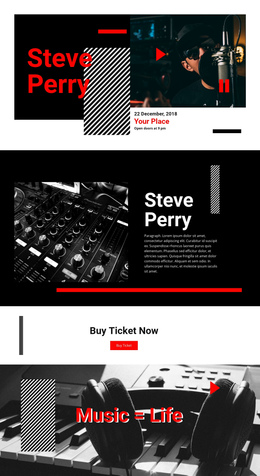
A one-page portfolio needs to show your work without forcing visitors to a separate page for every project. A Grid One Page Template can combine a featured project with smaller previews while connecting that gallery to the other sections of the same scrolling page. The Grid is part of the one-page journey, not just a shortcut for arranging service cards.
Plan the Portfolio as One Scrolling Page
For a freelance design studio, a useful sequence is Introduction → Featured Work Grid → Project Details → About → Contact. The top navigation can link directly to those sections. Visitors can scroll to browse, while those looking for the studio's background can jump to About.
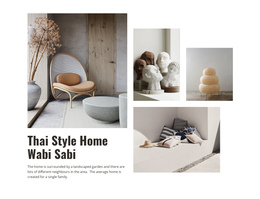
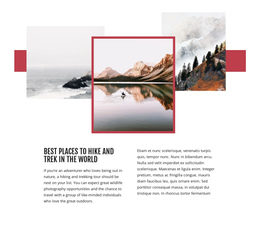
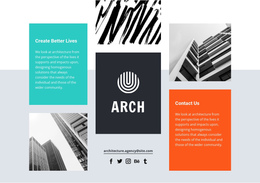
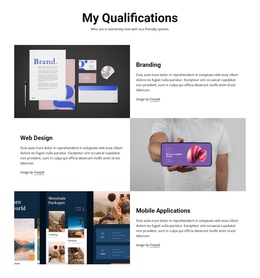
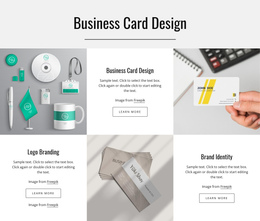
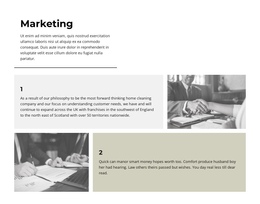
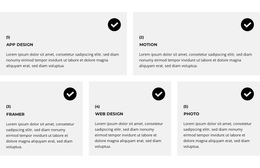
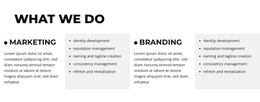
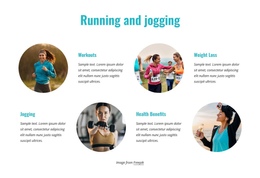
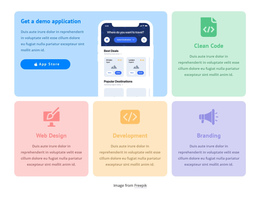
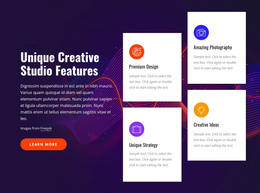
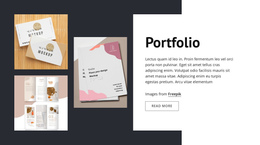
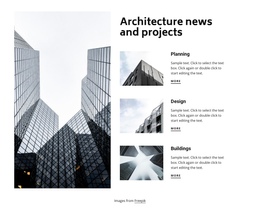
The Grid might show one large branding project beside three smaller web and packaging projects. Farther down, a short case-study section can explain the most relevant project without sending visitors elsewhere. A service business could follow the same pattern with a Grid of service options and details farther down; a product page could use it for key features. In each case, the Grid helps people decide where to go next on the same page.
Use Different Grid Arrangements Along the Scroll
One-page designs can include more than a single Grid. For example:
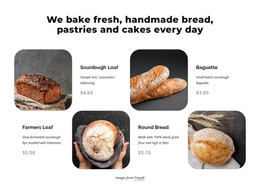
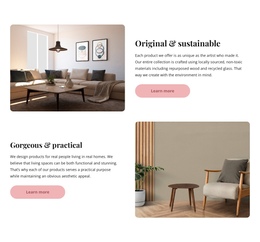
- Featured-work Grid: A large image paired with smaller project cards introduces the portfolio.
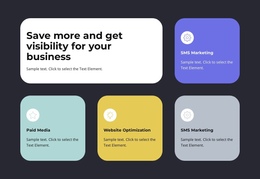
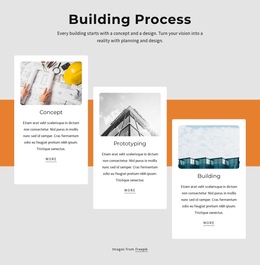
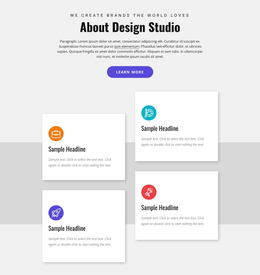
- Compact process Grid: Three steps explain how the studio works without interrupting the visual flow.
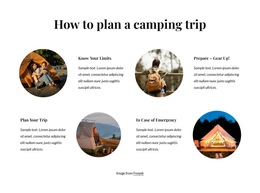
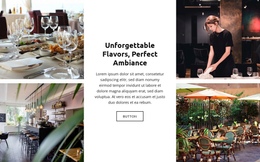
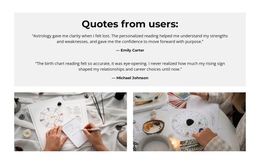
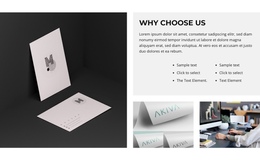
- Image gallery Grid: A row of project details adds visual evidence near the end of the page.
These sections should not look identical. Keep their spacing and alignment related, but change the cell proportions when the content changes. If the page feels repetitive, remove a Grid rather than adding another to fill space.
Link the Grid to One-Page Navigation
Anchor navigation is especially helpful when a one-page design has several substantial sections. Labels such as “Work,” “Services,” or “About” should point to actual places in the scroll. A link below a portfolio Grid can jump to project details; a service Grid might link to a fuller explanation farther down.
Avoid turning every project thumbnail into a competing action when the goal is to keep visitors on this single page. One or two clearly labeled section links may be enough.
The Nicepage Grid Element lets you adjust the row-and-column arrangement and customize the page's content. After editing, check whether the Grid transitions naturally into the section reached by the next anchor.
Grid One Page Template FAQ
Where should a Grid appear on a one-page website?
Often near the top, where a project or content Grid can act as an overview before the visitor reaches detail sections farther down the same page.
Can a one-page Grid replace several separate sections?
Yes. A compact Grid can replace several short project or service introductions while longer explanations remain farther down the page.
Does a Grid one-page template need anchor links?
No. A short one-page design can rely on scrolling, but anchor links help visitors jump between Work, About, and other substantial sections.
How should I choose a one-page Grid design?
Look at how its Grid gallery, surrounding sections, and navigation work together. A good one-page design should make sense from the first screen through the last.
Keep the Whole Portfolio Connected
Choose a Grid one-page design whose gallery, anchor links, and surrounding sections form a single experience. Vary the compositions where needed, but make every stop in the scroll worth visiting.