320 Text & Button One Page Templates


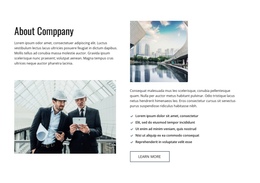

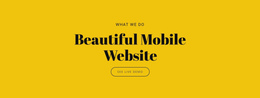
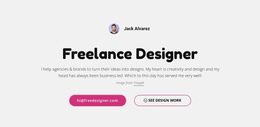


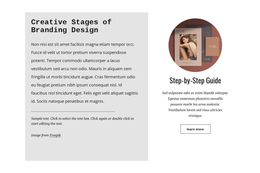
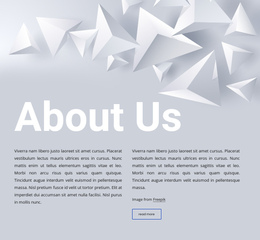

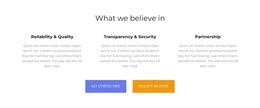
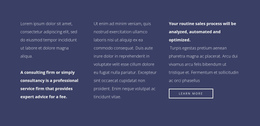















Responsive Text & Button One-Page Template for Section-to-Section Flow
Text & Button One-Page Templates provide ready CTA sections for a linear single-page structure. Browse patterns that can introduce the next section, jump visitors to a page anchor, highlight a key offer, or close the page with one final action. Because the content lives in one continuous page, the selected block should feel like part of the same scrolling sequence rather than a route into a complex site hierarchy.
Buttons can lead to another section on the page, an external destination, or another meaningful action. For in-page navigation, a concise label and a clear target help the CTA work naturally with the one-page experience.
Choose a Text & Button Pattern for a One-Page Layout
Use the section where one content stage needs to lead naturally into another action or part of the page. It can provide a short decision point without interrupting the linear structure with unnecessary content.
Typical roles include:
- a CTA transition after an introduction or supporting explanation;
- a next-step prompt after benefits, features, or other persuasive content;
- a short bridge between two larger content sections;
- an action prompt near the end of the one-page sequence;
- a focused continuation when visitors need a clear way forward.
The section should not behave like a miniature page inside the page. Its role is narrower: connect the current message to one understandable action.
Use Text & Button Blocks as In-Page Navigation Points
In a single-page layout, the action can help visitors move through the same document rather than into a separate site structure. Useful destinations include pricing, features, portfolio, schedule, contact, or another anchored section.
The best pattern depends on scroll context: a compact jump link may work between content groups, while a more prominent CTA can interrupt a long sequence when visitors need a clear shortcut or decision point.
Choose Patterns for Linear Scroll and Same-Page Jumps
Useful one-page patterns include:
- anchor-navigation prompts that jump to a named section;
- short bridges between major scroll stages;
- offer blocks that create a deliberate pause in a long page;
- closing CTA sections that provide a clear endpoint;
- compact click-focused action layouts for immediate interaction.
This same-page navigation role keeps One Page Template distinct from Homepage Design, where buttons commonly route to separate site areas, and from Landing Page, where the dominant axis is a campaign conversion goal.
Preserve the Rhythm of the Continuous Page
A CTA block should be visible without feeling like a new page has suddenly started. Match its spacing, section width, and visual weight to the neighboring content so the page keeps a continuous rhythm while still giving the action enough emphasis.
Keep the Destination Obvious
For anchor links and same-page jumps, the label should make the destination predictable. Visitors should know whether the action takes them to pricing, contact, features, or another section without guessing what happens after the click.
Text & Button One Page Template FAQ
Can I start with a pre-designed Text & Button block?
Yes. Nicepage provides pre-designed Blocks and Elements you can use as starting points. Adapt the headline, supporting copy, Button Element, and spacing so the section fits its specific position within the one-page sequence.
Can I adjust the section for different screen sizes?
Yes. Nicepage supports Responsive Modes for Large Screens, Desktops, Laptops, Tablets, and horizontal and vertical phones. Use these modes to review the text, button, spacing, and overall section hierarchy at different widths.
When should I use Text & Button instead of Text on a one-page layout?
Use Text & Button when the message should lead directly to an explicit next action. If the section primarily explains information and does not require a prominent CTA, Text is the closer functional category.
Can a Text & Button action link to another section on the same page?
Yes. In a one-page layout, the button can support an in-page jump when the target section logically continues the message.
What makes a Text & Button block useful in a long one-page layout?
It creates a clear action point during a long scroll, helping visitors move to a relevant section or take the next step without adding a separate, navigation-heavy page.
Create a Clear Transition Between Page Sections
Choose a Text & Button block that fits the message and action required at that point in the sequence. In the Nicepage editor, adapt the headline and supporting copy, refine the Button Element, check its relationship with neighboring sections, and integrate the block where its CTA creates a logical continuation of the one-page flow.
The finished section should make one transition clear: what visitors have just learned, and what they can do next.