Blog Posts One Page Templates
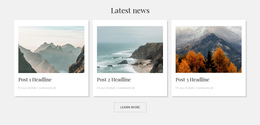
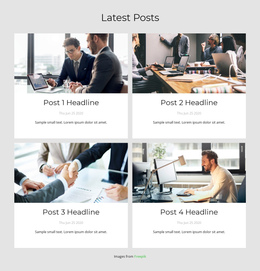
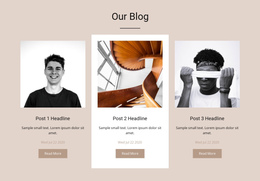
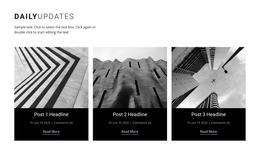

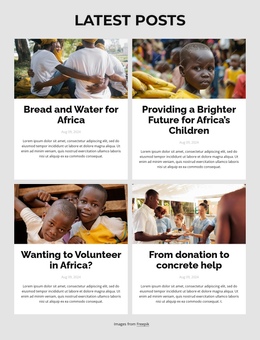
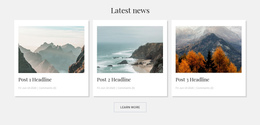
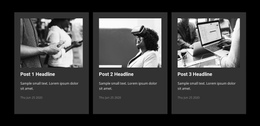
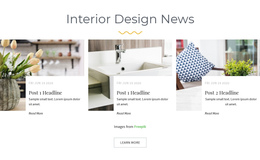
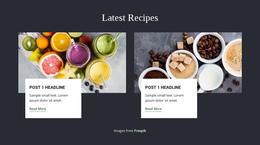
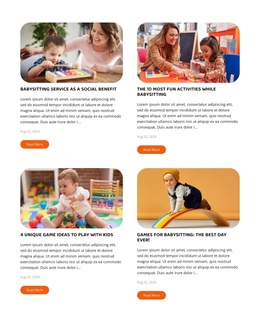
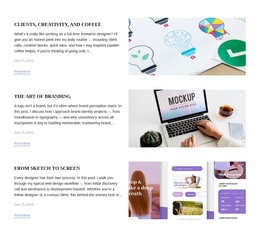
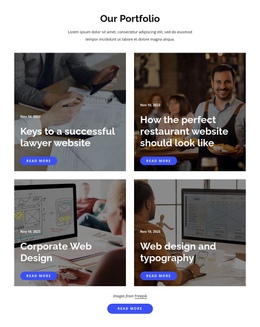

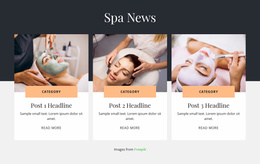

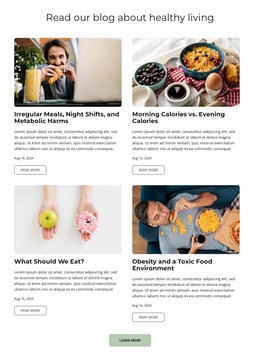
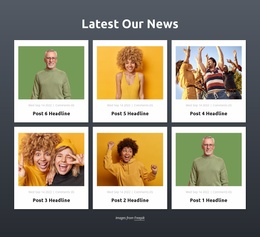
Minimal Blog Posts One Page Template for Continuous Editorial Page Flow
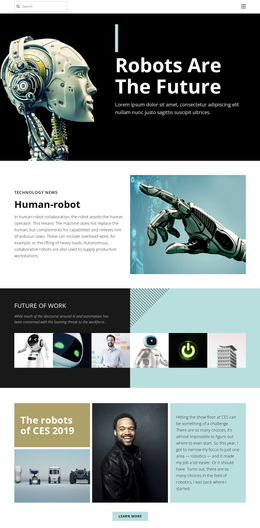
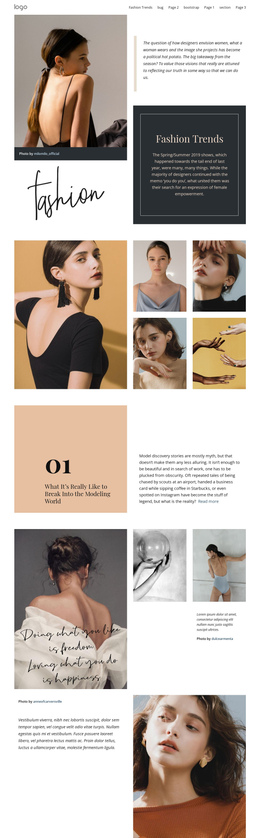
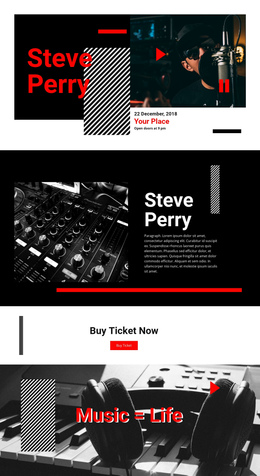
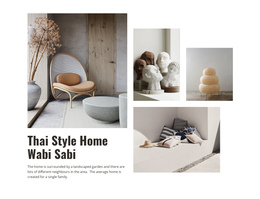
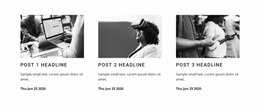
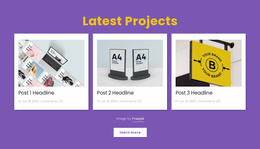
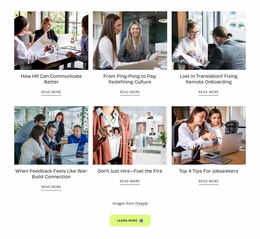
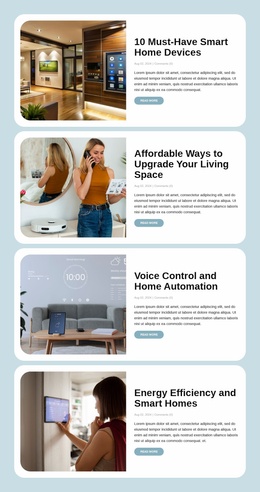
A one-page layout brings several content sections into a continuous reading experience. Blog Posts One Page Template designs add an editorial collection to that sequence, presenting article titles, featured images, excerpts, and reading links in a compact block. Visitors can browse selected stories as they move down the page, then open individual articles when they want more information.
Where Should Blog Posts Appear in a One-Page Layout?
A Blog Posts section introduces published articles at a natural point in the page journey. It can follow an introductory section, appear after a project overview, or provide additional reading before the final content area.
The placement should reflect what visitors have already learned. For example, a project introduction may lead into several articles explaining recent developments or offering related information.
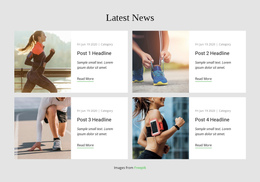
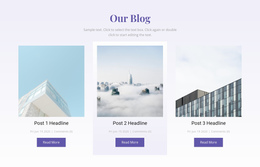
Each post preview provides a headline, summary, and reading destination without displaying the complete article on the current page.
Unlike a general Grid, which arranges different types of content, Blog Posts follow an editorial structure. Every repeated entry represents a published story with its own subject, publication context, and article link.
Creating a Simple Article Preview Section
Keep the Selected Articles block short enough to fit the continuous one-page flow. Readers should recognize the topics at a glance before scrolling on or opening a full story.
Connect the Article Section to One-Page Navigation
On a one-page site, readers often use the top menu to jump between sections. A typical sequence could be Hero → About → Services → Selected Articles → Contact. Give the article collection a clear section name, such as Insights, and use a Block Anchor so the menu can take visitors directly to it.
The Blog Posts section should remain part of the scrolling page, but the individual stories can open separate article pages. This distinction avoids cramming entire posts into one long layout. For example, a portfolio website may use its one-page structure to introduce recent writing, while each article opens independently for comfortable reading.
When arranging the section:
- Check the anchor destination so it lands at the beginning of the post collection.
- Keep the transition readable from the section above into the article previews.
- Make article links distinct from the links that merely jump to another section of the same page.
Nicepage allows blocks to be reordered and supports Block Anchors. The Blog Posts Element handles the publication previews, not the menu navigation. Test both paths: the in-page jump to Insights and the link from a specific preview to its full story.
The Insights anchor keeps visitors on the same one-page layout. Opening a full article can take them to a separate page outside that layout; label these destinations clearly so the two actions are not confused.
For additional context, explore blog layouts.
Choosing an Article Collection Without Overloading the Page
A few selected posts are usually enough within a longer one-page journey. Adjust Nicepage’s responsive columns so the article section remains easy to scroll past or explore. Individual post layouts provide the full reading destination outside that section.
Frequently Asked Questions About Blog Posts One Page Template
Can I add a Blog Posts section to a one-page layout in Nicepage?
Yes. Nicepage allows the Blog Posts Element to be added to an existing page block. You can arrange article previews alongside other sections within a continuous one-page layout.
Can I control how many blog posts appear in the section?
Yes. The Blog Posts Element provides controls for columns, rows, and spacing. You can also filter posts by recent entries, categories, or tags to keep the collection relevant.
Can visitors navigate directly to the Blog Posts section?
Yes. Nicepage supports Block Anchors for navigation between sections on a one-page site. You can link a menu item to the block containing the Blog Posts Element without changing the structure of the post previews.
Add an Editorial Section to Your One-Page Layout
Choose a Blog Posts block that fits the surrounding content and open it in the Nicepage editor. Adjust the article previews, spacing, and number of visible entries, then position the section where additional reading fits naturally into the page sequence. Keep the titles and article links recognizable so visitors can explore full stories without losing the main page's structure.