
270+ Counter Templates
Put totals, achievements, and other measurable facts into a compact section where every figure has a clear meaning. Counter block designs offer different ways to group numbers and labels, helping you select a suitable arrangement before adjusting the content in Nicepage.















































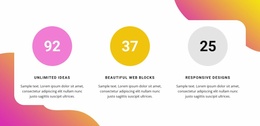







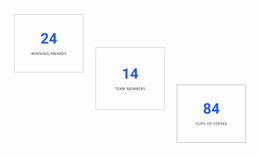

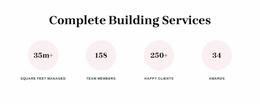

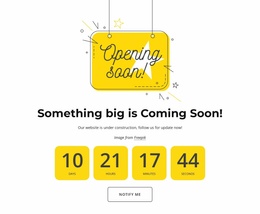




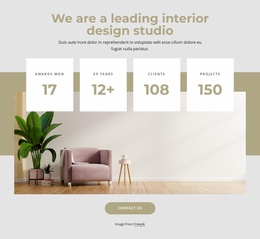
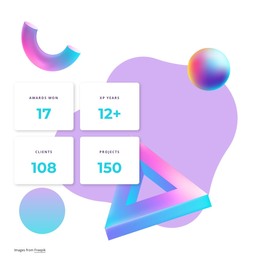

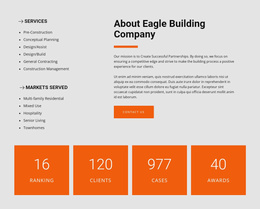
















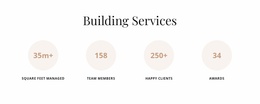





Other Counter Templates
Ready-To-Use Counter Templates for Choosing Numerical Highlight Sections
Counter Templates help you choose a finished statistics block instead of building one from individual elements. A compact number band, a prominent single result, a small metrics grid, and an icon-led section serve different content needs. Start with the figures you can verify, then compare which available Nicepage design accommodates them without crowding the labels.
Choose a Ready-Made Counter Preset
Compare independent Counter sections by the kind of summary they need to show:
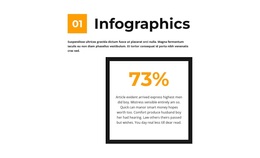
- One headline metric: A large standalone Counter can highlight a single achievement with a clear explanation.
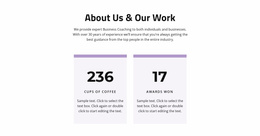
- Two substantial metrics: A spacious two-column or stacked arrangement allows longer labels to remain readable.
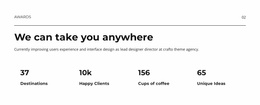
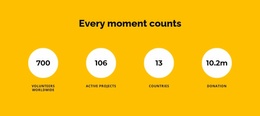
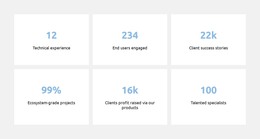
- Four short indicators: A compact horizontal band or balanced grid can bring related totals together.
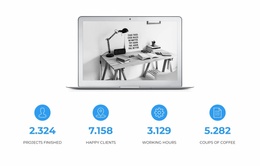
- Counters with icons: Existing icon-led designs may help identify different categories, provided the symbols do not obscure their meanings.
These are choices between ready-made blocks, not instructions for designing a complete website. If the information needs detailed comparisons instead of selected highlights, a data presentation section may be more suitable.
Compare Presets Using Your Real Figures
A sample layout may look convincing with identical two-digit numbers but become cramped with “125,000+” or a date-containing label. Before settling on a block, check the number of metric units, heading space, label capacity, and formats such as percentages or larger totals. Review whether the selected arrangement stays legible at narrower widths.
Try the same confirmed numbers in two candidate presets. Keep the one that works with fewer compromises; do not choose a design simply because its demonstration figures look balanced.
The native Counter Element displays configured values and can animate them. You can adjust its content after choosing a block, but animation availability alone isn't a reason to prefer one preset over another.
Find and Adapt Counter Blocks in Nicepage
Nicepage offers Block Presets and Block Designs through the Add Panel. The guide to adding Pages, Blocks, and Elements explains where to find and insert them. Browse counter design examples to compare the available arrangements before editing.
Once a suitable block is selected, replace the demonstration numbers with verified measurements and check the labels in the finished section. The immediate goal is a self-contained Counter block that fits its data; its location within a larger website is a separate decision.
Recognize When Another Section Works Better
A Counter works when the result deserves a glance. If readers need descriptions of capabilities, a Features section may help more. If they must compare many data points, a Table is more useful than a row of animated totals.
Expert Tip: Check the actual length of your longest label before choosing a four-column Counter. An attractive preset is not a good fit if its real content must be squeezed to remain on one line.
Counter Templates FAQ
Which Counter preset works for one standout result?
Choose an available single-metric design with room for the verified number and its explanation.
What if two metrics have long labels?
Compare spacious or vertically arranged presets rather than forcing both explanations into narrow columns.
What should I compare in a four-counter design?
Check the number of units, text capacity, value formats, and readability at smaller widths.
Can I edit a ready-made Counter after choosing it?
Yes. Replace its sample figures and labels in Nicepage and adjust the available Counter settings as needed.
Choose the Counter Block That Fits Your Figures
Browse the available presets, test the most promising ones with your actual measurements, and select a block whose figures and labels already fit naturally. Refine that selected section rather than redesigning an entire page around it.