Counters with icons Website Template



A repeated counter pattern supplies one stable website section
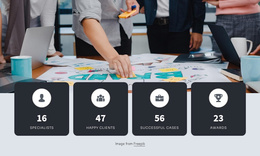
The block already establishes one clear recurring content area: a statistics section built from four parallel metric groups. Each group combines an icon, a number, and a label, presenting 16 Specialists, 456 Clients, 45 cases, and 12 awards in a consistent order. That self-contained pattern can be reused as one section in a broader website project while other blocks handle introductions, services, portfolios, testimonials, or contact content.
Its visual treatment supports coordination with neighboring sections. The dark blue full-width band creates a distinct horizontal break, cyan rounded-square icons provide a repeated accent, and white figures with smaller uppercase labels establish a shared hierarchy within every item. Generous spacing prevents the four metrics from becoming a crowded list, while centered vertical alignment keeps the row composed. These characteristics make the block recognizable as a statistics area even when placed among sections with different functions.
Within a larger website template project, the section can provide a stable place for summarized organizational information without implying that the surrounding pages already exist. Its static interaction keeps the role straightforward: visitors read four highlighted metrics, then continue to the next content area. The block’s value comes from a defined content pattern that can be coordinated with the project’s wider visual direction.
Customize with Nicepage
Open this ready-made template in the Website Template Builder and customize it visually in the Nicepage editor. Replace demo content, edit page sections, and adapt the design to your project without rebuilding the template from scratch.
Edit Template Offline
2. Create a new page or select existing
3. Click Add new block, search for id 42832 and click enter
Edit Template Online
Create Awesome Websites


Free Nicepage Builder
Keywords
Build a Complete Website From This Template
Customize the Website Visually
Use this ready-made website template as a starting point for your project and adapt its pages visually in Nicepage. Change content, images, typography, navigation, sections, and other design elements while keeping the website together as a single editable project.
Manage Website Pages in One Project
Use the Pages panel to open, add, duplicate, and manage the pages of your website. Work on individual pages while keeping navigation and the overall site structure accessible from the same project, making it easier to develop a complete website instead of managing separate page files.
Expand the Website With Matching Designs
When you need additional pages or sections, use Page Design Sets to find Page and Block Designs created in the same visual style. Design Sets group matching designs together, making it easier to expand the website with new content while maintaining a consistent look across its pages and sections.
Organize Larger Multi-Page Websites
As the website grows, use Page Folders to organize related pages and keep larger multi-page projects easier to navigate in the editor. This is especially useful for websites with separate service pages, company information, contacts, landing pages, and other content areas.
This workflow makes the template a practical foundation for building and expanding a complete website while managing its pages, content, and visual design within one Nicepage project.