Latest News WordPress Theme


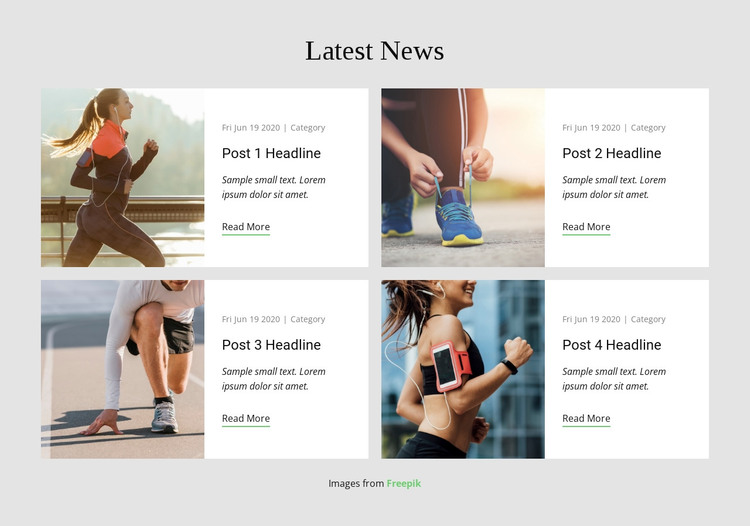
Four Post Previews Form Stable WordPress Page Content
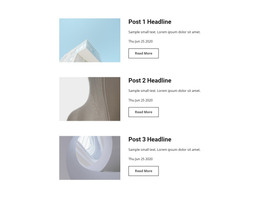
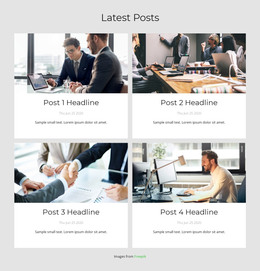
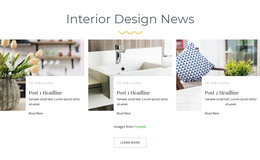
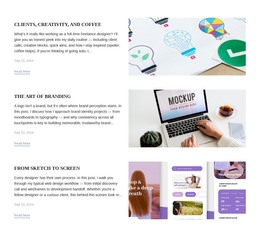
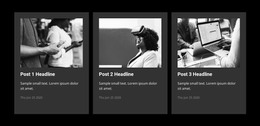
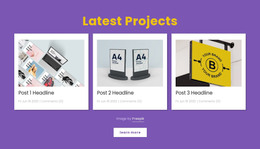
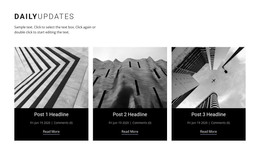
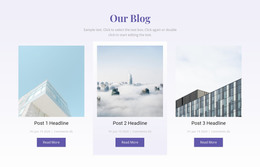
The four cards read as a structured, reusable content area rather than as one isolated article. Each preview combines a running or fitness image with date and category metadata, a headline, a short excerpt, and a Read More link. The two-column grid places two related content units in each row, allowing visitors to scan several entries while the image-and-text relationship keeps each post visually identifiable.
Within a WordPress-managed page, this block can serve as stable news or blog-preview content that sits alongside other page sections. The centered “Latest News” heading names the area, and the light gray background with white cards gives the section a consistent visual boundary. The repeated card pattern can accommodate changing article subjects while retaining the same presentation logic, provided the surrounding project supplies the relevant content management context. The Read More links can lead visitors toward fuller entries handled elsewhere in the site, while this block remains focused on summaries and visual discovery. Its WordPress interpretation is therefore about publishable page content and a reusable post-preview region, not about treating the block itself as a standalone theme or assuming specific posts, categories, or CMS structures beyond the visible article-card pattern.
Customize with Nicepage
Open this ready-made template in the WordPress Website Builder and customize it visually in the Nicepage editor. Replace demo content, edit page sections, and adapt the design to your project without rebuilding the template from scratch.
Edit Template Offline
2. Create a new page or select existing
3. Click Add new block, search for id 87500 and click enter
Edit Template Online
Create Awesome Websites


Free Nicepage Builder
Keywords
Manage and Edit This Theme in WordPress
Customize and Install the WordPress Theme
Start with this ready-made theme instead of building the WordPress design from scratch. Customize its layout, content, typography, images, sections, and other design elements visually in Nicepage editor, then export and install the WordPress Theme, Plugin, and Pages on your WordPress site. The Nicepage WordPress Plugin lets you continue working with the site after installation.
Edit the Theme Directly in WordPress
After installation, you can edit the WordPress Theme directly in WordPress with the Nicepage WordPress Plugin. Use Site Style to customize site Colors, Fonts, Header, Footer, Blog, and Post Page Templates while working within your WordPress website.
Edit WordPress Pages Visually
Use the Nicepage WordPress Plugin to edit page content directly from the WordPress admin area. Open a WordPress Page with Nicepage and visually change its text, images, sections, and other page elements while continuing to manage the Page through WordPress.
WordPress Content and Theme Integration
Use the customized theme with WordPress Pages, Posts, Blog and Post Templates, menus, widgets, and other CMS-managed content. Shared theme elements such as Colors, Fonts, Header, Footer, Blog, and Post Page Templates can be managed as part of the overall site design, while WordPress provides the CMS environment for managing site content.
This workflow combines a ready-made WordPress Theme with visual customization, direct theme editing in WordPress, and continued content management through the Nicepage WordPress Plugin.