1380 Grid Landing Pages










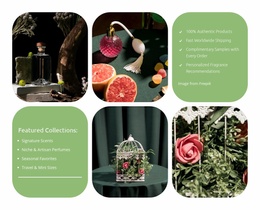
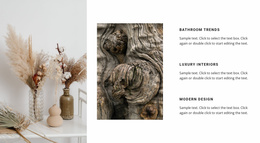
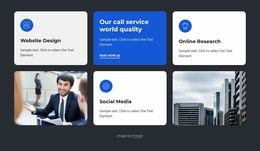






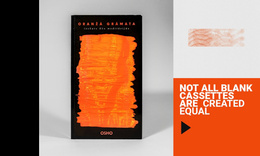



















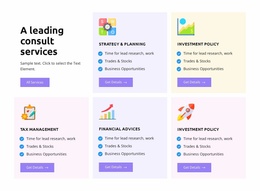
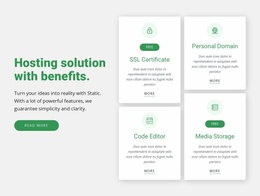

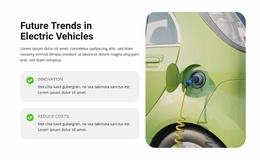
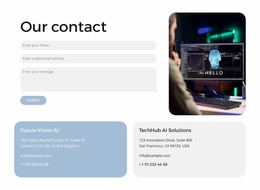













Grid Landing Page Designs With Focused Offers and Bento-Style Layouts
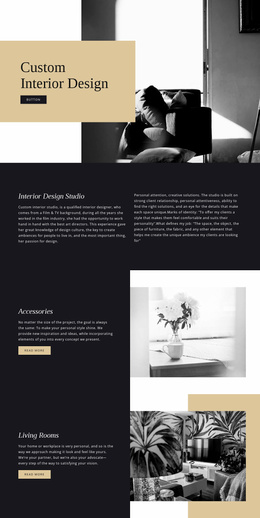
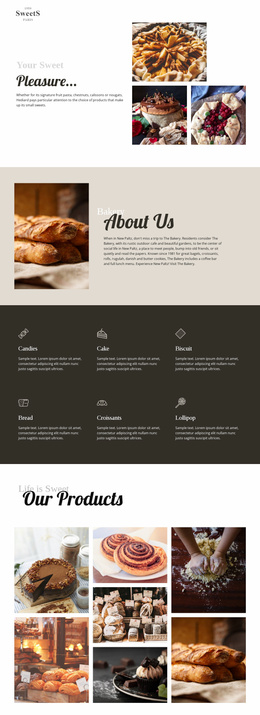
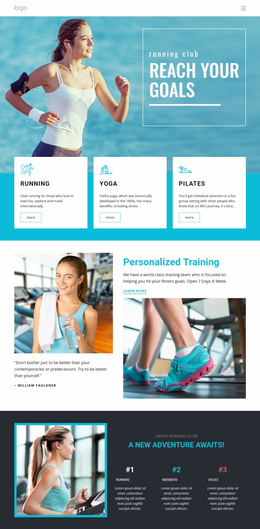
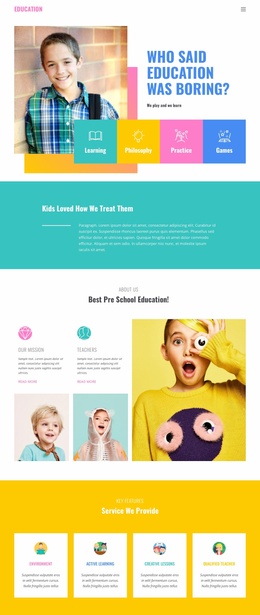
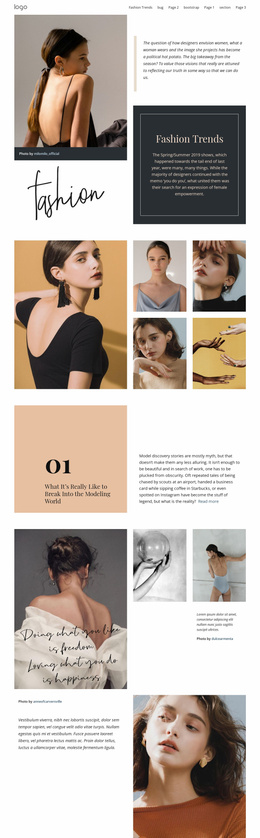
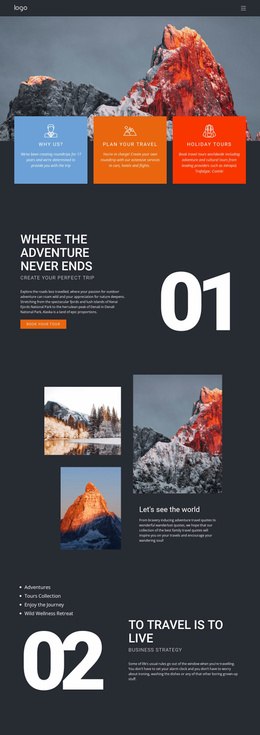
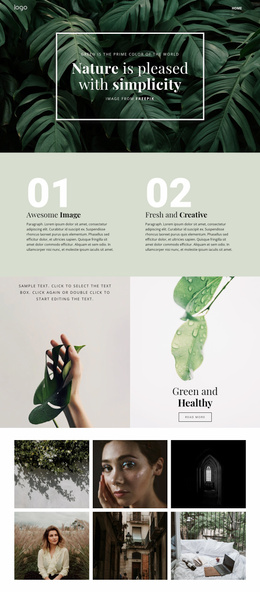
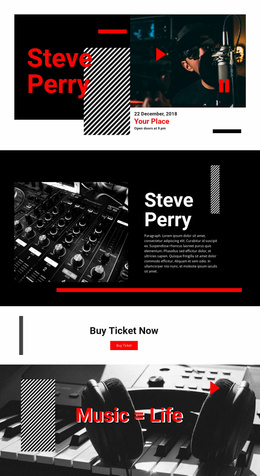
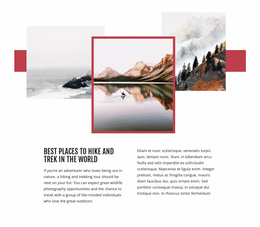
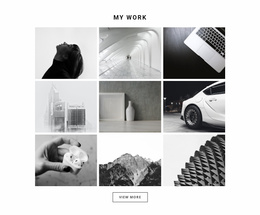
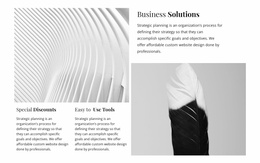
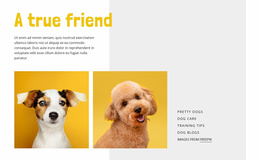
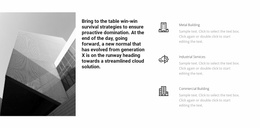
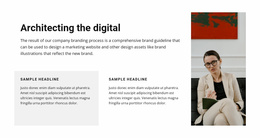
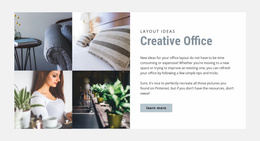
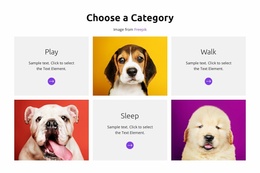
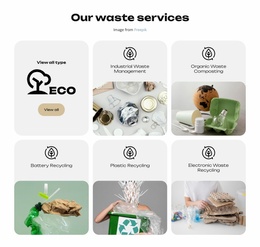
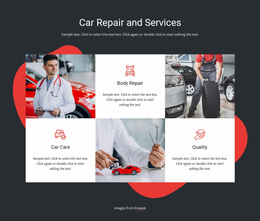
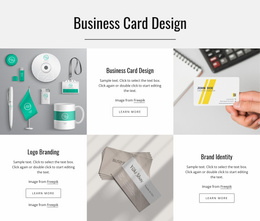
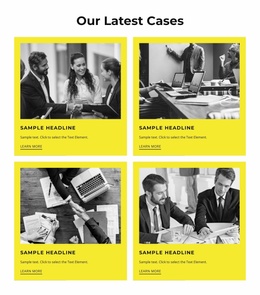
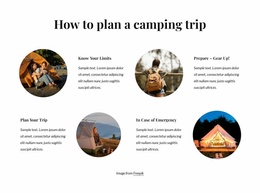
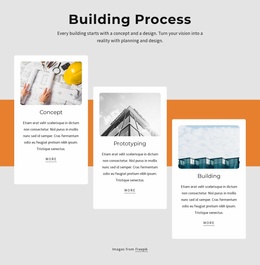
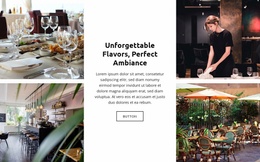
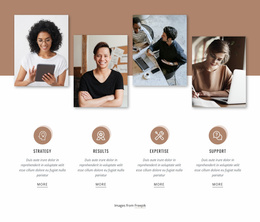
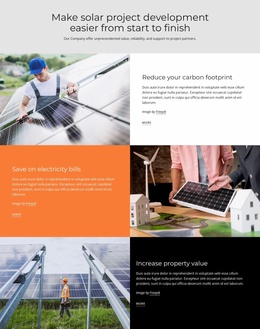
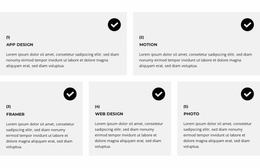
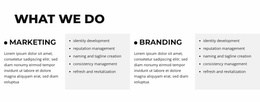
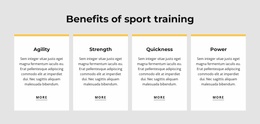
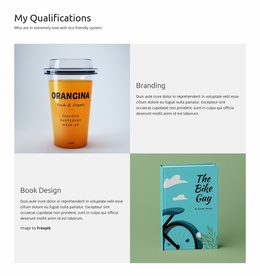
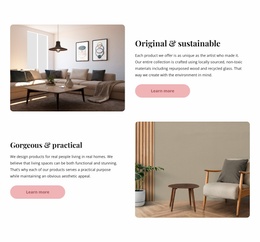
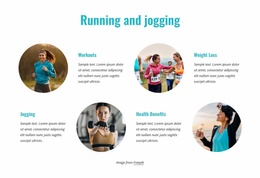
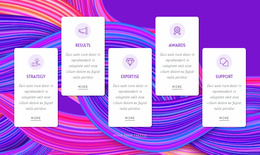
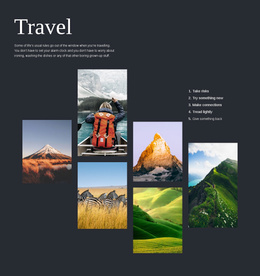
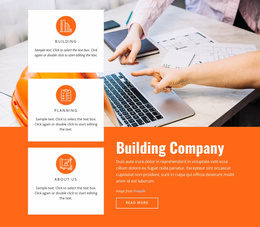
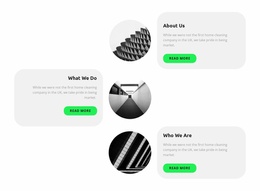
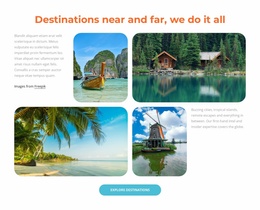
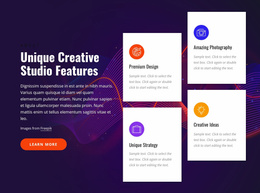
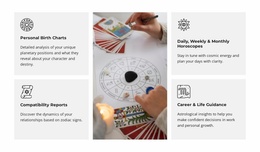
A landing page often has one main offer but several reasons to believe in it. Rather than stacking every benefit into a long sequence, a Grid Landing Page can present them together, letting visitors understand the offer before reaching the next action. The arrangement matters: a uniform Grid invites comparison, while a Bento-style Grid uses asymmetrically sized cells to draw attention to one priority message.
Choose a Grid for the Landing Page's Purpose
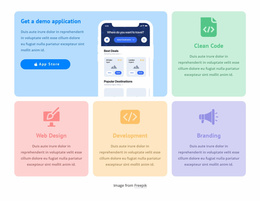
For a SaaS product, one large dashboard screenshot beside three compact feature cards can demonstrate the product without asking visitors to read a full feature list. The Grid gives an immediate view of what they would use, while a short statement beside it explains the benefit.
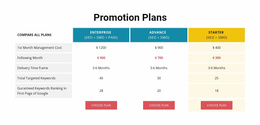
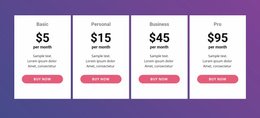
A pricing landing page needs something else: cards aligned for direct comparison, with consistent space for plan names, features, and prices. The offer determines the Grid, not the other way around. Give a demo-focused page more room for imagery; give a plan-selection page more consistent columns.
Compare Regular and Bento-Style Landing Page Designs
Two arrangements serve different decisions:
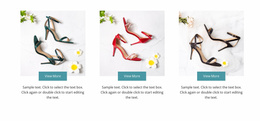
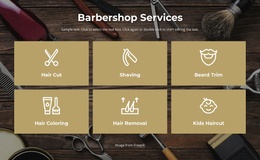
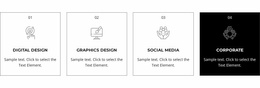
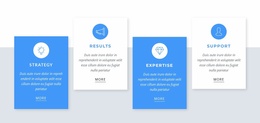
- Regular Grid: Equal-size pricing or package cards make comparable options easy to scan side by side.
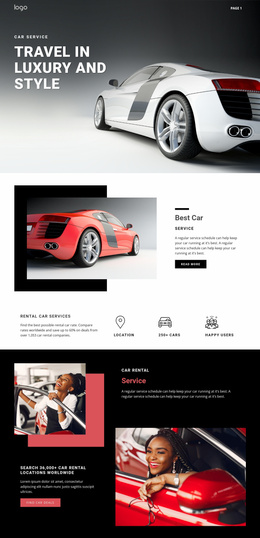
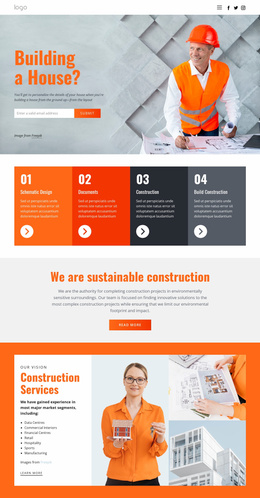
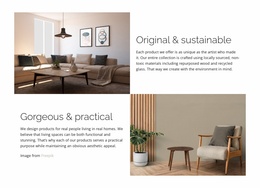
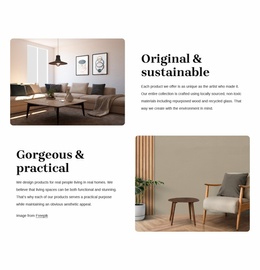
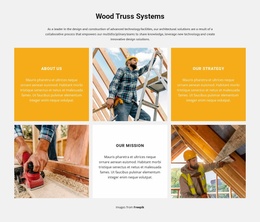
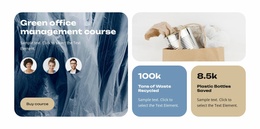
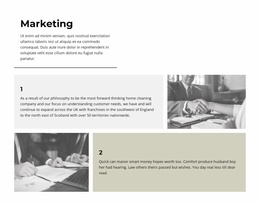
- Bento-style Grid: One larger Grid cell holds a product screenshot, with smaller cells fitted around it for setup, collaboration, and reporting.
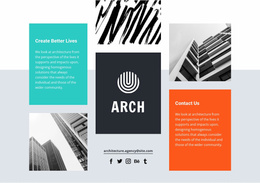
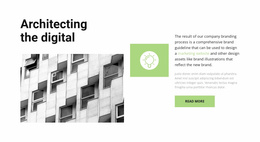
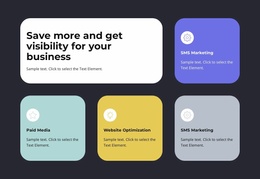
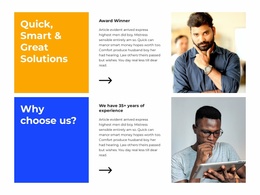
- Mixed benefit Grid: A wider lead card explains one central promise, supported by compact proof points such as an integration or a practical workflow.
For a productivity app, the Bento version might use a large workflow preview and three feature cells. For three subscription plans, the equal-card version is more useful because visitors need comparable information in comparable positions. Use asymmetry when it clarifies priority, not just because it looks fashionable.
Keep the Grid Close to the Intended Action
Where you place the Grid depends on what it helps visitors decide. A product screenshot can sit near a “Request a Demo” button; a set of pricing cards may lead to a plan-selection action. You rarely need to repeat the same button in every benefit cell.
Nicepage's Grid Element lets you adjust cell proportions and gaps for both regular and Bento layouts. The Button Element supports links to pages and block anchors, so the selected action can lead to the relevant next step.
Grid Landing Page FAQ
When should I choose a Bento-style Grid for a landing page?
Choose it when one benefit, image, or offer deserves more space than the supporting points. Use equal cards when the main task is direct comparison.
Should the Grid appear before testimonials?
Often, but not always. A product-benefit Grid can introduce the offer before testimonials, while a pricing comparison may work better after key proof points.
Does every Grid cell need its own CTA?
No. A shared action after the Grid can keep the path clearer when all cells describe one offer.
Can I change Grid cell proportions in Nicepage?
Yes. The Grid Element provides controls for its cell layout, including rows, columns, and spacing.
Match the Grid to the Decision Visitors Must Make
Compare plan cards, feature Grids, and Bento showcases against your specific landing page goal. The strongest design makes the offer easier to judge and keeps the next action in view.