Blog Posts HTML5 Templates
-
-

-
-
-
-
-
-
-
-
-
Free Website Builder SoftwareDownload
-
-
-
-
-
-
-
-
-
-
-
-
-
-
-
-
-
-



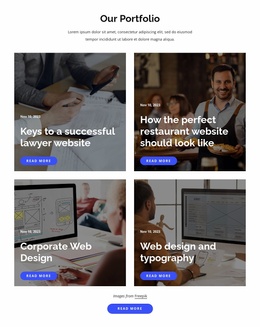

Clean Blog Posts HTML5 Template Layouts for Article Content Hierarchy
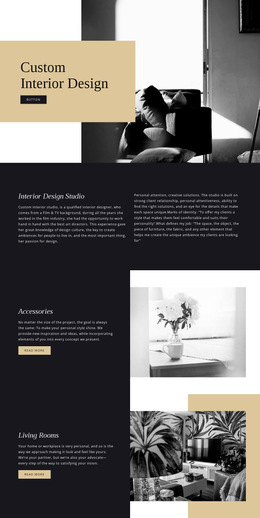
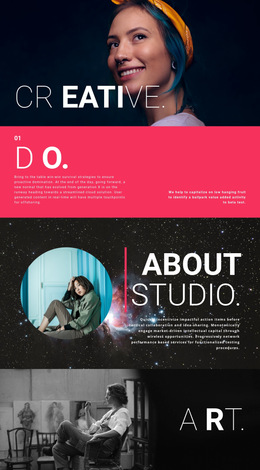
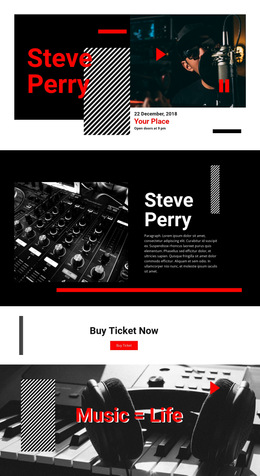
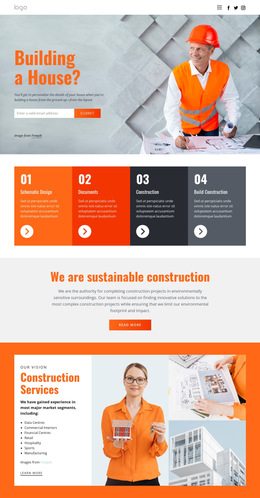
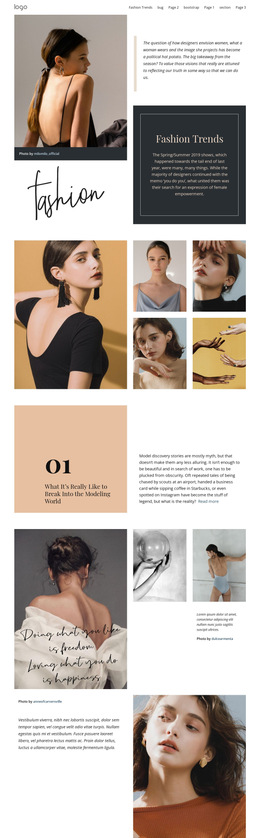
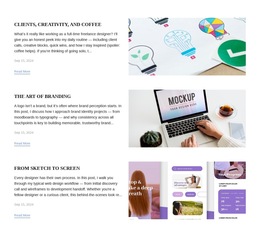
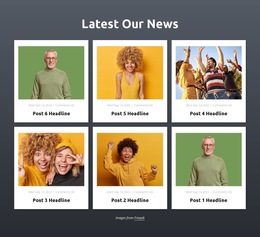
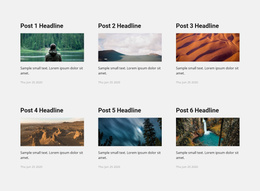
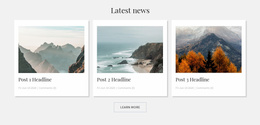
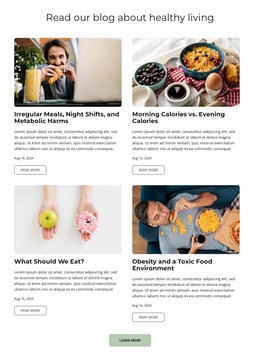
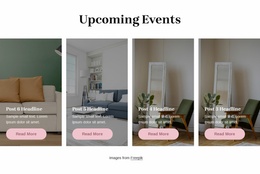
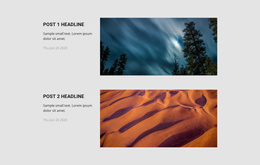
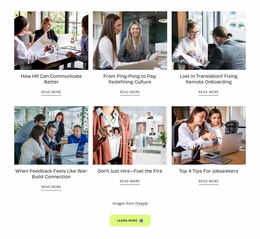
A collection of articles becomes easier to browse when every post follows a clear internal structure. Blog Posts HTML5 Template layouts organize recurring editorial previews around titles, featured images, excerpts, publication details, and reading links. Within an HTML5-oriented page section, these elements form recognizable content groups that help visitors distinguish individual stories and navigate to complete articles.
How Is Content Organized in a Blog Posts HTML5 Section?
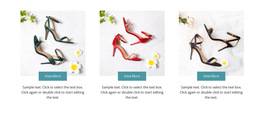
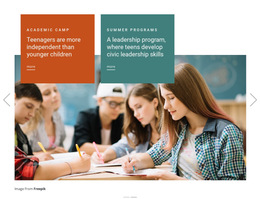
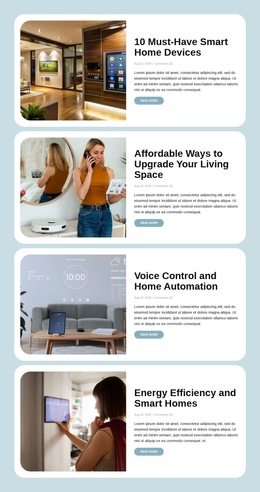
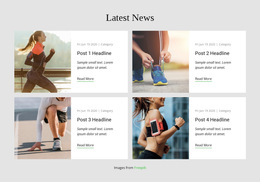
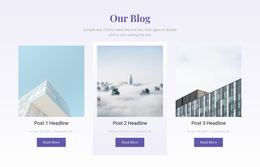
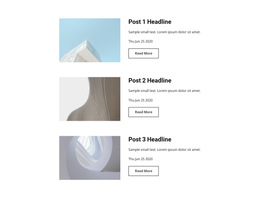
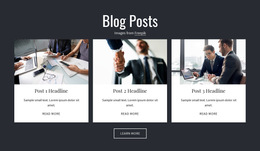
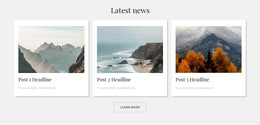
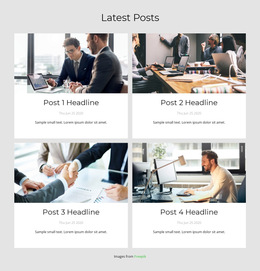
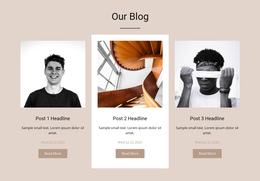
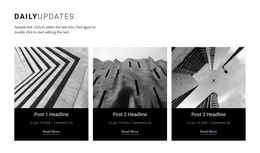
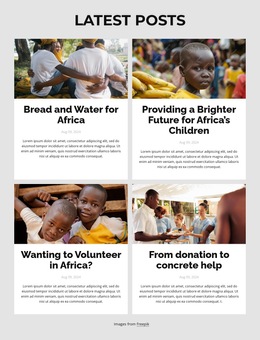
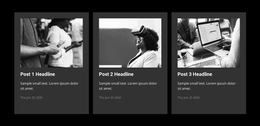
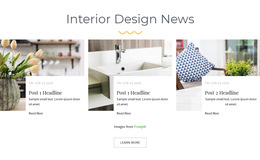
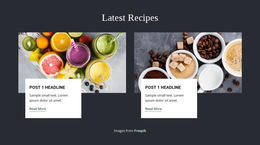
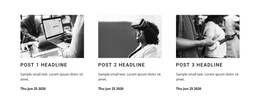
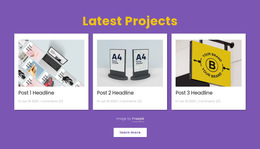
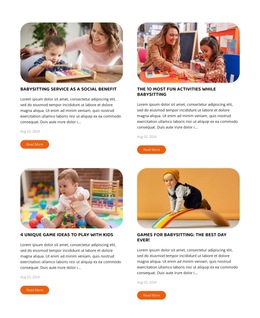
A Blog Posts section contains repeated article previews, each with its own content hierarchy. The title identifies the article, the image provides visual context, the excerpt introduces the subject, and the reading link leads to the full story. Publication metadata can add supporting information without interrupting the main reading sequence.
This structure supports recent articles, news listings, featured stories, and related editorial content.
Unlike a Grid, which primarily defines how different items occupy rows and columns, Blog Posts organizes a specific type of information: published articles. Its repeated entries maintain relationships between editorial content, publication details, and reading destinations.
Essential Elements of a Structured Article Preview
An HTML5-oriented Blog Posts template should keep each story's heading, publication date, excerpt, and destination together. Nicepage's Blog Posts Element arranges repeated Post Items; their final semantic markup should be checked in the published output.
Use HTML5 Semantics for Individual Post Previews
HTML5 semantics describe the relationships between article previews, not a custom-code feature. A <section> can identify the article collection, each <article> can stand for one independent story, and <time> can express its publication date. Headings should follow the surrounding page's hierarchy rather than assigning every preview an h1.
These element names are illustrative semantic guidance, not a promise that every Nicepage preset exports precisely those tags. The visual Blog Posts Element and the Elements documentation describe editing controls; review the rendered output if specific HTML5 structure is important.
For additional context, explore blog layouts.
Keeping Individual Articles Distinct Within a Listing
Even in multiple columns, keep each story’s heading and reading link clearly associated with that article. A compact news preview and a larger featured story can use different visual treatments while keeping that relationship clear. For fuller article pages, see post layouts.
Frequently Asked Questions About Blog Posts HTML5 Template
Can I create a Blog Posts section without writing HTML manually?
Yes. Nicepage provides a Blog Posts Element for arranging recurring article previews in the visual editor. You can use its layout and styling controls without manually constructing the HTML structure for every post item.
What content belongs inside an HTML5 blog post preview?
A typical preview contains an article title, featured image, excerpt, publication information, and a link to the complete post. These elements should remain grouped within the corresponding article entry so readers can identify each story.
Can I add custom elements to a Blog Posts item?
Yes. Nicepage allows sub-elements to be added to a Post Item. Adding a sub-element to one item also adds it to the other repeated Post Items, helping maintain a consistent content structure across the listing.
Can I import an existing HTML website into the Nicepage editor?
No. Nicepage does not support directly importing an existing HTML website into its editor. You can recreate the required article listing using Nicepage Blocks and Elements, then adjust the layout with the available editing tools.
What should I check before publishing this Blog Posts section?
Open a few article links, review real headline lengths, and check the layout on a narrow screen. Confirm that every preview leads to the intended complete story.
Organize Your Blog Posts Into a Clear HTML5 Section
Select a Blog Posts block that fits your editorial collection and open it in the Nicepage editor. Review the relationship between article titles, images, excerpts, publication details, and reading links before adjusting the repeated layout. Integrate the organized section into your HTML5-oriented page so visitors can browse individual posts without losing track of their content.