We offer many language courses WordPress Theme



The Course Message Forms Stable WordPress Page Content
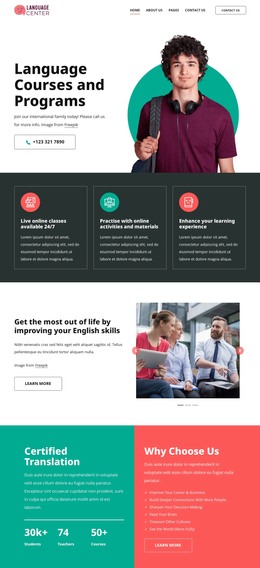
The centered heading and classroom photograph give this section a clear page-oriented role: it introduces language courses and native-level teachers before the surrounding content explains the offer in greater depth. The dark overlay keeps the white heading legible against the image, while the full-width treatment makes the educational setting the first visual context. This combination can remain a stable part of a services, education, or organization page managed through WordPress.
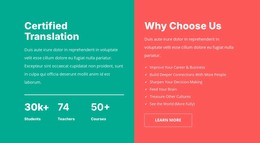
The four-item statistic row adds structured supporting content beneath the main message. Each item follows the same value, label, and description pattern, creating a compact information band that is easy to scan as part of permanent page content. The sample entries refer to years, courses, teachers, and students; they show how the section organizes information and should not be treated as independently confirmed institutional claims. The red value accents also give this content group a recognizable visual cue that can be retained alongside related sections.
In a WordPress-oriented project, the block can serve as a reusable visual section on a language-education page while other content areas handle course details, instructor information, articles, or contact routes. Its heading, image relationship, and repeated statistics already provide a coherent content unit. The broader site and CMS-managed pages supply the surrounding structure, while this section preserves its focused introductory function.
Customize with Nicepage
Open this ready-made template in the WordPress Website Builder and customize it visually in the Nicepage editor. Replace demo content, edit page sections, and adapt the design to your project without rebuilding the template from scratch.
Edit Template Offline
2. Create a new page or select existing
3. Click Add new block, search for id 6414519 and click enter
Edit Template Online
Create Awesome Websites


Free Nicepage Builder
Keywords
Manage and Edit This Theme in WordPress
Customize and Install the WordPress Theme
Start with this ready-made theme instead of building the WordPress design from scratch. Customize its layout, content, typography, images, sections, and other design elements visually in Nicepage editor, then export and install the WordPress Theme, Plugin, and Pages on your WordPress site. The Nicepage WordPress Plugin lets you continue working with the site after installation.
Edit the Theme Directly in WordPress
After installation, you can edit the WordPress Theme directly in WordPress with the Nicepage WordPress Plugin. Use Site Style to customize site Colors, Fonts, Header, Footer, Blog, and Post Page Templates while working within your WordPress website.
Edit WordPress Pages Visually
Use the Nicepage WordPress Plugin to edit page content directly from the WordPress admin area. Open a WordPress Page with Nicepage and visually change its text, images, sections, and other page elements while continuing to manage the Page through WordPress.
WordPress Content and Theme Integration
Use the customized theme with WordPress Pages, Posts, Blog and Post Templates, menus, widgets, and other CMS-managed content. Shared theme elements such as Colors, Fonts, Header, Footer, Blog, and Post Page Templates can be managed as part of the overall site design, while WordPress provides the CMS environment for managing site content.
This workflow combines a ready-made WordPress Theme with visual customization, direct theme editing in WordPress, and continued content management through the Nicepage WordPress Plugin.