Psychological distress WordPress Theme


Stable Group-Therapy Content for a WordPress-Managed Page
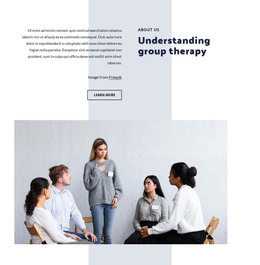
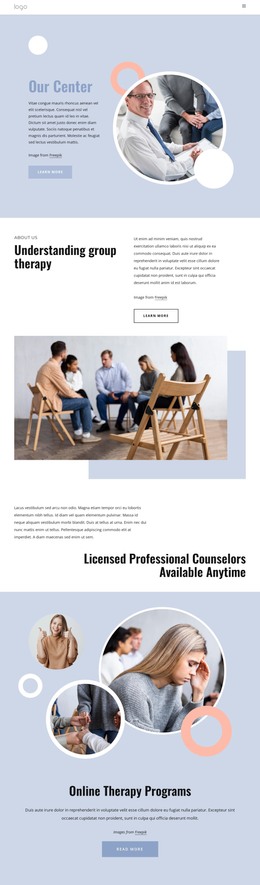
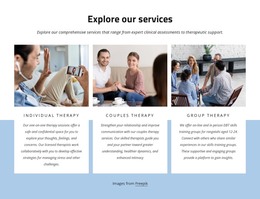
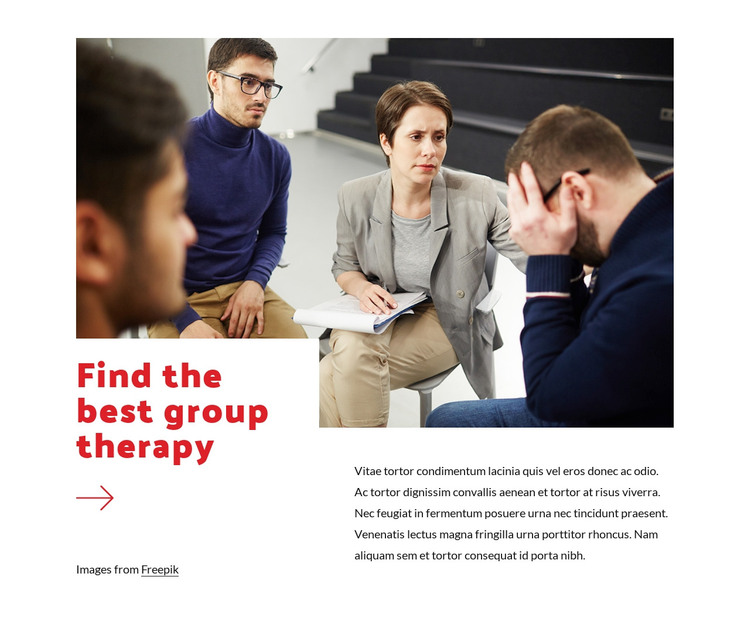
The photograph and heading make this section read as stable page content rather than a time-sensitive list of updates. “Find the best group therapy” introduces the subject directly, the group-session image supplies visual context, and the supporting paragraph on the right provides a separate space for explanatory information. The red arrow beneath the heading gives the lower-left text area a distinct marker, while the white background and generous spacing keep the content readable within the larger page.
In a WordPress-oriented project, this block can occupy a services or treatment-information area on a mental health page. Its content remains clearly bounded: one group-therapy topic, one image, one explanatory paragraph, and a small decorative accent. That makes it possible to position the section alongside other page content without asking it to carry the site’s complete structure. The image attribution line naming Freepik should also remain associated with the section when its visual content is maintained.
The WordPress context concerns how this prepared section participates in a CMS-managed page, while the block itself keeps its existing visual and content relationships. A broader project can place it near related treatment sections, practitioner information, or contact content according to the site’s publishing needs. Nicepage supports WordPress page workflows in which designed content sections can be used within the surrounding theme and page structure.
Customize with Nicepage
Open this ready-made template in the WordPress Website Builder and customize it visually in the Nicepage editor. Replace demo content, edit page sections, and adapt the design to your project without rebuilding the template from scratch.
Edit Template Offline
2. Create a new page or select existing
3. Click Add new block, search for id 308688 and click enter
Edit Template Online
Create Awesome Websites


Free Nicepage Builder
Keywords
Manage and Edit This Theme in WordPress
Customize and Install the WordPress Theme
Start with this ready-made theme instead of building the WordPress design from scratch. Customize its layout, content, typography, images, sections, and other design elements visually in Nicepage editor, then export and install the WordPress Theme, Plugin, and Pages on your WordPress site. The Nicepage WordPress Plugin lets you continue working with the site after installation.
Edit the Theme Directly in WordPress
After installation, you can edit the WordPress Theme directly in WordPress with the Nicepage WordPress Plugin. Use Site Style to customize site Colors, Fonts, Header, Footer, Blog, and Post Page Templates while working within your WordPress website.
Edit WordPress Pages Visually
Use the Nicepage WordPress Plugin to edit page content directly from the WordPress admin area. Open a WordPress Page with Nicepage and visually change its text, images, sections, and other page elements while continuing to manage the Page through WordPress.
WordPress Content and Theme Integration
Use the customized theme with WordPress Pages, Posts, Blog and Post Templates, menus, widgets, and other CMS-managed content. Shared theme elements such as Colors, Fonts, Header, Footer, Blog, and Post Page Templates can be managed as part of the overall site design, while WordPress provides the CMS environment for managing site content.
This workflow combines a ready-made WordPress Theme with visual customization, direct theme editing in WordPress, and continued content management through the Nicepage WordPress Plugin.