Book your next appointment WordPress Theme


Appointment Content With a Clear Page-Oriented Structure
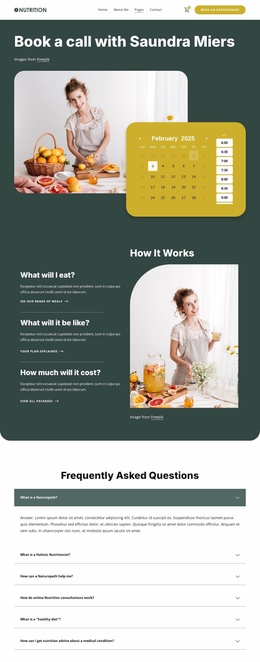
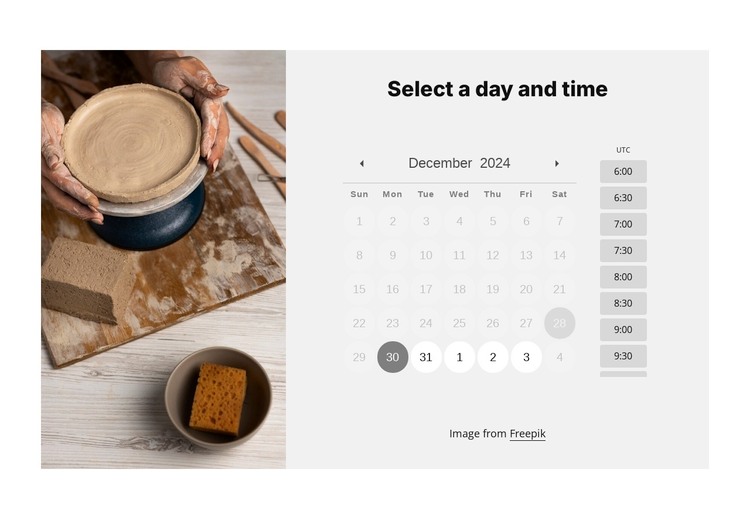
The heading “Select a day and time” and the appointment controls read as stable page content rather than as a stream of editorial entries. The tall pottery-making image adds context on the left, while the right column organizes the date picker, timezone label, and selectable time slots into a focused scheduling area. Together, these regions can provide a WordPress-managed page with a reusable section for booking a class, workshop, or service.
The block’s response messages strengthen its page-content role. No availability, successful booking, conflict, and error states all relate to the same visitor task and can remain visible within the section as the scheduling interaction changes. This gives the content area more structure than a simple promotional image, while the light-gray calendar panel keeps the functional information visually separate from the white outer background.
In a WordPress-oriented project, the section can remain part of a stable page while other content areas grow around it. Related descriptions, regularly updated posts, or broader site content may occupy different regions, but this block retains its own appointment purpose and visual arrangement. It should be treated as one content section within the wider theme and page context, with the pottery image, date selection, timezone reference, and time-slot choices working together as a single publishable area.
Customize with Nicepage
Open this ready-made template in the WordPress Website Builder and customize it visually in the Nicepage editor. Replace demo content, edit page sections, and adapt the design to your project without rebuilding the template from scratch.
Edit Template Offline
2. Create a new page or select existing
3. Click Add new block, search for id 6415769 and click enter
Edit Template Online
Create Awesome Websites


Free Nicepage Builder
Keywords
Manage and Edit This Theme in WordPress
Customize and Install the WordPress Theme
Start with this ready-made theme instead of building the WordPress design from scratch. Customize its layout, content, typography, images, sections, and other design elements visually in Nicepage editor, then export and install the WordPress Theme, Plugin, and Pages on your WordPress site. The Nicepage WordPress Plugin lets you continue working with the site after installation.
Edit the Theme Directly in WordPress
After installation, you can edit the WordPress Theme directly in WordPress with the Nicepage WordPress Plugin. Use Site Style to customize site Colors, Fonts, Header, Footer, Blog, and Post Page Templates while working within your WordPress website.
Edit WordPress Pages Visually
Use the Nicepage WordPress Plugin to edit page content directly from the WordPress admin area. Open a WordPress Page with Nicepage and visually change its text, images, sections, and other page elements while continuing to manage the Page through WordPress.
WordPress Content and Theme Integration
Use the customized theme with WordPress Pages, Posts, Blog and Post Templates, menus, widgets, and other CMS-managed content. Shared theme elements such as Colors, Fonts, Header, Footer, Blog, and Post Page Templates can be managed as part of the overall site design, while WordPress provides the CMS environment for managing site content.
This workflow combines a ready-made WordPress Theme with visual customization, direct theme editing in WordPress, and continued content management through the Nicepage WordPress Plugin.