Delicious recipes and meal plan ideas Website Template


A Reusable Cookbook Section for a Broader Content Structure
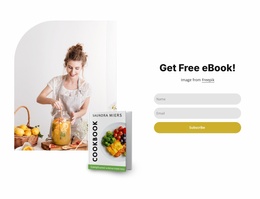
The block defines one stable website content area: a cookbook introduction with a title, supporting description, product image, and purchase action. The left-side text region explains the offer and contains the “Buy Now” button, while the right-side image gives the product an immediate visual identity. Because these parts are contained in one split composition, the section can be reused as a recognizable offering area without needing to carry unrelated page functions.
Its role fits naturally inside a broader food, nutrition, publishing, or product-oriented project. Other sections can handle recipes, meal-plan details, author information, reviews, ingredients, or contact content, while this block remains focused on presenting the cookbook itself. The white background and generous whitespace also leave room for neighboring sections to introduce different content densities without making this product area feel crowded.
On smaller layouts, the content centers rather than preserving the desktop left-right emphasis, so the section can remain a coherent product introduction as the surrounding project adapts. The mustard-yellow button provides a repeatable action accent that related offering sections could echo, while the black typography and contained image establish a clear visual reference. The Freepik attribution stays part of the image context rather than becoming a separate site-level feature.
Customize with Nicepage
Open this ready-made template in the Website Template Builder and customize it visually in the Nicepage editor. Replace demo content, edit page sections, and adapt the design to your project without rebuilding the template from scratch.
Edit Template Offline
2. Create a new page or select existing
3. Click Add new block, search for id 6422644 and click enter
Edit Template Online
Create Awesome Websites


Free Nicepage Builder
Keywords
Build a Complete Website From This Template
Customize the Website Visually
Use this ready-made website template as a starting point for your project and adapt its pages visually in Nicepage. Change content, images, typography, navigation, sections, and other design elements while keeping the website together as a single editable project.
Manage Website Pages in One Project
Use the Pages panel to open, add, duplicate, and manage the pages of your website. Work on individual pages while keeping navigation and the overall site structure accessible from the same project, making it easier to develop a complete website instead of managing separate page files.
Expand the Website With Matching Designs
When you need additional pages or sections, use Page Design Sets to find Page and Block Designs created in the same visual style. Design Sets group matching designs together, making it easier to expand the website with new content while maintaining a consistent look across its pages and sections.
Organize Larger Multi-Page Websites
As the website grows, use Page Folders to organize related pages and keep larger multi-page projects easier to navigate in the editor. This is especially useful for websites with separate service pages, company information, contacts, landing pages, and other content areas.
This workflow makes the template a practical foundation for building and expanding a complete website while managing its pages, content, and visual design within one Nicepage project.