Future of smart buildings WordPress Theme


Permanent Topic Content Sits Beside a Five-Item Trend Overview
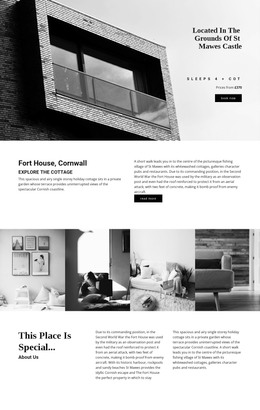
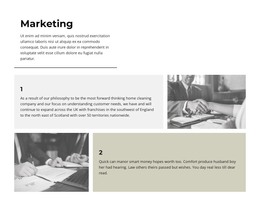
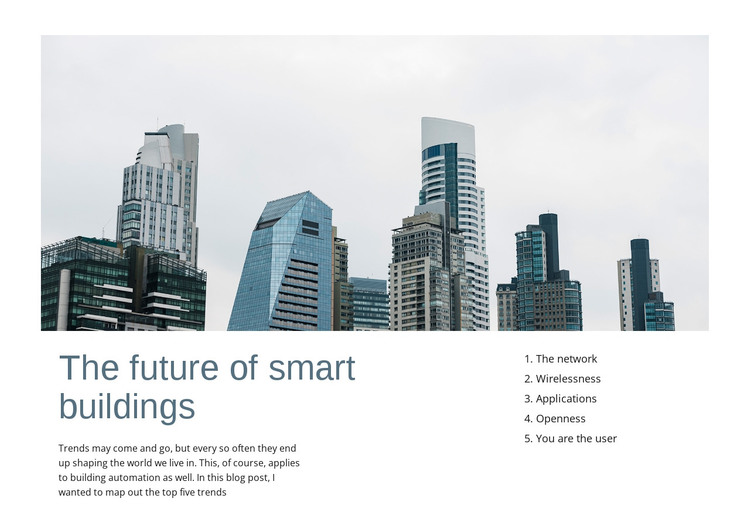
The architectural image and the heading make this block well suited to stable page content about smart buildings. The image supplies immediate subject context, while the lower left column gives the page a clear textual introduction through the heading “The future of smart buildings” and its supporting paragraph. Rather than placing every idea in one long paragraph, the block uses the right column for a five-item ordered list.
The list names The network, Wirelessness, Applications, Openness, and You are the user. These labels create a compact overview that can sit beside the explanatory copy and help readers move through the topic in a defined order. The split lower layout gives the prose and list separate visual space, while the blue-gray heading, dark text, and generous white space preserve an editorial reading rhythm. The interaction is static, so the information remains visible without depending on a carousel or expandable control.
In a WordPress-oriented project, the section can function as reusable content on a stable page about architecture or building technology while other CMS-managed areas surround it. The block’s value is its clear content relationship: one image establishes context, one column explains the theme, and one column organizes its five associated trends. It can therefore support a larger publishing structure without becoming a complete WordPress theme or page system.
Customize with Nicepage
Open this ready-made template in the WordPress Website Builder and customize it visually in the Nicepage editor. Replace demo content, edit page sections, and adapt the design to your project without rebuilding the template from scratch.
Edit Template Offline
2. Create a new page or select existing
3. Click Add new block, search for id 48782 and click enter
Edit Template Online
Create Awesome Websites


Free Nicepage Builder
Keywords
Manage and Edit This Theme in WordPress
Customize and Install the WordPress Theme
Start with this ready-made theme instead of building the WordPress design from scratch. Customize its layout, content, typography, images, sections, and other design elements visually in Nicepage editor, then export and install the WordPress Theme, Plugin, and Pages on your WordPress site. The Nicepage WordPress Plugin lets you continue working with the site after installation.
Edit the Theme Directly in WordPress
After installation, you can edit the WordPress Theme directly in WordPress with the Nicepage WordPress Plugin. Use Site Style to customize site Colors, Fonts, Header, Footer, Blog, and Post Page Templates while working within your WordPress website.
Edit WordPress Pages Visually
Use the Nicepage WordPress Plugin to edit page content directly from the WordPress admin area. Open a WordPress Page with Nicepage and visually change its text, images, sections, and other page elements while continuing to manage the Page through WordPress.
WordPress Content and Theme Integration
Use the customized theme with WordPress Pages, Posts, Blog and Post Templates, menus, widgets, and other CMS-managed content. Shared theme elements such as Colors, Fonts, Header, Footer, Blog, and Post Page Templates can be managed as part of the overall site design, while WordPress provides the CMS environment for managing site content.
This workflow combines a ready-made WordPress Theme with visual customization, direct theme editing in WordPress, and continued content management through the Nicepage WordPress Plugin.