Manage booking WordPress Theme


Stable booking content with distinct contact routes
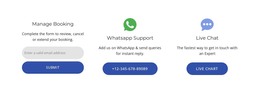
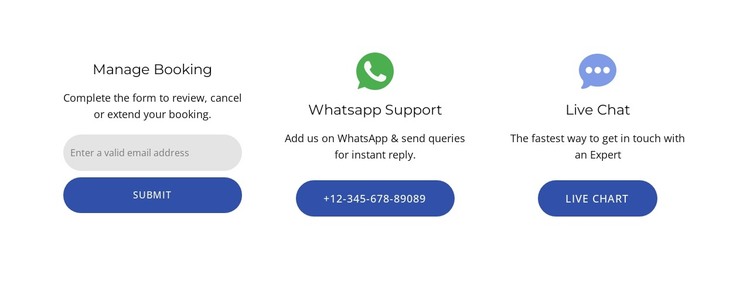
The section reads as permanent, page-oriented content because its purpose is clearly defined: help a visitor manage a booking and offer practical ways to request assistance. The left column gathers the booking instructions, email input, and Submit control under the Manage Booking heading. The center column gives WhatsApp Support a phone-number action, while the right column gives Live Chat a separate button and communication icon. These are related content groups, but their distinct columns prevent the support alternatives from being mistaken for fields in the booking request.
In a WordPress-managed page, this block can occupy a stable services, booking, or customer-support area while the wider site handles other content around it. The repeated blue rounded buttons provide a consistent action language, and the white background with centered dark typography keeps the section suitable for a permanent page layout. The three-column structure also gives content editors a clear visual division between the request form and direct-contact choices. The block should be understood as one reusable page section within a WordPress-oriented site, not as the site’s complete theme. Its practical contribution is a compact, recognizable place where visitors can submit an email request or choose a more immediate support channel.
Customize with Nicepage
Open this ready-made template in the WordPress Website Builder and customize it visually in the Nicepage editor. Replace demo content, edit page sections, and adapt the design to your project without rebuilding the template from scratch.
Edit Template Offline
2. Create a new page or select existing
3. Click Add new block, search for id 3545222 and click enter
Edit Template Online
Create Awesome Websites


Free Nicepage Builder
Keywords
Manage and Edit This Theme in WordPress
Customize and Install the WordPress Theme
Start with this ready-made theme instead of building the WordPress design from scratch. Customize its layout, content, typography, images, sections, and other design elements visually in Nicepage editor, then export and install the WordPress Theme, Plugin, and Pages on your WordPress site. The Nicepage WordPress Plugin lets you continue working with the site after installation.
Edit the Theme Directly in WordPress
After installation, you can edit the WordPress Theme directly in WordPress with the Nicepage WordPress Plugin. Use Site Style to customize site Colors, Fonts, Header, Footer, Blog, and Post Page Templates while working within your WordPress website.
Edit WordPress Pages Visually
Use the Nicepage WordPress Plugin to edit page content directly from the WordPress admin area. Open a WordPress Page with Nicepage and visually change its text, images, sections, and other page elements while continuing to manage the Page through WordPress.
WordPress Content and Theme Integration
Use the customized theme with WordPress Pages, Posts, Blog and Post Templates, menus, widgets, and other CMS-managed content. Shared theme elements such as Colors, Fonts, Header, Footer, Blog, and Post Page Templates can be managed as part of the overall site design, while WordPress provides the CMS environment for managing site content.
This workflow combines a ready-made WordPress Theme with visual customization, direct theme editing in WordPress, and continued content management through the Nicepage WordPress Plugin.