Product List Web Page Designs
-
-

-
-
-
-
-
-
-
-
-
-
-
-
-
-
-
-
-
-
-
-
-
-
-
-
-
-
-
-
Free Website Builder SoftwareDownload
-
-
-
-
-
-
-
-
-
-
-
-
-
-
-
-
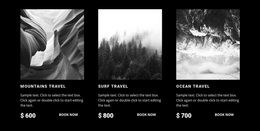
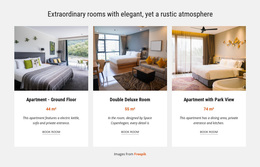
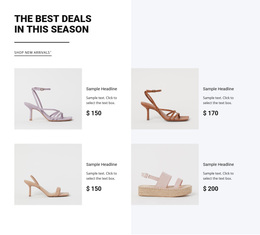

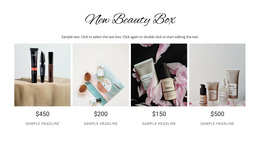
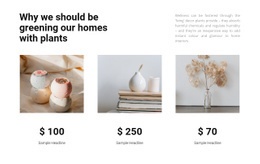
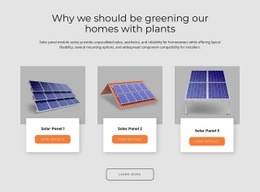
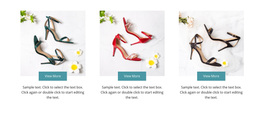
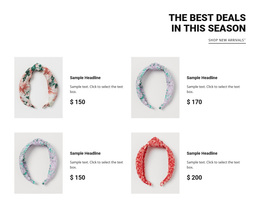
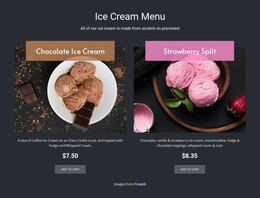
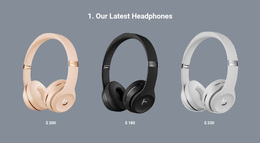
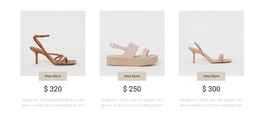

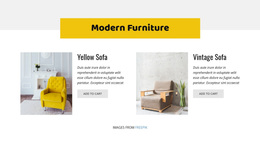
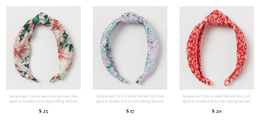
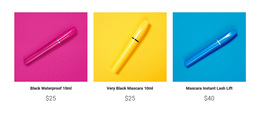
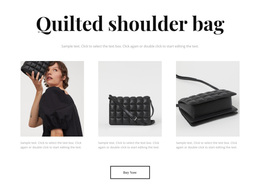
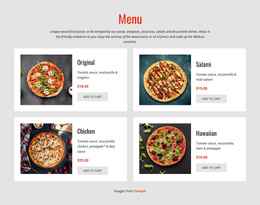
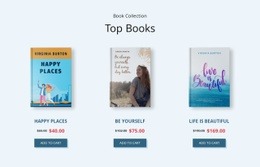
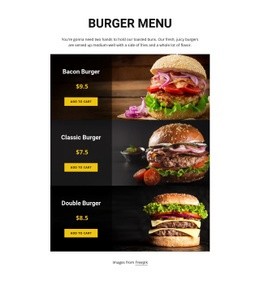
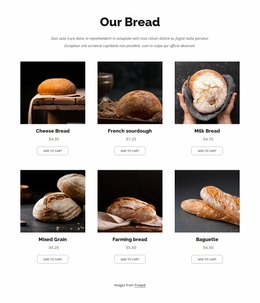
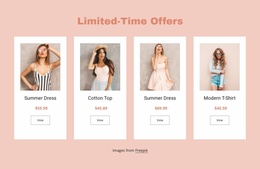
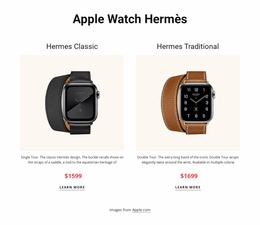
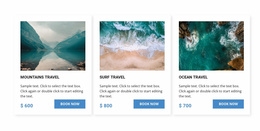
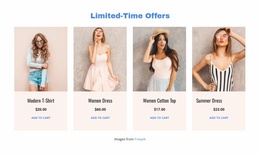
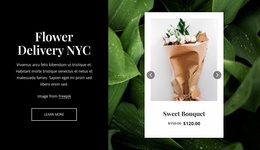
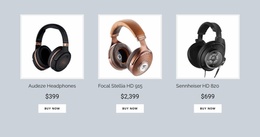

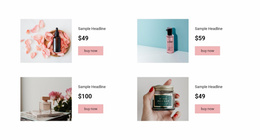
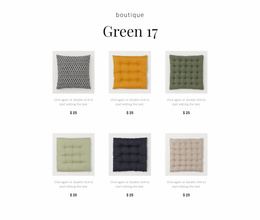
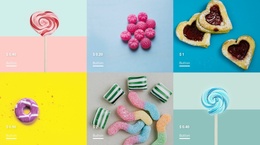
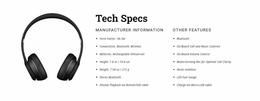
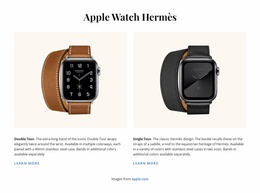
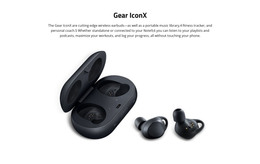
Modern Product List Web Page Design for Clear Card Hierarchy and Page Flow
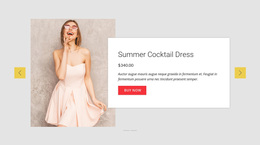
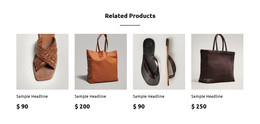
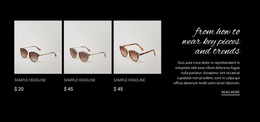
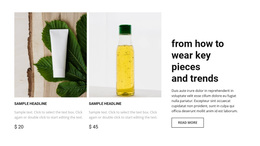
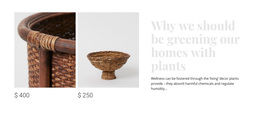
Product List Web Page Design is about making a merchandise section work within the visual composition of a particular page. The same product cards can feel prominent on a campaign page or secondary on an informational page, depending on their width, scale, alignment, and surrounding content. A successful design gives products enough emphasis to browse without making the rest of the page disappear.
What Makes a Product List Section Easy to Browse?
Begin with visual hierarchy at the page level. Visitors should understand the heading introducing the assortment, see recognizable product imagery, and know where the collection ends. The section should have a clear boundary without looking detached from adjacent content. Balance the product area against nearby imagery, editorial text, and calls to action rather than judging cards in isolation.
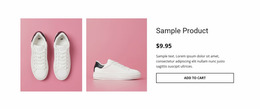
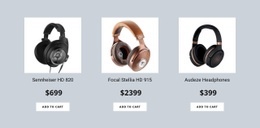
Unlike a general grid of decorative cards, a Product List communicates actual merchandise. Names, prices, and actions must remain readable, but their visual weight should also make sense against the page's headline, primary image, and other prominent elements.
Clean Product Card Hierarchy and Layout Balance
Consider the proportion between the product section and the rest of the page. A narrow collection alongside a large photograph creates a different focal point from a full-width grid below an introduction. Neither is universally better: choose according to what the visitor should notice first.
Review these design relationships before finalizing the layout:
- Section width: Does the collection occupy enough space for product cards without overwhelming adjacent content?
- Image-to-text balance: Are merchandise photos prominent while names, prices, and actions remain easy to scan?
- Alignment and rhythm: Do the section heading, card edges, and neighboring blocks align in a visually intentional way?
- Visual emphasis: Does the primary page message remain clear when the product collection competes for attention?
Nicepage's Product List Element offers Grid and Slider layouts and spacing controls. These help you refine the visual density of the collection; the Product List Element documentation explains the available options.
Positioning Product Collections Within a Web Page
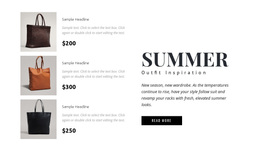
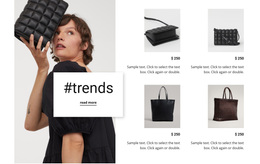
Imagine a product-focused landing page with a large editorial photograph on one side and a short introduction on the other. A compact Product List below that composition may use a restrained background and generous margins to distinguish the merchandise without adding another oversized visual element. On a category introduction page, a broader grid might instead become the central area, with supporting text kept narrower.
Pay attention to the transition at the collection's edges. The heading should visually belong to its product cards; the bottom margin should distinguish the last row from the next content block. On mobile screens, reassess relative scale: a section that looks secondary on desktop can dominate the entire viewport when its cards stack.
This is a page-composition decision, not necessarily a one-page navigation strategy. A Product List can sit on a homepage, campaign page, or editorial page regardless of whether the wider site contains multiple pages.
When Should a Product List Replace a General Repeated Grid?
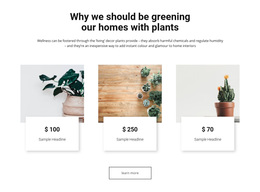
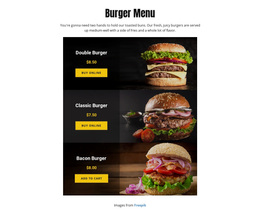
Use a Product List when the repeated content represents items that shoppers may compare or open individually. A generic repeated grid suits testimonials, team profiles, or editorial teasers without product-specific data. The visual distinction matters: merchandise imagery, prices, and shopping actions should form a coherent browsing area rather than resemble unrelated promotional cards.
Before publishing, inspect the whole page at desktop and mobile widths. If the cards are clear but the page feels visually unbalanced, adjust section scale, alignment, or surrounding whitespace before changing individual product details.
Frequently Asked Questions About Product List Web Page Design
Can I use Nicepage to add a Product List to an existing page?
Yes. Nicepage provides a Product List Element that can be added to a page block. Products can be managed through the Products Panel, and the section's arrangement can be adjusted in the editor.
Can I change the product layout for different screen sizes?
Yes. The Product List Element supports separate column and row settings for mobile device views, allowing the product arrangement to be adjusted for different screen sizes.
How many product cards should appear in one section?
Start with the space available after the page introduction. Larger cards suit a small featured range that deserves attention; more compact rows help visitors scan a broader collection before following a link to the catalog. Keep the first row close to the heading that introduces it. Nicepage layout controls can then refine the arrangement.
Shape a Product Collection Around Your Page Content
Start with a Product List design that gives the merchandise enough room to be recognized and compared. Open the selected block in the Nicepage editor, adjust the card content, image presentation, and layout spacing, then place the section where it supports the surrounding page content. The result should make product browsing feel like a natural part of the page rather than a disconnected collection of cards.