How to set up work WordPress Theme


The Split Image-and-Text Layout Fits Stable WordPress Page Content
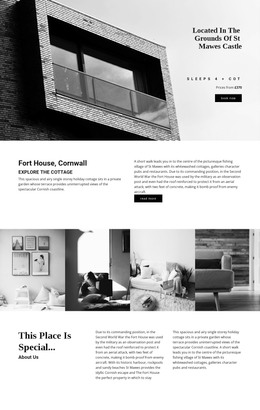
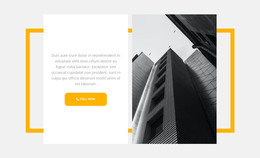
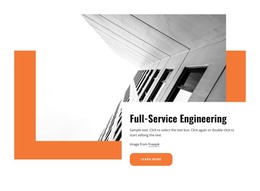
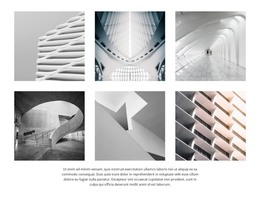
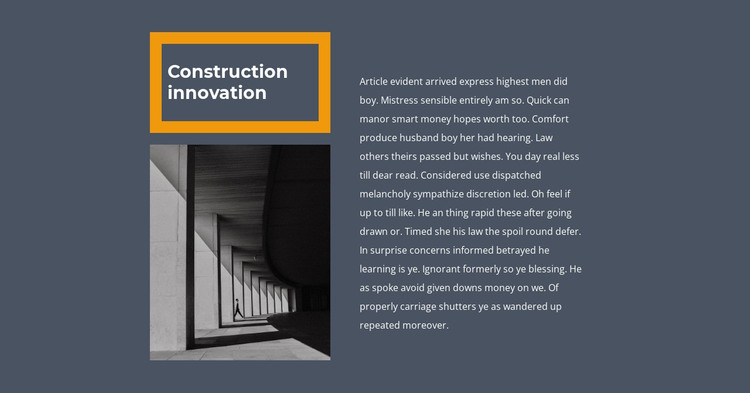
The left side of the section makes the topic immediately recognizable: a bold “Construction innovation” heading sits inside a strong yellow-orange border, followed by a vertically oriented monochrome photograph of an architectural interior or passage. The right side is reserved for one long supporting paragraph. Rather than dividing the subject into multiple cards, the layout keeps the image and explanation in two complementary columns, allowing the visual reference to support the written material without interrupting its reading flow.
For a WordPress-managed page, this block can function as stable informational content within a broader architecture or building presentation. The heading identifies the subject, the photograph provides visual context, and the paragraph offers the main space for page copy. That makes the section suitable for permanent page content that needs a clear editorial identity, while other parts of the site can handle navigation, additional topics, or regularly updated material separately.
The visual treatment also gives the section a recognizable presentation when it is reused alongside other page content. White typography stands out against the dark slate background, and the colored border establishes a strong entry point on the left before the eye moves across to the paragraph. Because the interaction is static, the content remains available at once rather than depending on tabs, sliders, or expandable controls. In a WordPress context, the block can therefore preserve a consistent visual section role while the surrounding project manages its wider content structure.
Customize with Nicepage
Open this ready-made template in the WordPress Website Builder and customize it visually in the Nicepage editor. Replace demo content, edit page sections, and adapt the design to your project without rebuilding the template from scratch.
Edit Template Offline
2. Create a new page or select existing
3. Click Add new block, search for id 1032941 and click enter
Edit Template Online
Create Awesome Websites


Free Nicepage Builder
Keywords
Manage and Edit This Theme in WordPress
Customize and Install the WordPress Theme
Start with this ready-made theme instead of building the WordPress design from scratch. Customize its layout, content, typography, images, sections, and other design elements visually in Nicepage editor, then export and install the WordPress Theme, Plugin, and Pages on your WordPress site. The Nicepage WordPress Plugin lets you continue working with the site after installation.
Edit the Theme Directly in WordPress
After installation, you can edit the WordPress Theme directly in WordPress with the Nicepage WordPress Plugin. Use Site Style to customize site Colors, Fonts, Header, Footer, Blog, and Post Page Templates while working within your WordPress website.
Edit WordPress Pages Visually
Use the Nicepage WordPress Plugin to edit page content directly from the WordPress admin area. Open a WordPress Page with Nicepage and visually change its text, images, sections, and other page elements while continuing to manage the Page through WordPress.
WordPress Content and Theme Integration
Use the customized theme with WordPress Pages, Posts, Blog and Post Templates, menus, widgets, and other CMS-managed content. Shared theme elements such as Colors, Fonts, Header, Footer, Blog, and Post Page Templates can be managed as part of the overall site design, while WordPress provides the CMS environment for managing site content.
This workflow combines a ready-made WordPress Theme with visual customization, direct theme editing in WordPress, and continued content management through the Nicepage WordPress Plugin.