We help children realize their potential WordPress Theme


Stable program content with three publishable visual units
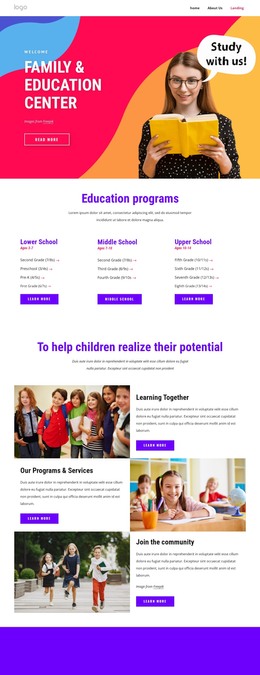
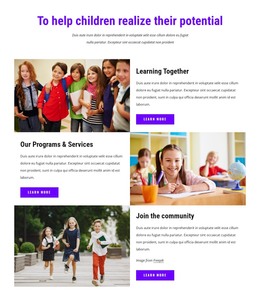
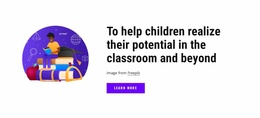
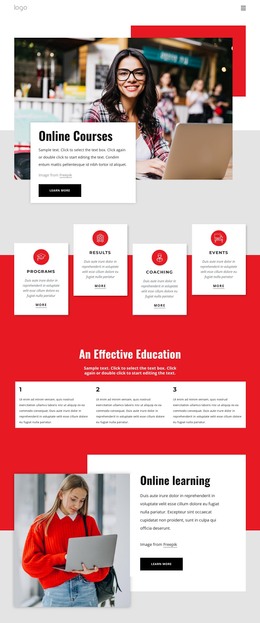
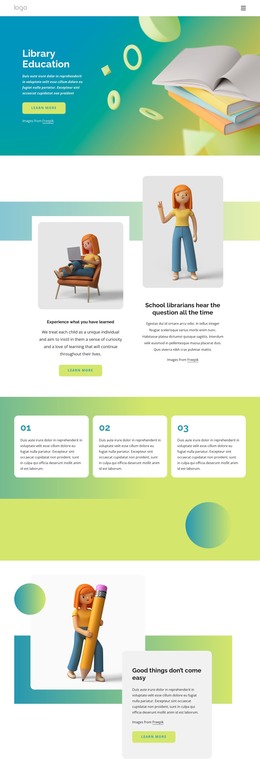
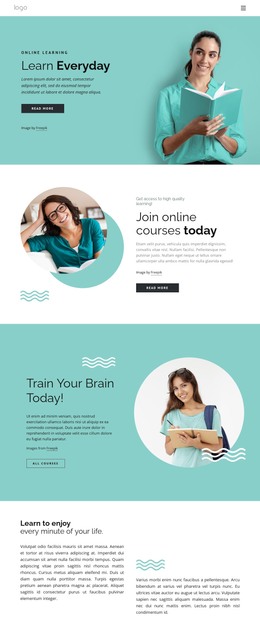
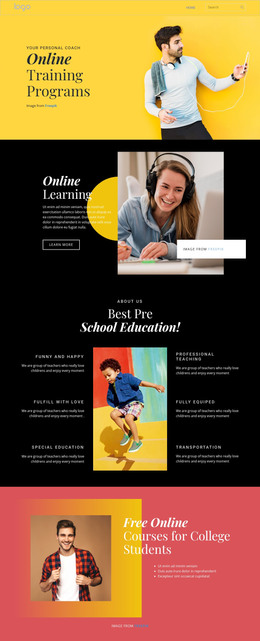
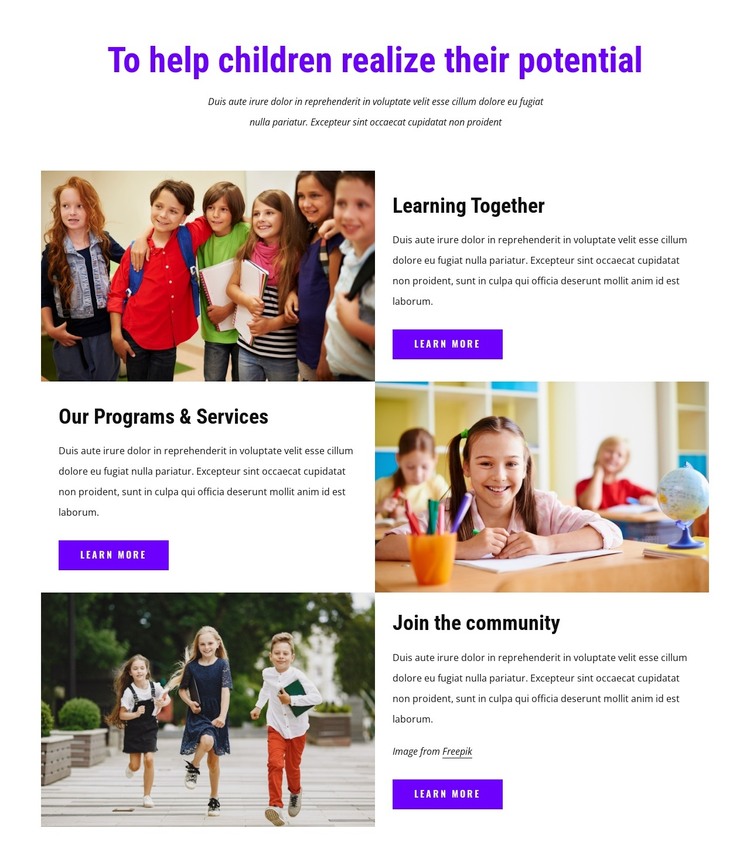
The heading “To help children realize their potential” gives the section a durable page-content theme rather than a time-sensitive announcement. Beneath it, the three rows organize related information into “Learning Together,” “Our Programs & Services,” and “Join the community.” Each unit has its own educational photograph, explanatory text, and Learn More button, allowing the content to remain readable as separate program or community topics within a WordPress-managed page.
The alternating image positions support this content model by giving each unit a slightly different visual entry point. The first row starts with the image on the left, the second leads with text on the left, and the third returns to the initial arrangement. Shared purple headings and buttons preserve continuity across the units, while the white background and vertical spacing prevent the section from reading as one dense article. The third row’s attribution line remains attached to its photograph as an additional content detail.
In a WordPress-oriented project, this block can function as a stable services or programs region on a page while the wider site handles other publishable content around it. Final descriptions and destination links can be adapted to the project’s actual education offerings. The section’s role is to present the related themes clearly and provide three potential paths for visitors who want more information.
Customize with Nicepage
Open this ready-made template in the WordPress Website Builder and customize it visually in the Nicepage editor. Replace demo content, edit page sections, and adapt the design to your project without rebuilding the template from scratch.
Edit Template Offline
2. Create a new page or select existing
3. Click Add new block, search for id 6087090 and click enter
Edit Template Online
Create Awesome Websites


Free Nicepage Builder
Keywords
Manage and Edit This Theme in WordPress
Customize and Install the WordPress Theme
Start with this ready-made theme instead of building the WordPress design from scratch. Customize its layout, content, typography, images, sections, and other design elements visually in Nicepage editor, then export and install the WordPress Theme, Plugin, and Pages on your WordPress site. The Nicepage WordPress Plugin lets you continue working with the site after installation.
Edit the Theme Directly in WordPress
After installation, you can edit the WordPress Theme directly in WordPress with the Nicepage WordPress Plugin. Use Site Style to customize site Colors, Fonts, Header, Footer, Blog, and Post Page Templates while working within your WordPress website.
Edit WordPress Pages Visually
Use the Nicepage WordPress Plugin to edit page content directly from the WordPress admin area. Open a WordPress Page with Nicepage and visually change its text, images, sections, and other page elements while continuing to manage the Page through WordPress.
WordPress Content and Theme Integration
Use the customized theme with WordPress Pages, Posts, Blog and Post Templates, menus, widgets, and other CMS-managed content. Shared theme elements such as Colors, Fonts, Header, Footer, Blog, and Post Page Templates can be managed as part of the overall site design, while WordPress provides the CMS environment for managing site content.
This workflow combines a ready-made WordPress Theme with visual customization, direct theme editing in WordPress, and continued content management through the Nicepage WordPress Plugin.