Making Life Better WordPress Theme


A Publishable Mission Area With a Strong Visual Entry Point
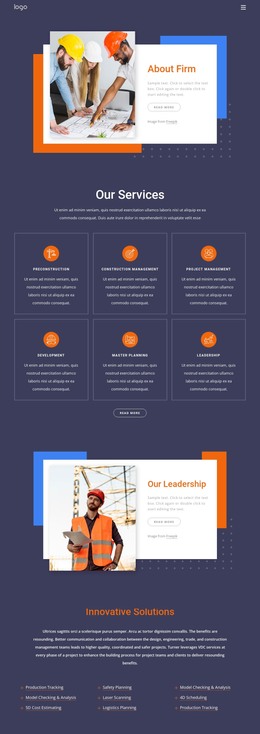
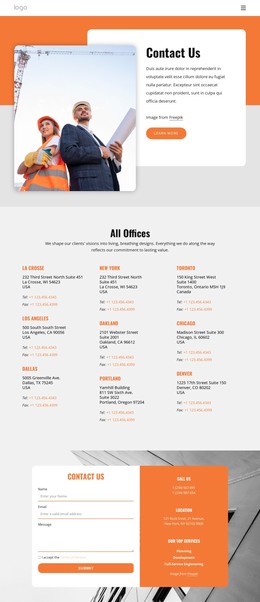
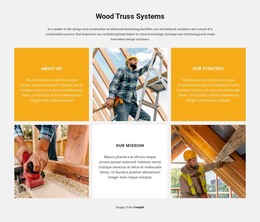
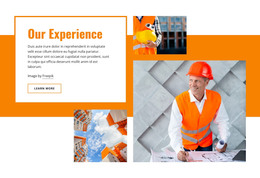
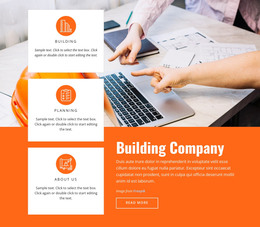
The construction worker photograph gives this section a concrete visual starting point, while the right-hand content explains the organization’s mission in words. “Our mission” frames the subject, “Making life better” provides the main statement, and the paragraph connects building construction with spaces for work, learning, play, and healing. The Read more button then offers a focused continuation for visitors who need fuller organizational information.
In a WordPress-oriented project, this arrangement can serve as stable page content rather than a time-sensitive listing. It reads naturally as a company-introduction or mission region that can remain on a broader services, About, or organizational page while other content areas evolve around it. The section’s visual logic is already contained within the block: a large rectangular image on the left balances a dark charcoal text panel on the right, with orange accents reinforcing the relationship between the two sides.
The block can therefore participate in a WordPress-managed page as one reusable content area, while the wider project handles navigation, additional sections, and publishing context. Its compact copy and single follow-up button leave room for neighboring service descriptions, project examples, team information, or contact content. The result is a page section that keeps its mission message visually consistent without being mistaken for a complete theme or site structure.
Customize with Nicepage
Open this ready-made template in the WordPress Website Builder and customize it visually in the Nicepage editor. Replace demo content, edit page sections, and adapt the design to your project without rebuilding the template from scratch.
Edit Template Offline
2. Create a new page or select existing
3. Click Add new block, search for id 74330 and click enter
Edit Template Online
Create Awesome Websites


Free Nicepage Builder
Keywords
Manage and Edit This Theme in WordPress
Customize and Install the WordPress Theme
Start with this ready-made theme instead of building the WordPress design from scratch. Customize its layout, content, typography, images, sections, and other design elements visually in Nicepage editor, then export and install the WordPress Theme, Plugin, and Pages on your WordPress site. The Nicepage WordPress Plugin lets you continue working with the site after installation.
Edit the Theme Directly in WordPress
After installation, you can edit the WordPress Theme directly in WordPress with the Nicepage WordPress Plugin. Use Site Style to customize site Colors, Fonts, Header, Footer, Blog, and Post Page Templates while working within your WordPress website.
Edit WordPress Pages Visually
Use the Nicepage WordPress Plugin to edit page content directly from the WordPress admin area. Open a WordPress Page with Nicepage and visually change its text, images, sections, and other page elements while continuing to manage the Page through WordPress.
WordPress Content and Theme Integration
Use the customized theme with WordPress Pages, Posts, Blog and Post Templates, menus, widgets, and other CMS-managed content. Shared theme elements such as Colors, Fonts, Header, Footer, Blog, and Post Page Templates can be managed as part of the overall site design, while WordPress provides the CMS environment for managing site content.
This workflow combines a ready-made WordPress Theme with visual customization, direct theme editing in WordPress, and continued content management through the Nicepage WordPress Plugin.