
Library Website Builder
Library staff can create a website for branch information, educational resources, and community programs without technical experience. A visual builder provides ready-made sections, editable content, mobile previews, and publishing options in one practical workflow.
More Website & HTML Templates for Library























More Website Builder from Education Category

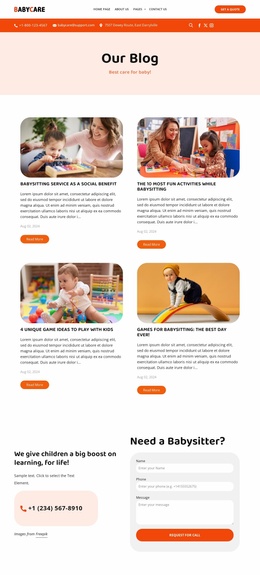

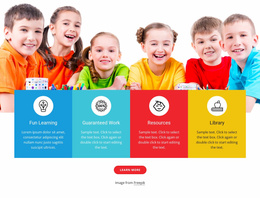





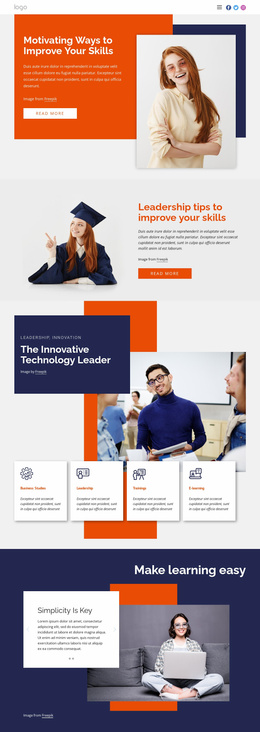
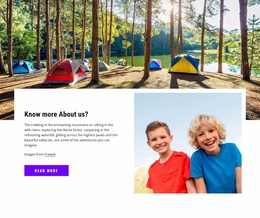


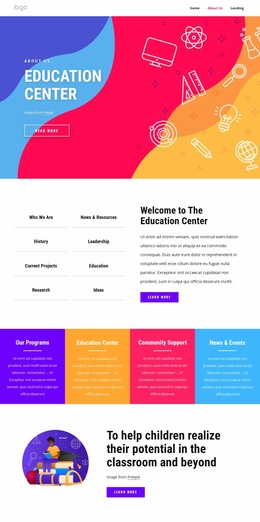
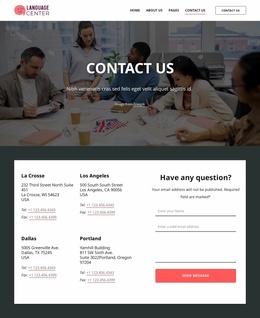
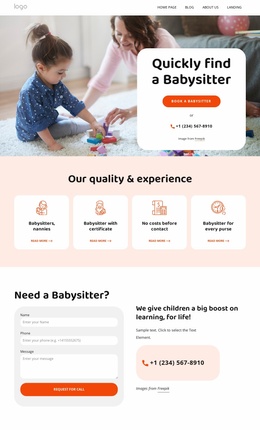
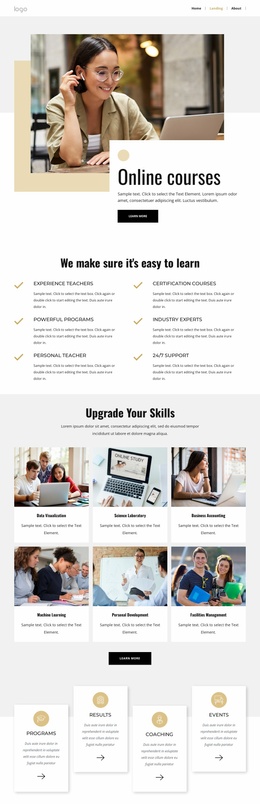



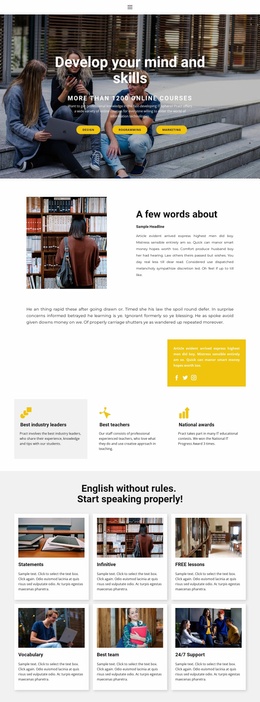
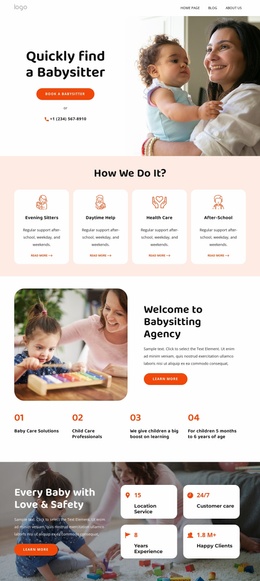
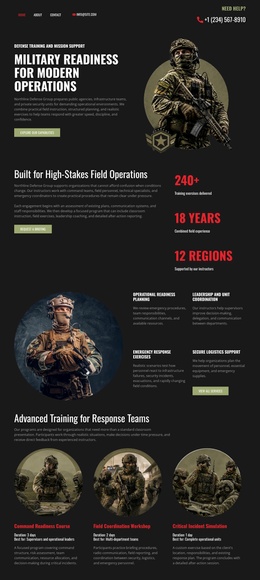
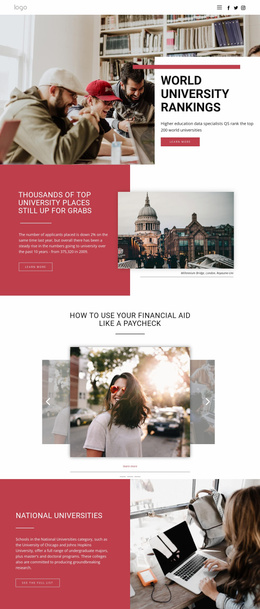

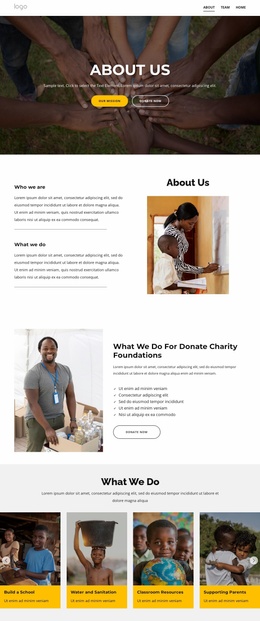
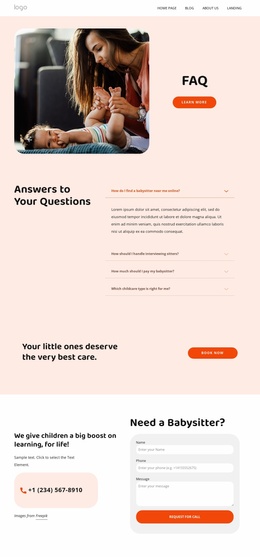

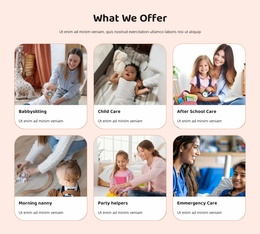

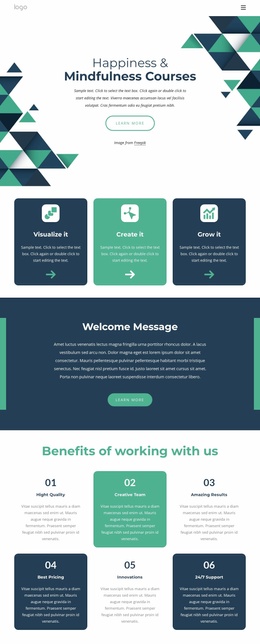
Other Education Website Builder
No-Code Library Website Builder for Library Staff
Start your library website with a visual builder that lets staff assemble useful pages without writing code. A library website builder helps school librarians, community library teams, and educational institutions introduce their services, display opening hours, and share reading programs through editable content blocks. Instead of relying on a developer for every layout adjustment, staff can prepare a practical website and manage routine presentation changes through a visual interface.
Assemble Library Pages With Ready-Made Blocks
Begin in the editor with the visitor task you want a block to support, such as checking opening hours or finding the contact desk. Choose a suitable block preset, then replace its example text, imagery, and links with the library’s actual information.
In Nicepage, a staff member can insert a services block into a prepared page, position its text and buttons on the visual canvas, check the phone layout, and publish. This edit–preview–publish sequence can be repeated when the library needs another content update.
Customize Library Information Without Programming
A practical library website creator should allow staff to replace example content with information that reflects their institution. For a school library, this may include study resources, classroom support, and reading recommendations. A neighborhood library may prioritize branch hours, children's activities, community notices, and contact information.
The Nicepage Add Pages, Blocks & Elements tools let staff choose ready-made page designs, insert block presets, and add individual elements through the Add Panel.
Staff can use this approach to assemble a service overview, add an introductory section for a new reading initiative, or rearrange content as library priorities change.
The process also lets staff adjust images, headings, buttons, and spacing in the editor. For example, if a branch changes its Saturday hours, staff can open the relevant page, replace the published time in its contact section, check the mobile view, and republish. The change is a manual content update, not an automatic sync with a branch management system.
Review the Visitor Experience Before Publication
After editing the content, review the website on desktop, tablet, and mobile. Make sure branch addresses, opening schedules, and essential service links remain easy to identify.
Check that buttons lead to the intended destination and that contact information is accurate. If the library relies on an external catalog, provide a clearly labeled link rather than suggesting that the website builder automatically supplies a live catalog database.
Publish and Maintain Your Library Website
Nicepage Online Builder supports creating and publishing static HTML websites through its hosting service. Library staff can publish the prepared site and return to the editor when announcements, program schedules, or resource descriptions require changes.
Staff can also export the completed website as HTML for third-party hosting when that workflow is preferred.
A no-code library website builder is particularly useful when staff need direct control over everyday website content. Start with essential library services, test the visitor experience across devices, and publish a site the team can confidently maintain as its activities evolve.